Admin: Assessments
Admins and Workspace Owners create and assign. Managers see results for their people.
An assessment is a short graded check: a little reading, then a few questions, each marked right or wrong. You set a pass mark, assign it to the people who need it, and see who passed, who is out of tries and who is overdue. Assessments suit safety checks, policy sign-offs, certifications and onboarding.
Assessments are separate from River Runs. They don't appear in the River Runs catalog, in Required Training or in River Runs badges and stats. Members find them in My assessments and on Home.
Where to find it
Go to Engage in the admin sidebar and open the Assessments tab (after River Runs). It has three views:
| View | What it shows |
|---|---|
| Assessments | Every assessment, with its status, what's in it, how many people it's assigned to and the share who passed |
| Assignments | Who each assessment is assigned to, its due rule and its status counts, or every assigned member in one list |
| Results | One assessment's results: totals, passes over time, and a table of members with their best score and tries |
Assessments are part of the same plans as River Runs. If you don't see the tab, your plan or your role doesn't include Assessments; see Role-based permissions.
The Assessments view
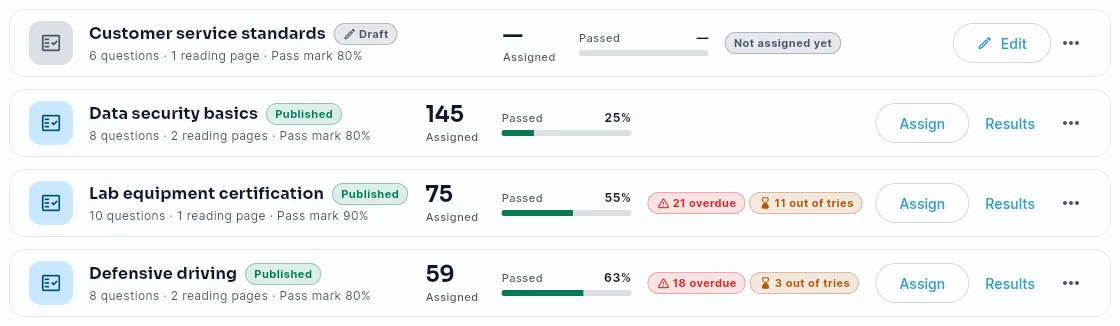
Each row shows the title, a Draft, Published or Archived pill, the number of questions and reading pages, the pass mark, how many people it's assigned to and the percentage who passed. A chip appears only when something needs you: 4 overdue, 2 out of tries, Everyone passed or Not assigned yet.
Use Active / Archived and the search box to find one. The ⋯ menu on a row holds Edit, Assign, Results, Duplicate, Archive (published), Restore (archived) and Delete draft (drafts nobody has taken).
Creating an assessment
Click New assessment, give it a title and click Create draft. The builder opens on the draft. Nothing is sent to anyone until you publish and assign it.
Start from a template
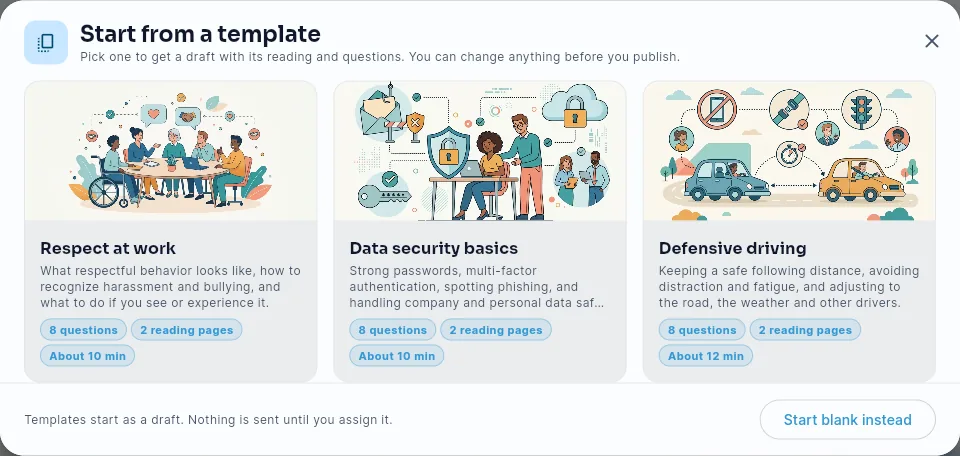
Click Start from a template to pick a ready-made assessment, such as Respect at work, Data security basics or Defensive driving. You get a draft copy with its reading and questions, which you can change before you publish. The button shows only when templates are available for your team.
The builder
The builder has five steps. On a computer they're listed on the left; on a phone, Back and Next are at the bottom.
- Details — the title, an optional description, and the estimated time (shown to members as "About 10 min").
- Reading — text pages members read before the questions. Add, edit, delete and drag pages to reorder them. The questions always come last. Reading is optional, and members can go back to it between tries.
- Questions — add single choice, multiple choice or fill in the blank questions and mark the right answer for each. Drag to reorder.
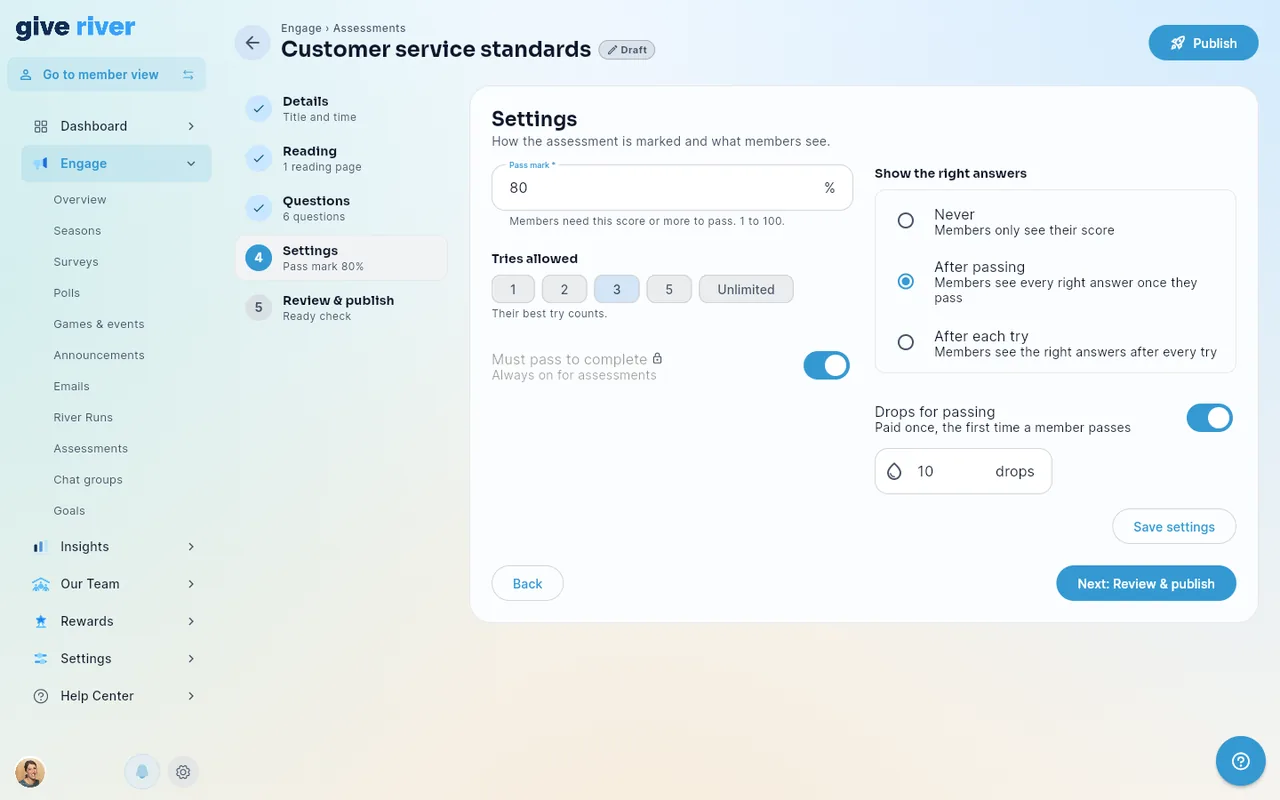
- Settings — how it's marked and what members see:
| Setting | Default | What it does |
|---|---|---|
| Pass mark | 80% | Members need this score or more to pass (1 to 100) |
| Tries allowed | 3 | 1, 2, 3, 5 or Unlimited. A member's best try counts |
| Must pass to complete | Always on | An assessment is complete only once the member passes |
| Show the right answers | After passing | Never, After passing, or After each try |
| Drops for passing | On, 10 drops | Paid once, the first time a member passes |
- Review & publish — a ready check lists anything to fix before you publish: a missing title, no questions, a question without a right answer, or no pass mark. Each problem has a button that takes you to it. A preview shows what members see. Click Publish when it's ready. Publishing alone sends nothing: assign it next.
When questions lock
Once the first person submits a try, the questions and the pass mark lock, so everyone is marked the same way. A banner says so at the top of the builder. You can still change the title, description, reading, tries allowed, when answers show and the drops.
To change the questions or the pass mark, click Duplicate to change questions in the banner (or Duplicate in the row's menu). The copy is a draft with the same content, which you can edit and publish. In the duplicate dialog, tick Move its assignments to the copy to move the people assigned to the original over to the copy: they take the copy instead, starting fresh, and the original is archived. Its results stay in Results.
Assigning an assessment
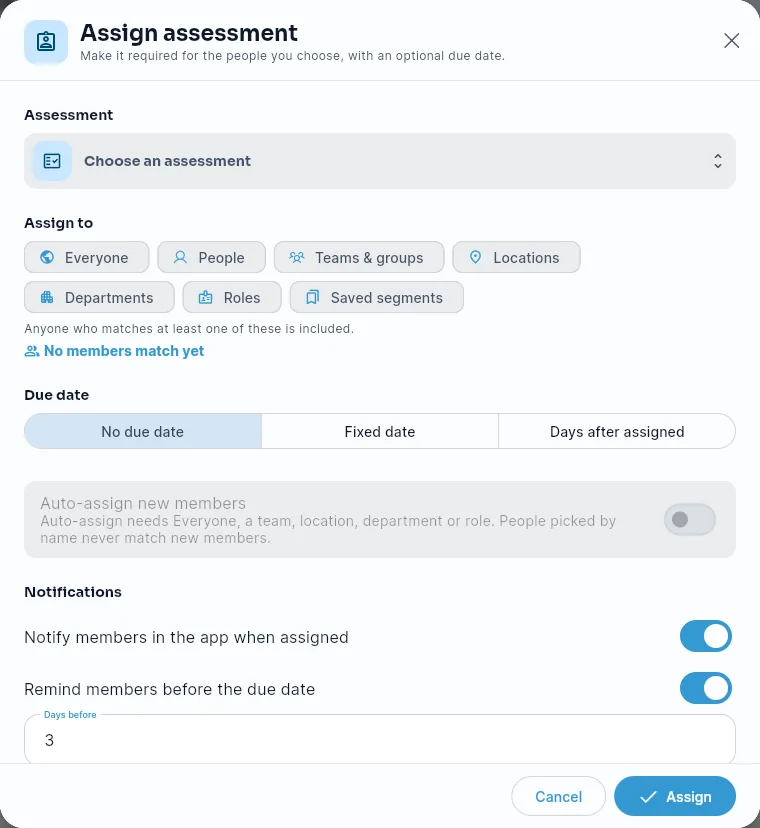
Click Assign on a published assessment (or New assignment on the Assignments view). The dialog works like the Required Training one; see Required Training for the details of each option.
- Assessment — the published assessment to assign.
- Assign to — Everyone, People, Teams & groups, Locations, Departments, Roles or a saved segment.
- Due — no due date, a fixed date, or a number of days after each person is assigned.
- Also assign to people who join later — new members who match are assigned automatically.
- Notices — tell members in the app when it's assigned, email them too, remind them before it's due and when it's overdue, and include it in the weekly admin digest. The admin digest is on by default: a Monday email listing who is overdue and who is out of tries.
If the assessment already has an assignment, the dialog offers to edit that one instead.
Assigned members get a notice, see the assessment on Home (in Dailies and the My assessments card) and in My assessments.
Results
Open Results. It starts on your first published assessment; pick another in the Assessment menu. You see:
- Tiles: Assigned, Started, Passed, Out of tries, Overdue, % passed, Average score and Average time.
- Passed over time: how many people have passed, week by week, against the number assigned.
- The member table: each person's status, best score, tries used, time on their best try, and when they passed or when it's due. A try someone started and hasn't submitted shows as 1 of 3 with in progress under it (Try 1 with in progress when tries are unlimited). Filter by location, team and status, search by name, and sort by needs attention (out of tries first, then overdue), name, best score, due date or last try.
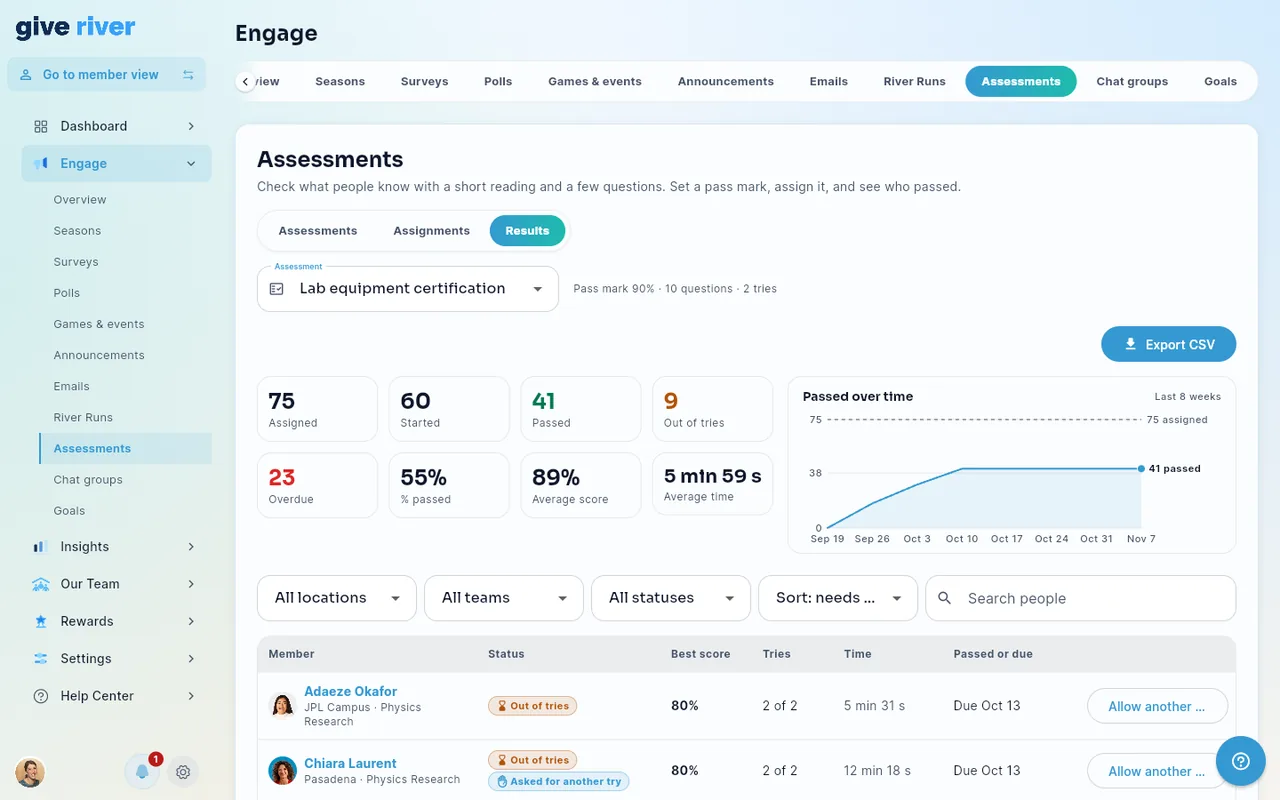
Statuses are Passed, In progress, Not started, Out of tries and Overdue. Out of tries means the person used every try without passing: it's the state you can fix.
Click Export CSV to download the rows currently shown, with each person's status, scores, tries, time and dates.
Report card
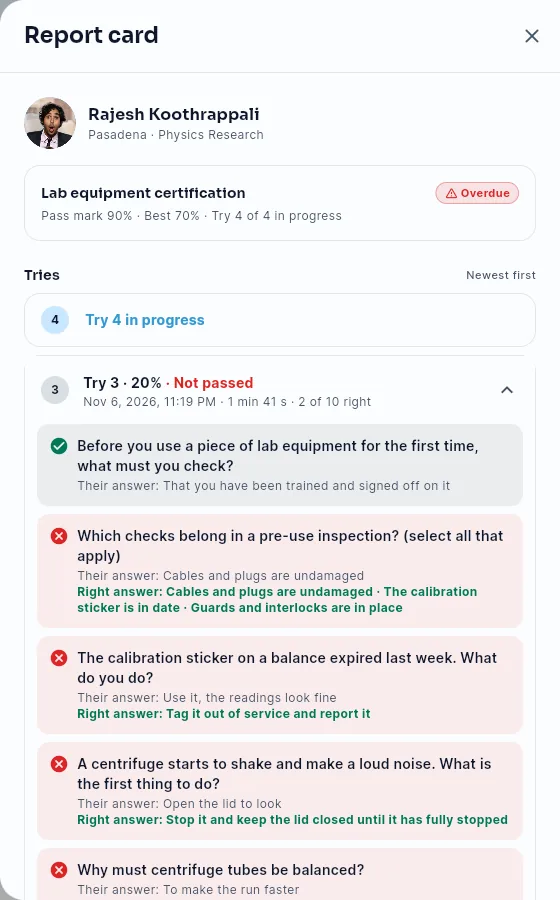
Click a member to open their report card: their status, best score and tries used, and each try (newest first) with its score, date and time taken. A try they started and haven't submitted is listed as Try N in progress. If you allow another try while the report card is open, the table behind it updates straight away; closing a report card opened from a notice takes you to the assessment's Results. Open a try to see every question, the answer they gave, whether it was right, and the right answer for the ones they missed.
Allow another try
For a member who is out of tries, click Allow another try in the table or on the report card. They get one more try and a notice that they can take it again.
Members who are out of tries can tap Request another try. Their request reaches the team's admins and their manager as a notice, and the member shows Asked for another try in the table and on their report card. Allowing another try answers the request.
Archiving and deleting
Archive takes an assessment out of the assign list. Its results stay readable in Results, and you can Restore it later. If it still has active assignments, the confirmation says how many end with it (nobody gets more reminders).
Delete draft is only for drafts nobody has taken and nobody is assigned. It removes the draft for good.
What Managers see
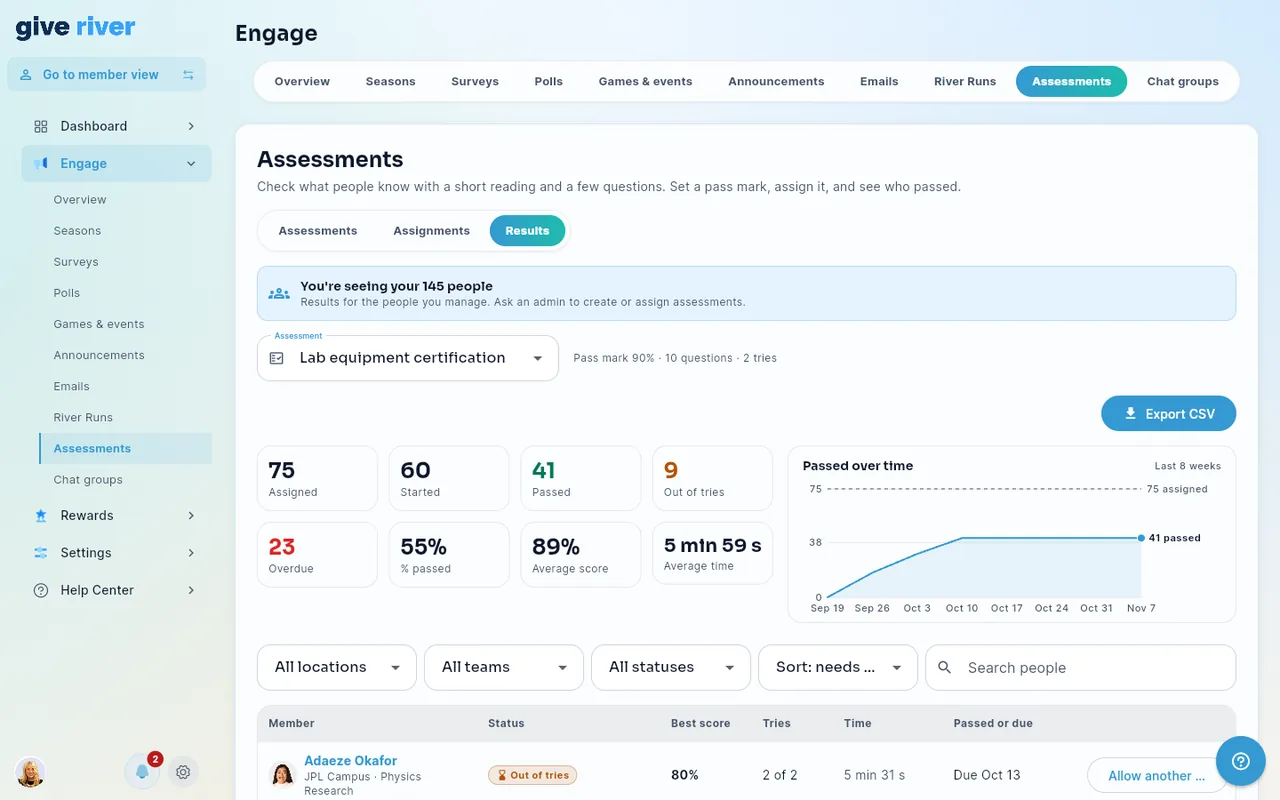
Managers who hold the Assessments permission see the Assessments tab read-only, for the people they manage:
- a banner at the top: "You're seeing your N people";
- the list of assessments, drafts included, and each one's content (no editing; the last step is called Review and shows the ready check and a preview);
- Assignments and Results counted over their people only;
- report cards for their people, and Allow another try for them.
Creating, editing, publishing, assigning and archiving stay with Admins.
Related articles
Did this article help?
Related articles.
See the platform in action.
Free for up to 25 members, or try Core or Growth free for 30 days. A card is required; Free is never charged, and a trial bills when it ends unless you cancel.