
Respect at work
What respectful behavior looks like, how to recognize harassment and bullying, and what to do if you see or experience it.
About 10 min
Short knowledge checks: a little reading, a few questions and a pass mark. Assign them to the people who need them, and see who passed, who's overdue and who needs another try.
Assessments suit safety checks, policy sign-offs, certifications and onboarding: anything where you need to know people understood it, not just that they clicked through.

Start from a template or from scratch. Add a short reading, then a few questions, and set the pass mark.

Pick who needs it and when it's due. Give River sends the notice and the reminders for you.

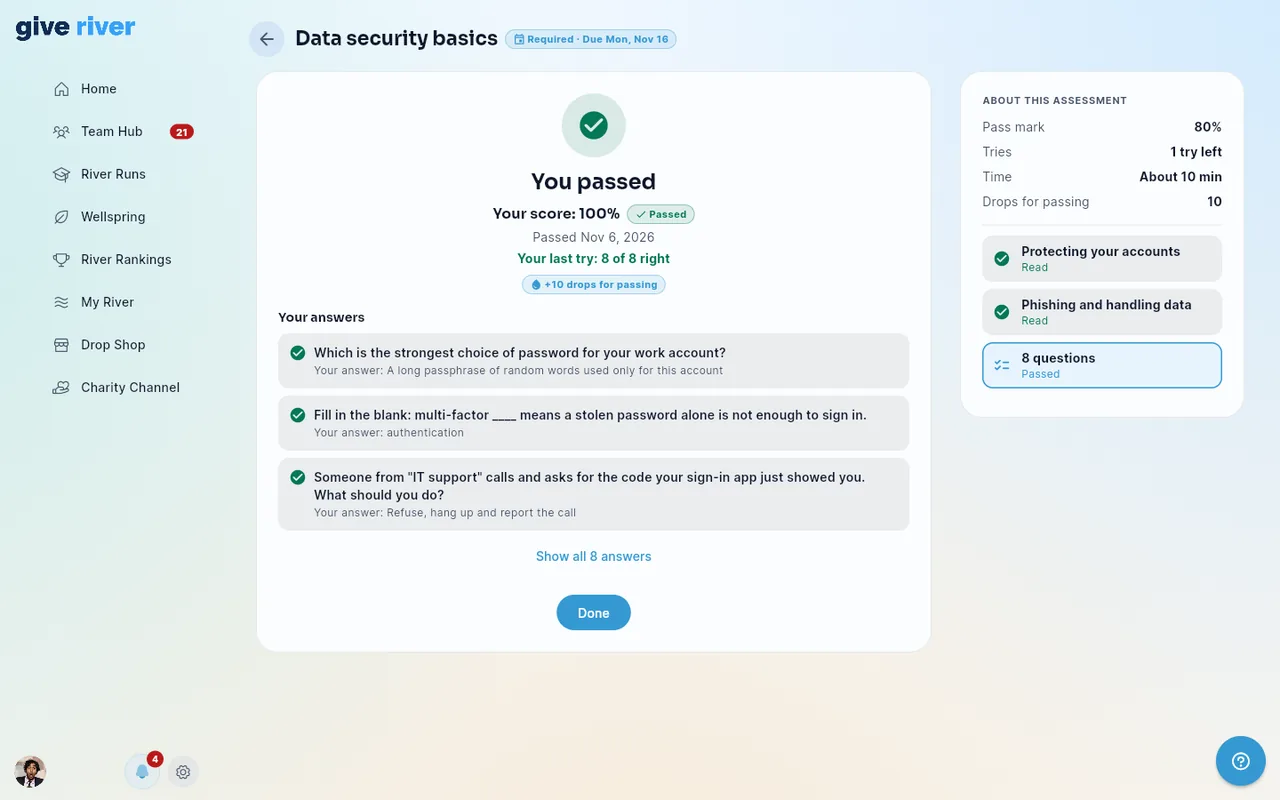
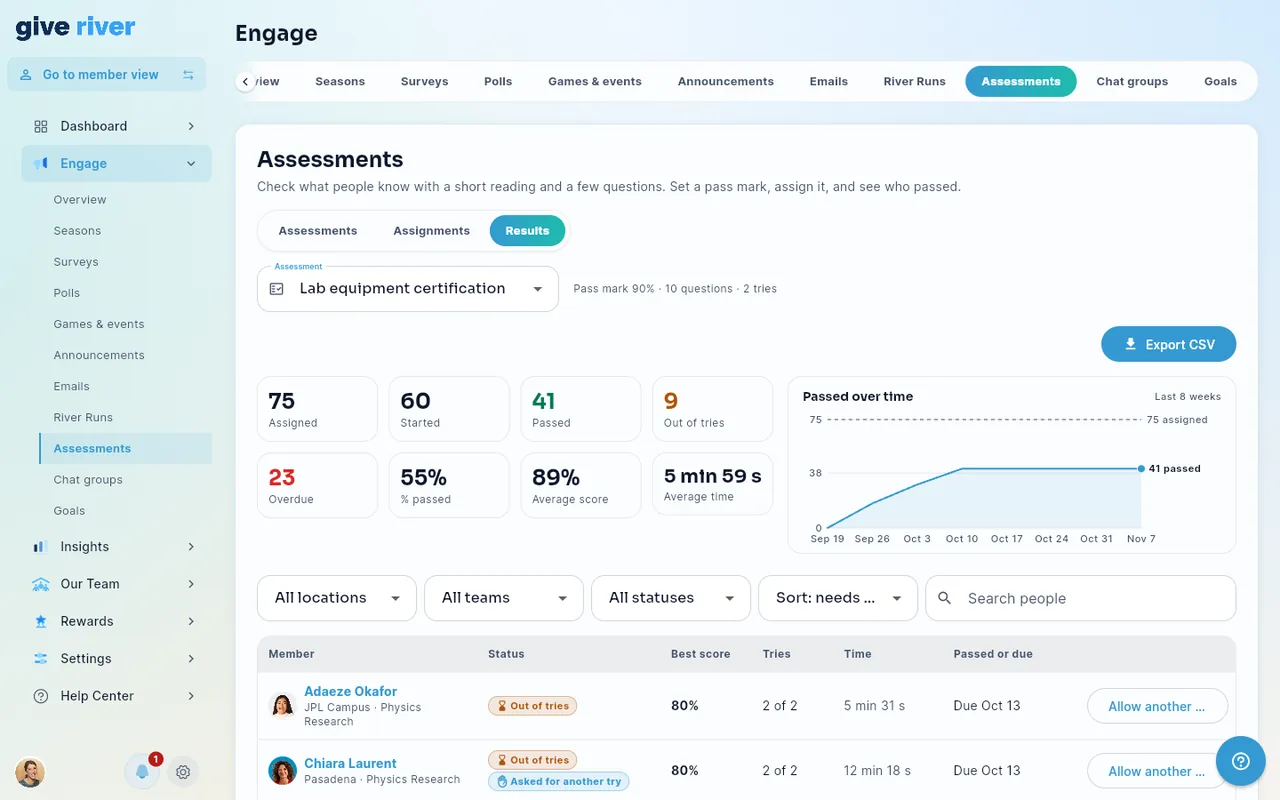
Results show who passed, who's overdue and who's out of tries, with every try and every answer.
Pick a template and you get a draft with its reading and questions already written. Change anything you like before you publish. More templates are on the way.
What respectful behavior looks like, how to recognize harassment and bullying, and what to do if you see or experience it.
About 10 min

Strong passwords, multi-factor authentication, spotting phishing, and handling company and personal data safely.
About 10 min

Keeping a safe following distance, avoiding distraction and fatigue, and adjusting to the road, the weather and other drivers.
About 12 min
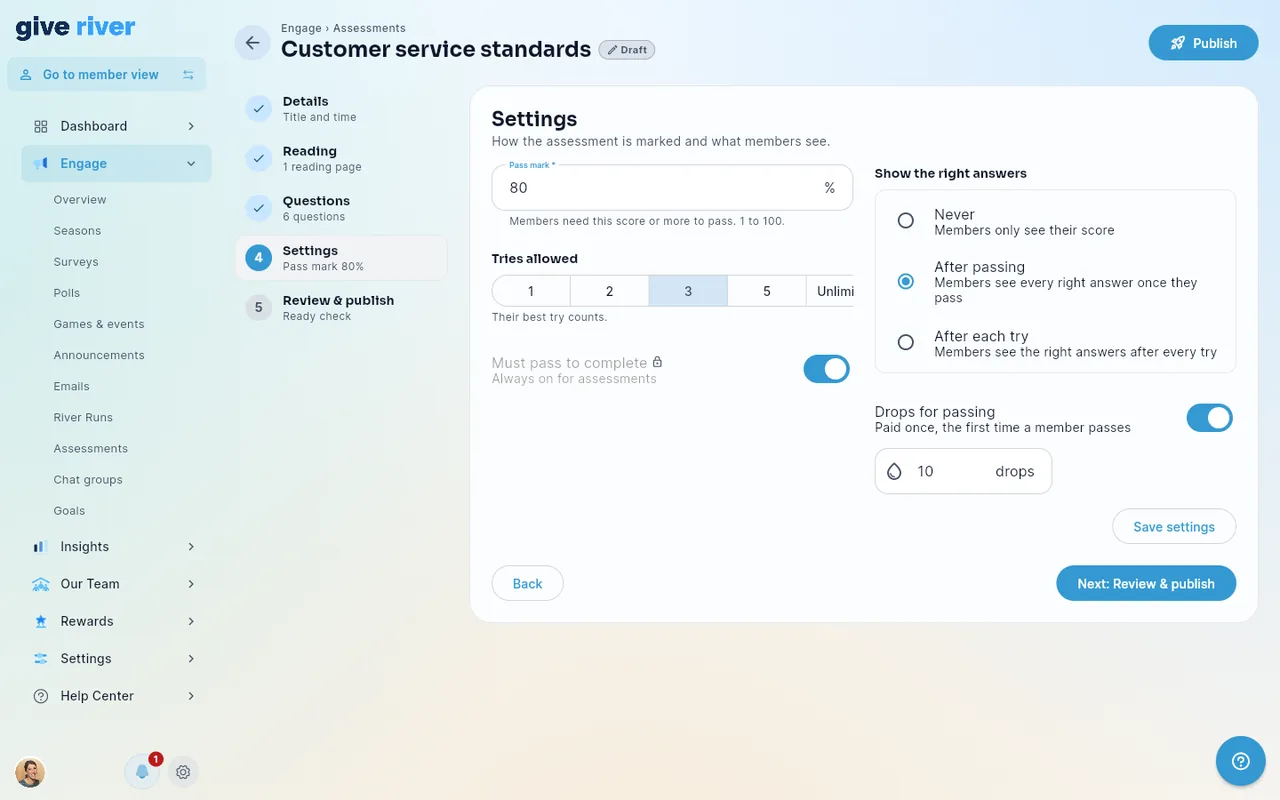
A five-step builder walks you through the details, the reading, the questions, the settings and a ready check before you publish.
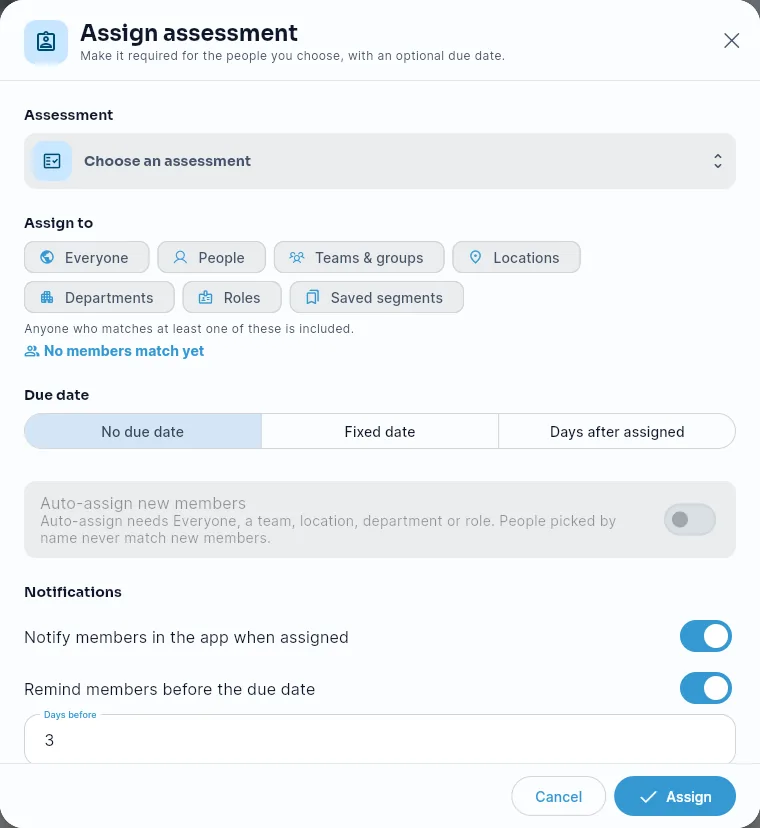
Send an assessment to everyone, or only to the people who need it. Set a due date and Give River handles the nudging.
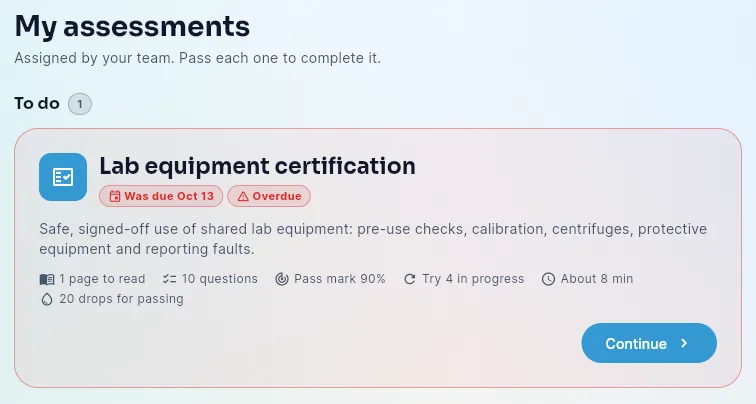
Assessments show up in Dailies on Home and under My assessments, with the due date, the pass mark, the tries left, the time it takes and the drops for passing.
Pick an assessment and see where everyone stands, then sort by who needs attention first.
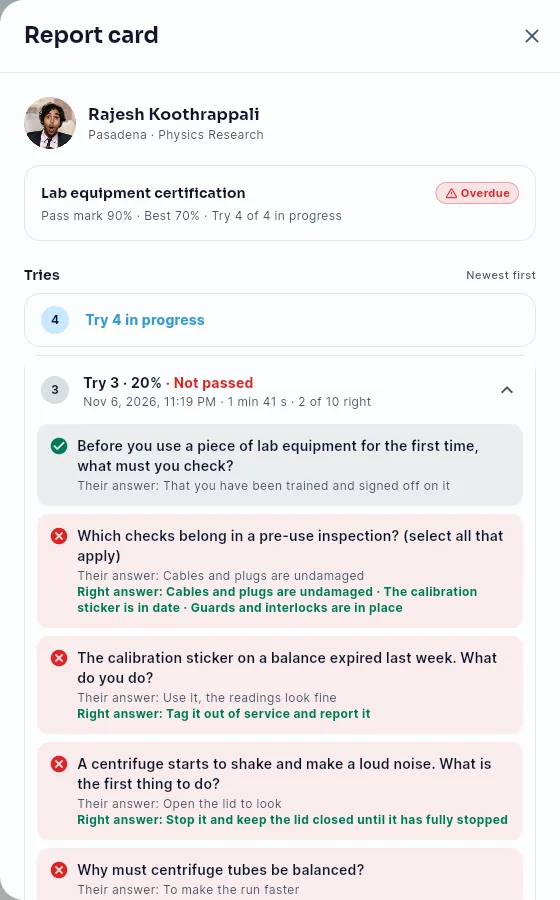
Open anyone's report card to see each try with its score, date and time, and every answer they gave next to the right one.
River Runs are short, gamified lessons people take to grow. Assessments are graded checks with a pass mark, for the things people need to know. They live side by side, each with its own list, and both come with Core and Growth. See learning and development on Give River.
Anything where you need to know people understood something, not just that they opened it: safety checks, policy sign-offs, certifications and onboarding. Each one is a short reading followed by a few questions, marked right or wrong against a pass mark you set.
Assessments come with the same plans as River Runs: Core and Growth. They aren't part of the Free plan.
Single choice, multiple choice and fill in the blank. You mark the right answer for each question, and Give River does the scoring.
They show as Out of tries in your results, and they can tap Request another try. Their admins and their manager get a notice, and anyone who can see their results can click Allow another try. They're told straight away that they can take it again.
Once the first person submits a try, the questions and the pass mark lock, so everyone is marked the same way. You can still edit the title, the reading, the tries allowed, when answers show and the drops. To change the questions, duplicate the assessment, edit the copy and, if you like, move everyone's assignments over to it.
Yes. Managers who hold the Assessments permission see results, report cards and assignments for the people they manage, and can allow another try. Creating, editing and assigning assessments stays with admins.
If you want them to. Drops for passing are on by default at 10, and you can change the amount or turn them off. They're paid once, the first time someone passes.
Yes. Members take assessments in the Give River app on iPhone and Android or in a web browser, and the app works in English and Spanish.
Assessments come with Core and Growth. Try either free for 30 days: a card is required, and a trial bills when it ends unless you cancel.