Roles and Permissions
Every member of your organization has one role. The role decides which admin areas they can see and what they can change there. Members see the member app only; everyone else sees the admin view, limited to what their role allows.
The default roles
Every organization starts with six roles. You can't delete them, and you can change the permissions of all of them except the Workspace Owner.
| Role | What it's for |
|---|---|
| Workspace Owner | The person who owns the organization. Has every permission your plan includes, always. There is one owner. |
| Admin | Runs Give River day to day. Has every admin permission. |
| Manager | Runs programmes: seasons, surveys, polls, events, announcements, River Runs, chat groups, tags, milestones, awards, rewards and badges. Sees the weekly briefing and reward report for their own people, and approves their own people's requests. |
| Location Manager | A light admin role: chat groups, milestones and awards. With the Dashboard or rewards permissions, sees their own location's people. |
| River Guide | Same programme permissions as a Manager, plus Insights, for the person at Give River who guides your rollout. Sees the whole company. |
| Member | Everyone else. No admin permissions. |
You can also create custom roles with any mix of permissions.
When you pick a role for someone (Edit member → Team Role), each role in the list has a short line under its name saying what it can reach — for example "Everything, including billing" for the Workspace Owner, "Their reports' briefing, rewards and approvals" for a Manager, or the first few areas a custom role opens.
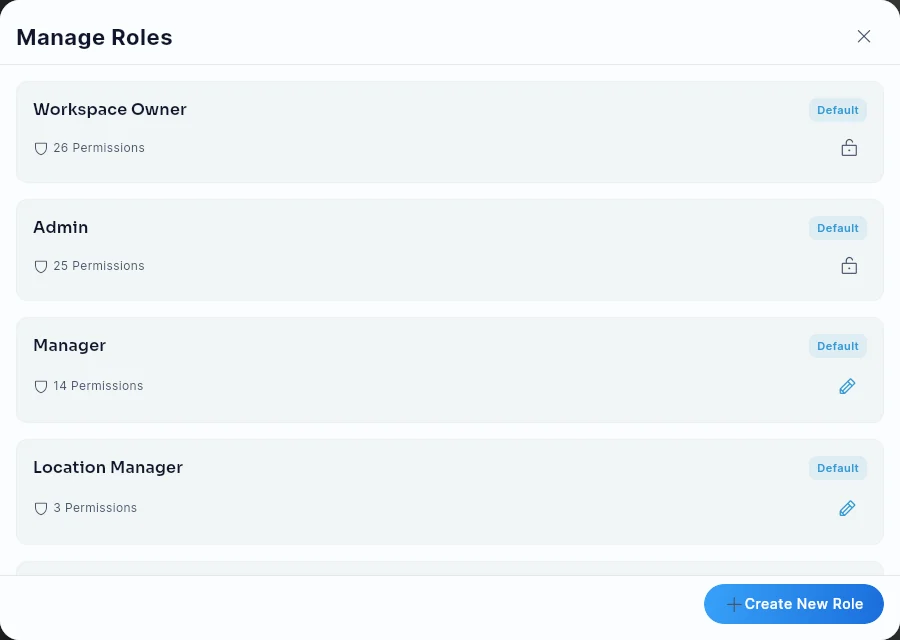
What each default role can do
These are the permissions a role starts with. An Admin can change them for Manager, Location Manager, River Guide and custom roles in Our Team → Add Members (or Edit) → Role → Manage Roles.
| Permission | Admin | Manager | Location Manager | River Guide |
|---|---|---|---|---|
| Dashboard | ✓ | ✓ | ✓ | |
| Our Team (see members) | ✓ | |||
| Add/Edit Team Members | ✓ | |||
| Export Team Members Data | ✓ | |||
| Manage Members Drops (give extra drops) | ✓ | |||
| Insights | ✓ | ✓ | ||
| Admin Settings | ✓ | |||
| Drop Defaults | ✓ | |||
| Subscription Billing Management | ✓ | |||
| Gift Cards Billing Management | ✓ | |||
| Seasons, Surveys, Polls, Events | ✓ | ✓ | ✓ | |
| Video Events | ✓ | ✓ | ✓ | |
| Announcements, River Runs, Tags | ✓ | ✓ | ✓ | |
| Chat Groups | ✓ | ✓ | ✓ | ✓ |
| Team Emails (Engage → Emails) | ✓ | |||
| Milestones, Awards | ✓ | ✓ | ✓ | ✓ |
| Custom Rewards, Gift Cards, Badges | ✓ | ✓ | ✓ |
The Workspace Owner has every permission. Members have none.
Managers without Team Emails can still email their own direct reports (My team only) — see Team Emails.
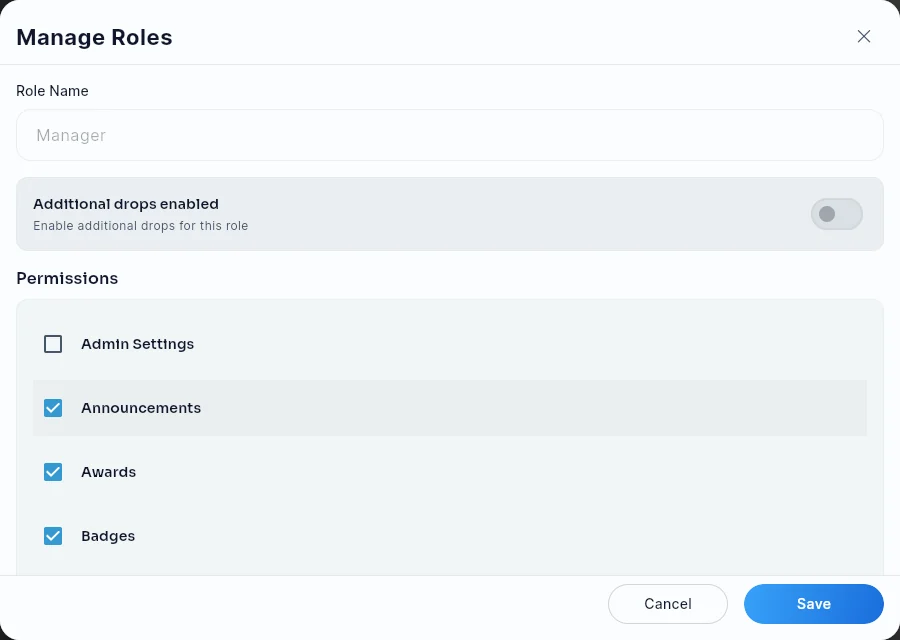
What only an Admin or the Workspace Owner can do
Some things don't depend on permissions. Only an Admin or the Workspace Owner can:
- Create, edit or delete roles. Other roles that can open Our Team see the role list but can't change it.
- Give someone a role above Member, or change or remove the role of anyone above Member. Only the Workspace Owner can make someone the Workspace Owner or change the owner.
- Manage billing: the subscription and the Rewards Account. Ticking a billing permission on a lower role has no effect.
- Set up integrations: Slack, Microsoft Teams and HR systems (Settings → Integrations).
- Manage SMART Goals for the whole organization (Engage → Goals). Managers still approve their own reports' goals in My River → My Goals → Approvals.
Two more rules protect your permissions:
- Nobody can change their own role's permissions. An Admin can't edit the Admin role; only the Workspace Owner can.
- Nobody can change the Workspace Owner role. It always has everything.
What Managers see
Managers and Location Managers see their own people, not the whole company, on these pages:
- the Weekly briefing (Dashboard → Overview) and its Monday email,
- the Reward redemption report (Rewards → Reports) and its downloads,
- the approvals in Action Items and Rewards → Pending Rewards: reward requests, birthday and anniversary rewards, health challenge claims and River Run requests. They approve or reject only their own people's requests, never their own.
Who counts as "their people":
| Role | Sees |
|---|---|
| Manager | Themselves and everyone who reports to them, directly or through their managers. |
| Location Manager | Themselves and everyone at their location. |
| Workspace Owner, Admin, River Guide | The whole company. |
| Custom roles | The whole company. |
Who reports to whom comes from the Manager field on each member (Members → a member → Edit), or from your HR system when it's connected. A Manager with nobody reporting to them sees a short explanation instead of company data. These pages show a note such as Showing your team (8 people) so it's clear what's included.
Insights pages show the whole company to every role that has the Insights permission. The reward report's monthly email and its recipients are set by an Admin or the Workspace Owner only.
How permissions work
- A role sees an admin area only if it has that area's permission, and Give River checks the same permission again whenever they act, so the app hides what a role can't use.
- If you try something your role doesn't allow, you'll see a message like "You don't have permission to do this in this team." Ask an Admin to change your role or its permissions.
- If you open a page your role can't use (by typing its address, from an old bookmark or from a link someone sent you), you'll see "You don't have access to this page" instead. Use Go to Dashboard (or Go Home) to get back, and ask an Admin if you need access. If you can open the page but not the tab in the link, Give River opens the first tab you can use instead.
- Your organization's plan comes first: a permission does nothing for a feature your plan doesn't include.
- Permission changes take effect within a few minutes. Sign out and back in if you don't see a change.
Checking your role
Admins can see everyone's role in the Role column of the Members list. The admin areas you can open reflect your role's permissions. To change your role, ask an Admin or the Workspace Owner.
Did this article help?
Related articles.
See the platform in action.
Free for up to 25 members, or try Core or Growth free for 30 days. A card is required; Free is never charged, and a trial bills when it ends unless you cancel.