Admin Approval Notifications
Give River can email selected admins whenever something needs approval — a reward or gift-card redemption, a new-member join request, a member-removal request, or a SMART goal or milestone — and send a couple of gentle reminders while an item stays pending. You configure this from the Settings > Notifications tab.
Accessing the settings
- Navigate to Settings in the main sidebar.
- Open the Notifications tab.
- Find the Approval notifications section.
Who can change these settings
Only billing admins can edit approval-notification settings. Other admins can see the section, but the controls are read-only and a note explains that only billing admins can make changes.
Turning approval emails on or off
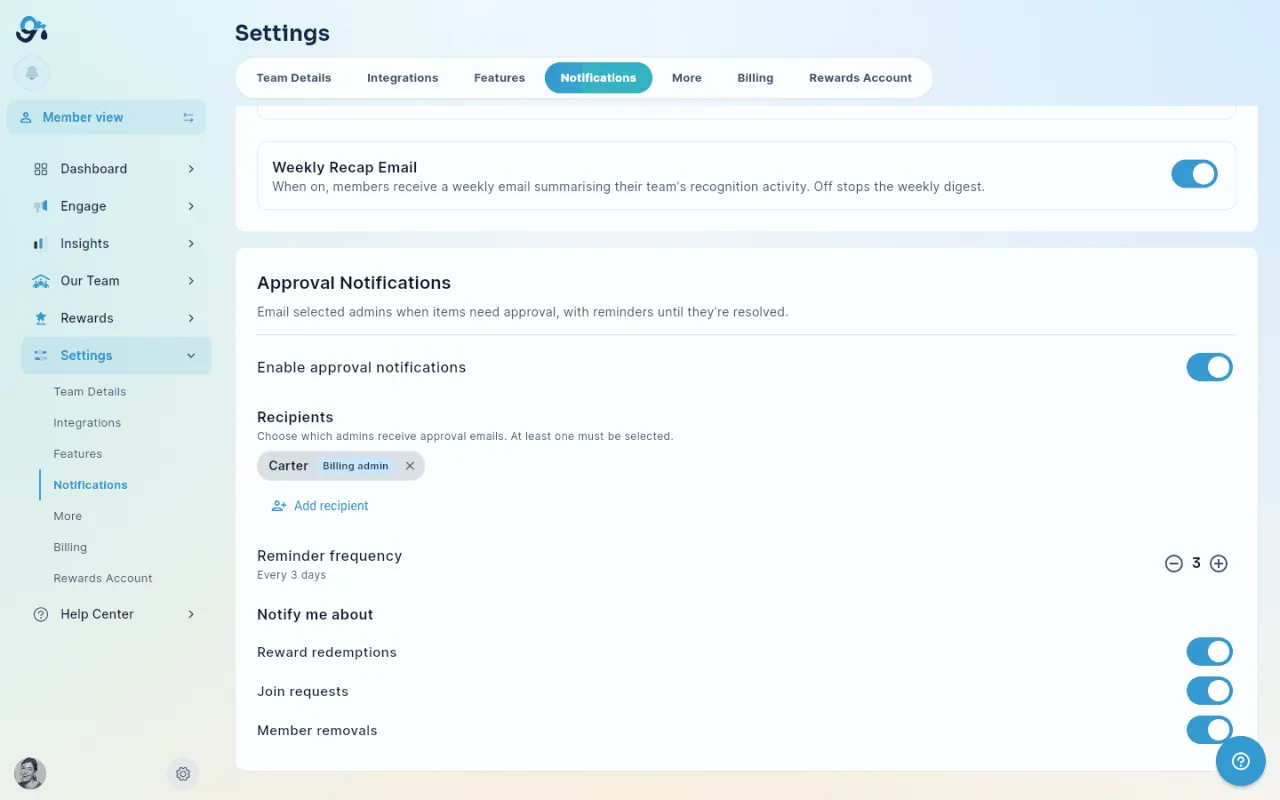
Use the Enable approval notifications toggle at the top of the section to turn all approval emails on or off for your team.
Choosing who receives the emails
Recipients are shown as chips, and the billing admin is selected by default.
- Tap Add recipient to open the recipient picker.
- Search for an admin by name or email, then tap to select them. Selected admins show a check; tap again to deselect.
- Remove a recipient directly from its chip using the ×.
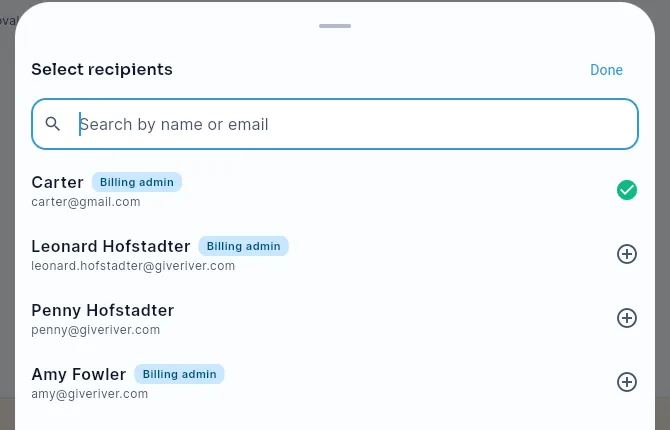
At least one recipient is always required — the last recipient cannot be removed.
Recipients stay current automatically. If an admin is removed from the team, deactivated, deleted, or loses admin access, they are dropped from the recipient list (and a billing admin is restored if the list would otherwise be empty).
Setting when reminders go out
If an item is still waiting, Give River reminds the recipients twice, then stops:
- A first reminder after the number of days you set under Reminders (3 by default; use − and + to change it).
- A final reminder at day 7 — or at twice your setting, if that's later (for example, day 10 when the first reminder is at day 5). The team's Workspace Owner is copied on the final reminder if they aren't already a recipient.
- After that, no more emails about that item. It stays in Needs you on your Weekly briefing until someone approves or declines it.
The setting reads, for example, "First reminder after 3 days, a final one at day 7, then it waits in your weekly briefing."
Choosing which approvals trigger an email
Under Notify me about, toggle each type independently:
| Type | Triggers an email when… |
|---|---|
| Reward redemptions | A member redeems a reward or gift card that needs admin approval |
| Join requests | A person requests to join the team |
| Member removals | A member requests to be removed from the team |
| Goal and milestone approvals | A member submits a SMART goal or milestone for review. It goes to the member's manager; members without a manager go to the recipients above. |
What the email contains
Approval emails are grouped: each person gets one email listing everything that needs them, headed Needs your approval (for example, "3 things need your approval"). Requests that arrive close together — say, several redemptions in a few minutes — come in the same email, and the reminder run sends at most one email per person a day.
The email shows your team's logo at the top (or the Give River logo if your team hasn't added one). Each request gets its own card with:
- what it is (reward request, join request, removal request, goal or milestone approval),
- who asked and what for,
- how long it has been waiting (for example, "waiting 4 days"),
- a New, Reminder or Final reminder tag.
One button opens the approvals inbox in the Give River app (the Action Items tab of the dashboard), where you see the full details and approve or decline. A manager whose email holds only goal approvals gets Review goals instead, which opens the Approvals view of My River → My Goals. The footer links back to these notification settings.
Anything that was approved or declined before the email went out is left off it, and nobody is emailed about their own request.
Did this article help?
Related articles.
See the platform in action.
Free for up to 25 members, or try Core or Growth free for 30 days. A card is required; Free is never charged, and a trial bills when it ends unless you cancel.