Admin Drop Settings and Defaults
Drop settings control how recognition currency (drops) are allocated, distributed, and counted across your team. These settings are found under Settings > Features and Settings > Rewards Account (billing page).
Accessing Drop Settings
- Navigate to Settings in the main sidebar.
- Select the Features tab for drop-related feature toggles.
- Select the Rewards Account tab for billing and Tango API/reward account configuration.
Features Tab — Drop-Related Settings
River Rankings
River Rankings displays a leaderboard of members ranked by drops received.
| Sub-setting | Description |
|---|---|
| Count Manager Bonus Drops | Turn on to count the extra drops team managers get to give toward the rankings. Off ranks members on drops from everyone's regular allowance only |
| Count Additional Bonus Drops | Turn on to count additional drops an admin granted to a member in the rankings |
To configure:
- Enable River Rankings using its toggle.
- Once enabled, two sub-options appear below. Toggle each as appropriate for your team.
- Changes save immediately.
People left out of River Rankings
Below the two River Rankings sub-options, People left out of River Rankings lists the members your team's rankings leave out, such as an owner or an HR lead who shouldn't compete. They don't show on any Rankings tab (Overall or Season), in season standings or in the Slack rankings, and they can't win season prizes. They still give and receive drops as usual, and the people they recognize still get the credit.
- Click Leave someone out, search for the person and click their name. They're added to the list right away.
- To put someone back, click the × on their name.
Every change is recorded in the audit log.
To leave someone out of one season only, use the People and teams step of that season instead (see Season Creation and Management). That list only applies to that season: the person still shows on the Overall tab.
Drop Shop
The Drop Shop lets members redeem earned drops for rewards.
- Toggle Drop Shop ON to enable this feature.
- When enabled, a River Bank Drop Settings sub-section appears.
- Click Manage to open the River Bank Drop Settings dialog.
River Bank accrual templates
Instead of toggling a dozen individual drop sources, the dialog leads with a template chooser — pick the preset that best matches your team's policy and the underlying toggles configure themselves:
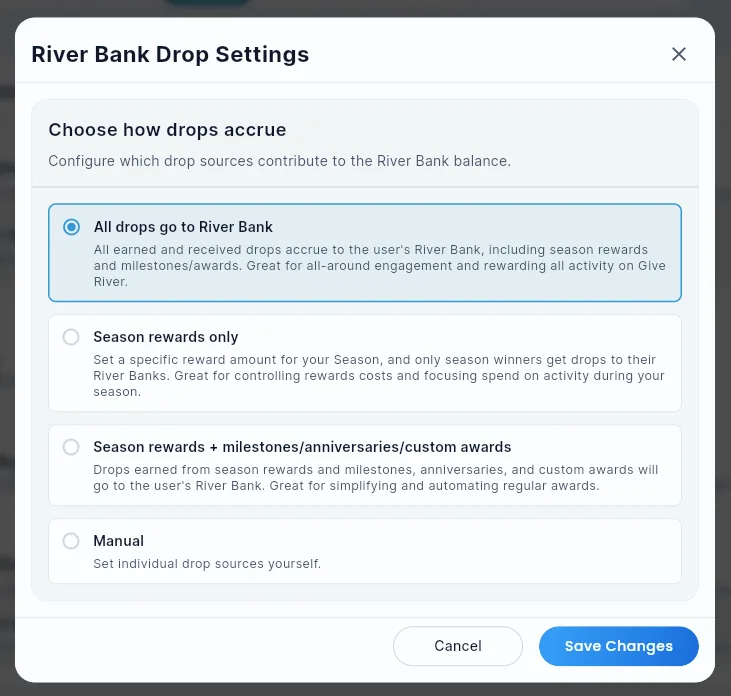
| Template | What accrues to River Bank |
|---|---|
| All drops | Every drop type contributes — the most generous setting. |
| Season rewards only | Only season-end placement rewards. |
| Season rewards + milestones / anniversaries / custom awards | Season rewards plus the major one-off recognition payouts. |
| Manual | Reveals the individual per-drop-source toggles for advanced control (the original behavior). |
Each template card shows a short description. The template that matches your current settings is preselected. Applying a template overwrites the toggles to match — switch to Manual if you need to tune individual sources after that.
Click Save Changes to apply. (A template is just a quick way to set the toggles; the toggles are what count.)
Stream Streak
Stream Streak rewards members who give drops consistently over time.
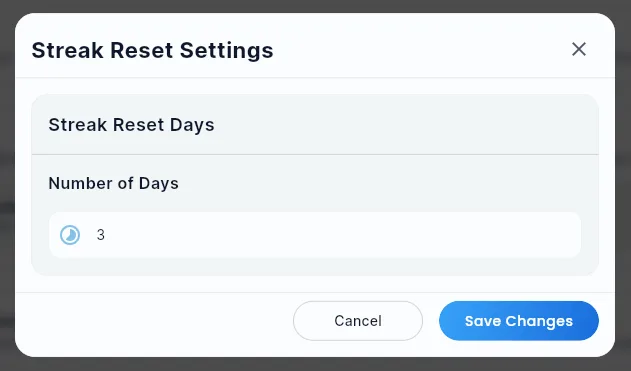
- Click Manage next to Stream Streak to open the Streak Reset Settings dialog.
- Enter the number of days after which a streak resets if no drop activity occurs.
- Click Save Changes.
Drops Are Company-Wide; Seasons Add Prizes
Drop allowances are set for the whole company, not per season: how many drops each person can give, the most a person can earn, the drop cycle (weekly or monthly) and the value of a drop all live in Drop Defaults (see below), and they apply the same way during every season.
A season adds its own prizes on top: drops paid to the top places when it ends. To set them:
- Go to Engage > Seasons and create a season (or edit one).
- On the Rewards page, pick the ranking rule and the drops for each place (for example place 1: 50 drops, place 2: 30 drops, place 3: 20 drops).
- The What it costs box adds the prizes up and shows them in dollars at your drop value, with a likely monthly reward spend.
The season's last page, Review and launch, repeats your company's drop values so you can see what applies while the season runs. Season lengths (4, 8 or 12 weeks, or custom) are set on the season's Basics page — see Season Types and Templates.
Drop Defaults: Budgeting and Estimates
The Drop Defaults screen lets you set per-member monthly drop allowances and estimate the financial cost before committing. Three budgeting helpers make the estimate match reality more closely:
1. Estimate by % participation
By default, the max-monthly cost assumes 100% participation (everyone uses all their drops every month). Most teams don't hit that. In the Estimate Tools section of the Edit Drop Defaults window (click Edit Defaults), set Team Participation Rate (%) to scale the max linearly:
- 100% → the worst-case ceiling (default).
- 60% → assumes about six in ten members fully redeem; the estimate drops accordingly.
- Useful for setting a realistic budget for finance approval.
2. Adjustable team-member count
The same Estimate Tools section shows your current team-member count with an override field. Use it to model "what if" scenarios — e.g., "we're hiring 8 more this quarter" — without touching the real roster. Tap Reset to current to snap back to the live count. Overrides apply to the estimate only; they are not persisted and don't affect the live team.
3. Average monthly spend (historical)
The financial summary card shows your actual average monthly spend over the last 3 complete months. This sits side-by-side with the projected estimate so you can compare expectation vs. reality at a glance. If you don't yet have three full months of history, the card shows a friendly "not enough history" message instead of a misleading number.
Changing Shareable Drops: Next Period or Now
Most Drop Defaults changes start with the next period (the next weekly or monthly top-up). When you change Shareable drops (how many drops each person can give per week or month) and save, the confirm dialog asks When should the new shareable drops start?
- Start next period (the default, with its date) — members keep this period's drops; the new amount arrives with the next top-up.
- Apply now — the change also applies to the current period, straight away:
- Raising the amount gives every member the extra drops now (e.g. from 10 to 15: everyone gets 5 more to give this week).
- Lowering it removes the difference from the drops each person has left, but never below zero, and drops already given are never taken back (e.g. from 10 to 5: someone with 8 left ends with 3; someone with 3 left ends with 0).
- The dialog shows how many members change and how many drops are added or removed (with their dollar value for a raise) before you confirm.
- Members whose drops change get an in-app notification ("Your shareable drops for this week are now 15").
- It happens all at once and only once — tapping twice doesn't give drops twice — and it is recorded in the audit log.
Apply now is greyed out when the current period can't be changed (for example, the period has just ended and the next top-up hasn't run yet). Every other setting you changed in the same save still starts next period, and a drop-value change is always scheduled (below).
Scheduling a Drop Value (Drop-to-Dollar) Change
The drop-to-dollar value sets how much each drop is worth in real money (for example, $0.10 per drop). You'll find it on the Drop Defaults screen, in the Drop-to-dollar value section. Because this value determines what every member's River Bank balance is worth, Give River never changes it instantly — a change is scheduled like a bank rate change, so members get fair warning and balances are handled cleanly.
How it works
- Open the Drop Defaults editor and adjust the Drop-to-dollar value.
- When you save, a Schedule drop value change dialog opens. (Any other settings you changed on that screen are saved right away — only the value change is scheduled.)
- The dialog shows:
- An impact preview — the old value crossed out with the new value beside it, plus a plain-language summary of how many members are affected, how many banked drops that covers, and what those balances are worth before and after the change.
- Effective date & time — pick when the change should take effect. It defaults to about a week out; you can choose any date and time up to a year ahead.
- Notify members — choose how members are told ahead of time: Email and/or In-app notification (both on by default).
- Keep dollar values steady (River Bank adjustment) — on by default. When on, Give River makes a one-time adjustment to each member's banked drops at the effective date so their real-money value stays the same despite the new rate; the dialog shows how many drops that adjustment adds or removes. Turn it off if you'd rather balances simply re-value at the new rate.
- Tap Schedule to queue the change. It runs automatically on the effective date.
Viewing or cancelling a pending change
Any pending drop-value change appears in a banner at the top of the Drop Defaults screen, showing the new value and its effective date. Tap Cancel on that card to call off the change before it takes effect.
Why schedule instead of changing immediately?
- Fairness & transparency — members are notified in advance instead of seeing the value of their balance shift without warning.
- Clean accounting — the optional River Bank adjustment keeps everyone's real-money value constant across the switch, and every scheduled change is recorded in the audit log for a clear history of who changed the value, when, and to what.
Additional (Boosted) Drops
Admins can grant individual members additional drops outside the normal drop cycle. See the Admin Members Management article for details on the Additional Drops dialog.
Did this article help?
Related articles.
See the platform in action.
Free for up to 25 members, or try Core or Growth free for 30 days. A card is required; Free is never charged, and a trial bills when it ends unless you cancel.