Season Types and Templates
When you create a new season in Give River, the Basics page asks who competes: the season type. The type determines whether participants compete as individuals or as organized teams, and it shapes what the People and teams page asks for.
When you create a new season in Give River, the Basics page asks who competes: the season type. The type determines whether participants compete as individuals or as organized teams, and it shapes what the People and teams page asks for.
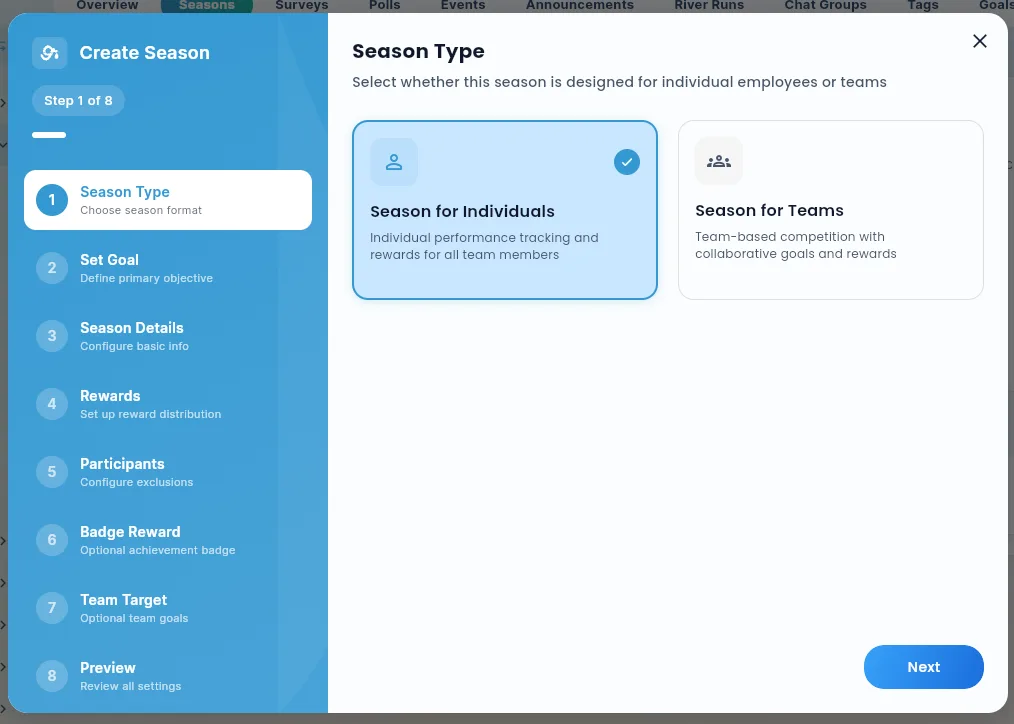
Season Types
Give River offers two season types:
Individual
- Each team member competes on their own.
- Rankings show individual participants ordered by their drop counts or other configured metrics.
- Best for organizations that want to celebrate personal achievement and individual recognition habits.
Teams
- Members are grouped into teams that compete collectively.
- Both individual and team-level rankings can be shown.
- The People and teams page adds a Teams section, where you set up the teams and who is on each before the season begins.
- Best for organizations that want to encourage cross-functional collaboration or friendly inter-team competition.
Choosing a Season Type
- Start a season (in Admin view, Engage › Seasons › Create Season) and pick a goal.
- On the Basics page, under Who competes, two cards are shown:
- Individual — everyone is ranked on their own
- Teams — people join teams, and teams are ranked
- Click the card for your type. The selected card is outlined in your team's main color and shows a check.
- Fill in the title, description and dates, then click Next.
Season Length Presets
Also on Basics, under Dates, you choose a length:
| Preset | Length |
|---|---|
| 4 weeks | 28 days |
| 8 weeks | 56 days |
| 12 weeks | 84 days |
| Custom | You set the exact start and end dates |
A new season starts on the next Monday and runs for the length its goal suggests (see Season Suggestions).
Using a Length Preset
- Click Starts and pick the first day.
- Click 4 weeks, 8 weeks or 12 weeks to fill in the end date. Changing the start date later moves the end date too, keeping the length.
- To end on a particular day, click Ends and pick it; the length then shows as Custom.
Example
If the season starts on Monday, May 4 and you pick 8 weeks, it ends on Sunday, June 28.
Comparing Season Types
| Feature | Individual | Teams |
|---|---|---|
| Rankings by participant | Yes | Yes |
| Rankings by team | No | Yes |
| Teams section on People and teams | No | Yes |
| Inter-team competition | No | Yes |
| Best for | Personal achievement focus | Collaborative/competitive culture |
Tips
- If you are running your first season, Individual is often the easier starting point — no teams to set up and simpler rankings.
- Teams seasons require you to assign all members to a team before the season goes active. Plan team composition in advance.
- Length presets are suggestions. You can always adjust the end date manually regardless of which preset you select.
- Short seasons (4 weeks) create urgency and fast results. Longer seasons (12 weeks) give slower adopters more time to build recognition habits.
- Once a season has started, its type can't be changed. If you realize you chose the wrong type, you will need to create a new season.
Did this article help?
Related articles.
See the platform in action.
Free for up to 25 members, or try Core or Growth free for 30 days. A card is required; Free is never charged, and a trial bills when it ends unless you cancel.