Season Suggestions
When you create a season, the season pages suggest as you go: each goal comes with a ranking rule and a length, templates fill in a title and description, length presets fill in the dates, and the cost updates while you set prizes. Once the season is underway, an Insights summary on Insights › Season sums up how it's going.
Creating a Season
- In Admin view, go to Engage › Seasons.
- Click Create Season.
The season opens full screen with a marker for each page across the top: Welcome, Goal, Basics, Rewards, People, Keep it going (admins who can send team emails) and Review. Next only moves on once the page has what it needs, and the season is saved as a draft on every page change from the goal on. For every page, see Season Creation and Management.
Goal Suggestions
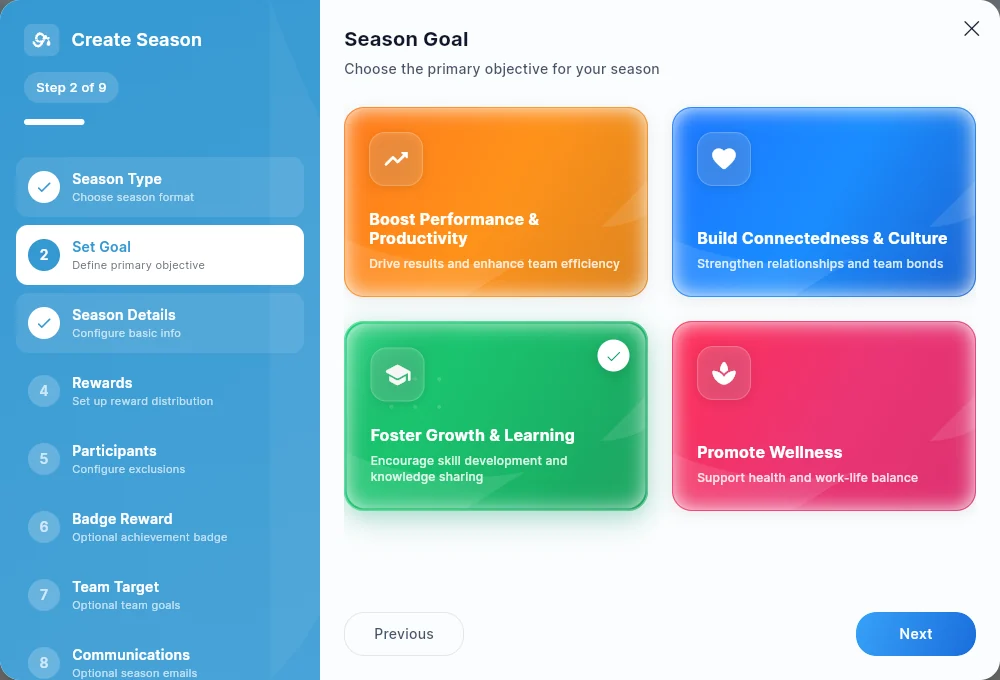
Pick a goal shows four goal cards. Hover over a card, or tap it, and it turns over to show the rules the goal sets:
| Goal | Ranks by | Suggested length | Turns on |
|---|---|---|---|
| Boost Performance & Productivity | Received drops | 12 weeks | The Performance season features |
| Build Connectedness & Culture | Combined drops | 8 weeks | Nothing extra |
| Foster Growth & Learning | Earned drops | 8 weeks | Nothing extra |
| Promote Wellness | Given drops | 4 weeks | Nothing extra |
Picking a goal sets the ranking rule (you can pick another one on Rewards, where the goal's rule is marked Suggested for your goal). Until you choose dates yourself, it also sets the season's length. Boost Performance & Productivity makes it a Performance season and shows the Performance season features switches — see How Performance Seasons Work.
Start from a template
Under the goal cards, Start from a template lists your team's challenge templates (for example Step Challenge or Wellness Streak). Click one to fill in the season's title and description, then check them on Basics.
Length Presets
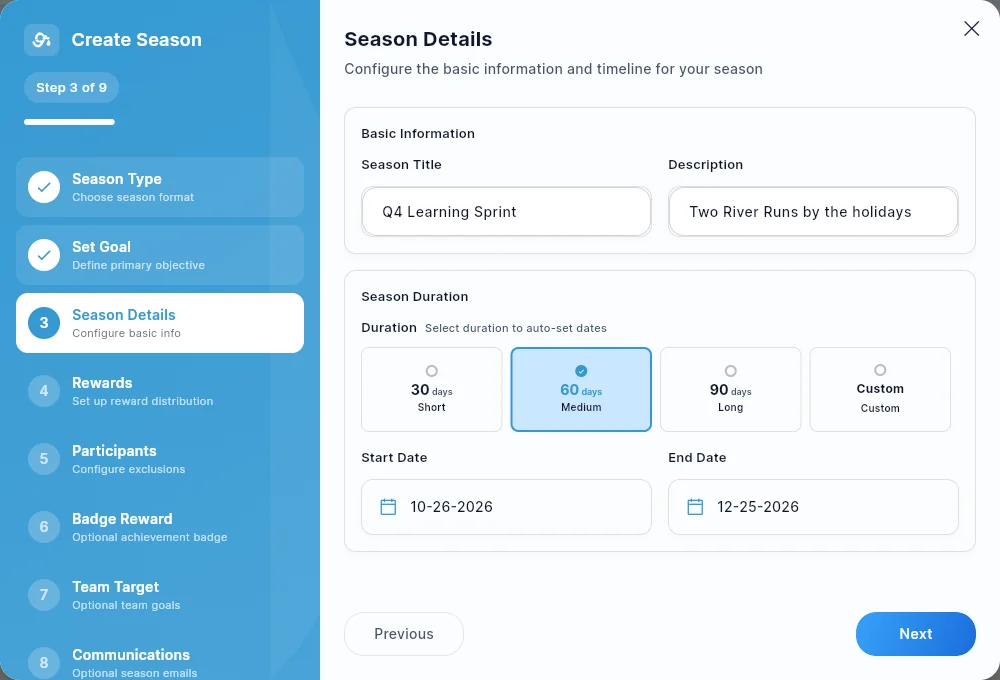
On Basics, length presets fill in the end date from the start date:
| Preset | Length |
|---|---|
| 4 weeks | 28 days (Monday to Sunday, for a season that starts on a Monday) |
| 8 weeks | 56 days |
| 12 weeks | 84 days |
| Custom | You pick the end date |
A new season starts on the next Monday. If you change the start date, the end date moves with it and the season keeps its length. Picking an end date yourself makes it Custom. The line under the dates shows the range and the number of days.
Cost Check
On Rewards, the What it costs box adds up the prize drops (and the team target's, when it's on), shows the total in dollars at your company's drop value, and estimates your likely monthly reward spend: your average over the last 3 full months plus this season's cost spread over its months. See Season prizes.
Insights Summary for Seasons
Once a season is running and members are taking part, an Insights summary card can appear at the top of Insights › Season. In a few plain sentences it sums up participation, top performers and how drops are spread, using the numbers on that tab.
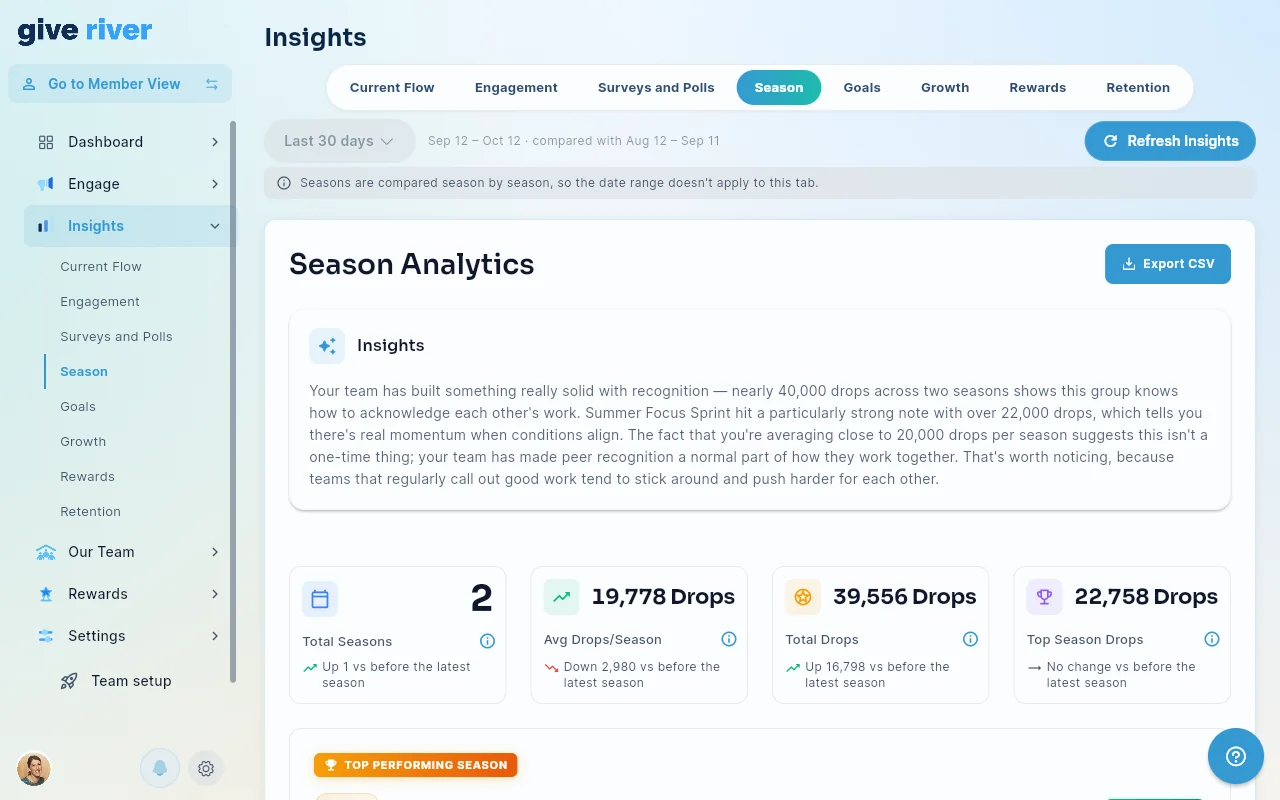
How accurate are summaries? Summaries are written automatically from your team's numbers and can occasionally be wrong. Check the figures on the tab before you act on them.
Editing an Existing Season
- From Engage › Seasons, click the edit icon on any season (or Continue setup on a draft).
- The season opens with its saved values; a draft opens on the page you left.
- Change any page.
- On Review and launch, click Save changes (a running season) or launch, schedule or save the draft.
The season type (Individual or Teams) can't be changed once the season has started.
Reward Distribution
On Rewards, specify how many drops each place receives:
- Place 1: default 50 drops
- Place 2: default 30 drops
- Place 3: default 20 drops
Use Add a place for more places. Optionally turn on a Winner badge to give the winners a badge with its own title, description and image.
Did this article help?
Related articles.
See the platform in action.
Free for up to 25 members, or try Core or Growth free for 30 days. A card is required; Free is never charged, and a trial bills when it ends unless you cancel.