Admin Navigation (Admin View and Dual Navigation)
Give River separates the everyday member experience from the admin management tools with an Admin view ⇄ Member view toggle, and organizes the admin tools into sections that each use a two-level ("dual") navigation. This article explains how to move around as an admin.
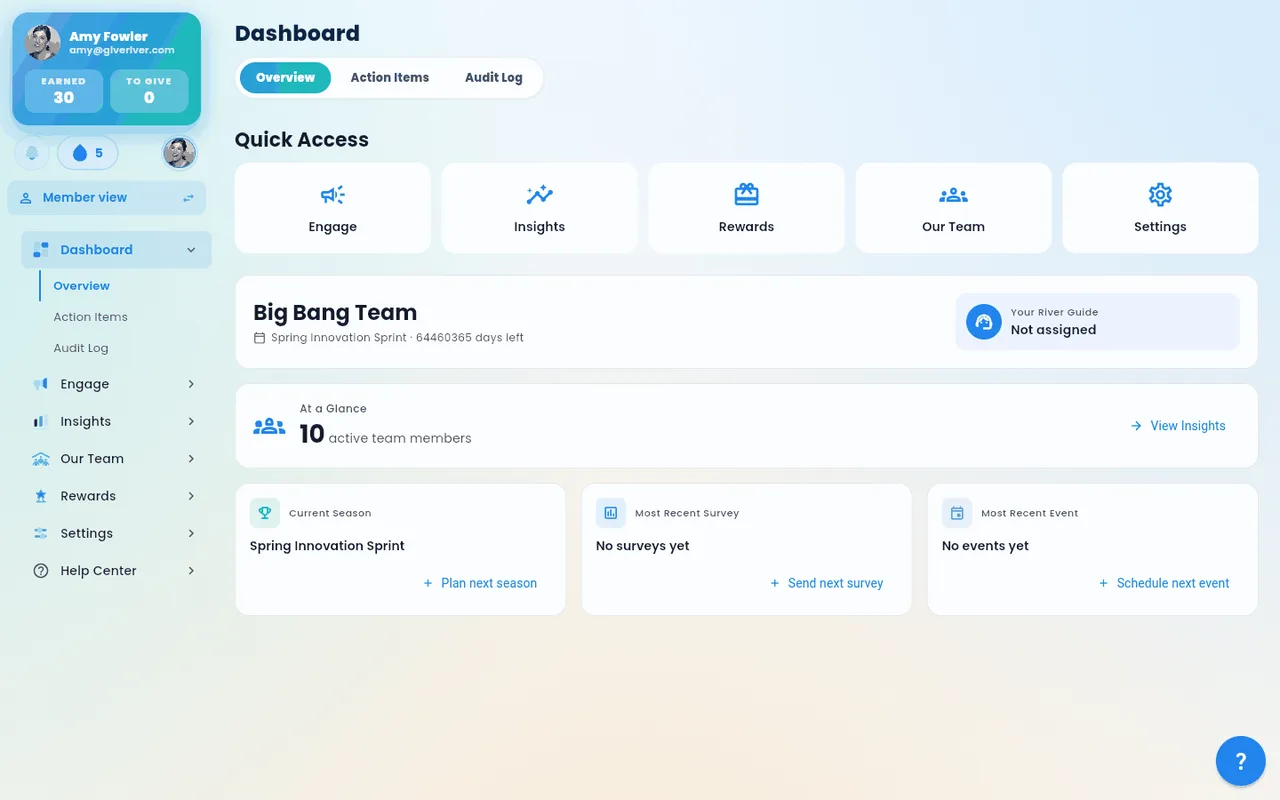
Admin view ⇄ Member view
At the top of the left side navigation (or the drawer on mobile) admins see a toggle that switches between:
- Member view — the normal app: Home, Team Hub, River Runs, Drop Shop, etc.
- Admin view — the management tools described below.
Tap the toggle to switch. Switching into Admin view lands you on the Dashboard; switching back to Member view returns you to Home. Members who are not admins never see the toggle.
An admin page opened from a link or a bookmark, or after refreshing the browser, always opens in Admin view: a River Run you're editing, for example, comes back in Admin view with the admin side navigation.
For a guided look at the member app, use See what your members see on Dashboard › Overview: it switches to Member view and walks you through Home, drops to give, the Dailies and the Drop Shop in a few short steps. See See what your members see.
A new team's owner lands on the Dashboard right after launching the team, and again when signing in during the first 30 days while setup is unfinished. Everyone else signs in to Home.
In Admin view the top bar on phones and tablets doesn't show your own "to give" drops counter, so the admin screens don't read as a member's; switch back to Member view to give drops.
The admin sections
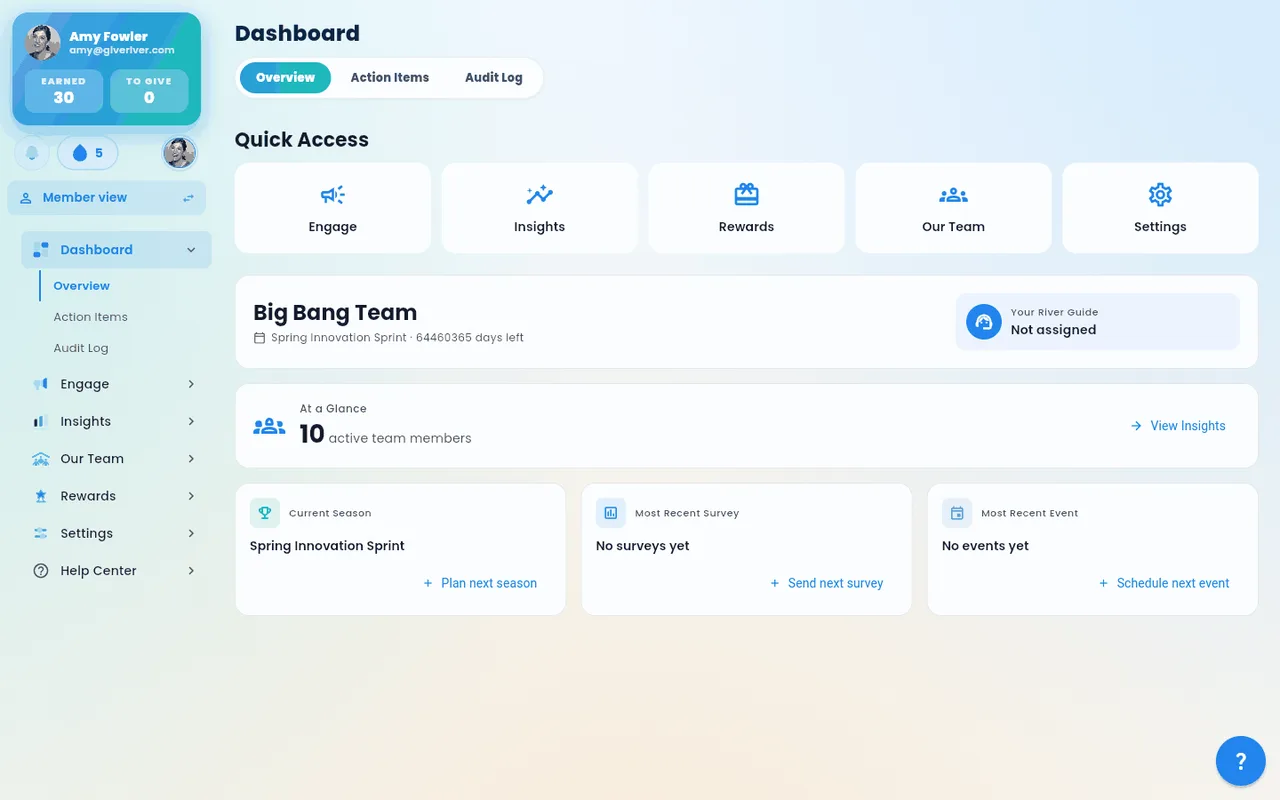
In Admin view the side navigation lists the management sections (the exact set depends on your permissions):
| Section | What it's for |
|---|---|
| Dashboard | Your admin home — Overview (your Weekly briefing: what needs you, program pulse, what's at risk and one suggested action), Action Items (your one approvals inbox), and the Audit Log |
| Engage | Create and manage engagement programs (seasons, surveys, polls, games and events, announcements, team emails, River Runs, chat groups, goals). Its Overview lists what's running or scheduled |
| Insights | Analytics across team health, engagement, surveys, growth, and retention |
| Our Team | Members — the member list and the org chart |
| Rewards | Drop defaults, milestones, awards, custom rewards, gift cards, badges, pending rewards, health challenges, reward history, and reward reports |
| Settings | Team details, integrations, features, member layout, notifications, tags (core values), billing, the rewards account, and Team setup |
| Help Center | This help center, browsable by category, right inside the admin tools |
Team setup is a guided, step-by-step setup of your team (about 15 minutes) that opens full screen; see Set up your new team. It's the last item under Settings, for Admins and Workspace Owners. While your team is still being set up (a new team that hasn't launched yet), Team setup (start here!) also sits at the very top of the admin menu, above every section. It goes away once you launch your team; Settings › Team setup stays.
Member names open Member 360. In the member list, Action Items, the Audit Log, the Insights leaderboard and required-training lists, clicking a person's name opens their Member 360 panel — profile, activity, recognitions, drops, training and goals — without leaving the page you're on.
Dual navigation: sections and sub-sections
Every admin section is split into sub-sections. There are two equivalent ways to move between them, and they always stay in sync:
- Nested side navigation — tapping a section in the side nav expands it to reveal its sub-sections beneath it. Tapping a section's name jumps to its first sub-section; tapping the chevron just expands or collapses the list without navigating. Only one section stays expanded at a time — opening a different section collapses the previous one.
- Sticky horizontal tabs — once you're in a section, a row of tabs across the top lets you switch sub-sections. The tab bar stays pinned while the page below scrolls. When the tabs don't all fit (on a tablet or phone), the cut-off edge fades out and an arrow button at that edge scrolls the rest into view.
One page per sub-section. Selecting a sub-section shifts the whole screen to that page (it does not just scroll you to a spot on a long page). On the web, the page address changes too, so you can bookmark or share any sub-section.
Sub-sections at a glance
| Section | Sub-sections |
|---|---|
| Dashboard | Overview (Weekly briefing) · Action Items · Audit Log |
| Engage | Overview (Active & scheduled) · Seasons · Surveys · Polls · Games & Events · Announcements · Emails · River Runs · Chat Groups · Goals |
| Insights | Current Flow · Engagement · Surveys and Polls · Season · Goals · Growth · Rewards · Retention |
| Our Team | Member List · Org Chart |
| Rewards | Drop Defaults · Milestones · Awards · Custom Rewards · Gift Cards · Badges · Pending Rewards · Health Challenges · Rewards History · Reports |
| Settings | Team Details · Integrations · Features · Layout · Notifications · Tags · Billing · Rewards Account · Team setup |
| Help Center | One tab per help category |
You only see the sub-sections your role and plan include. Team setup is only in the side navigation (not in the Settings tabs), and it opens full screen rather than as a Settings page.
Pending Rewards is the Action Items inbox filtered to reward requests — approve or reject a reward in either place.
Emails (Engage › Emails) is where you write, schedule and send emails to your team, including a season's planned emails and the weekly Game Day email — see Team Emails. Settings › Notifications keeps the on/off switches for Give River's automatic emails and links to Emails.
Tags (core-value tags) are a recognition setting, so they live in Settings › Tags. Settings › Team setup in the side navigation, or the Team setup link at the top of Settings, reopens the setup walk-through.
On mobile
On phones and tablets the side navigation lives behind the menu (drawer) icon. Open the drawer to switch sections or toggle between Admin and Member view; picking a section or sub-section closes the drawer and takes you there. The drawer lists the same items as the side navigation, including Team setup (start here!) at the top while your team is being set up. The same sticky tabs appear at the top of each section.
Getting help in context
Many admin screens show a small help video play icon that opens a short walk-through for that area without leaving the page. You can also open the full Help Center section from the admin navigation at any time.
Did this article help?
Related articles.
See the platform in action.
Free for up to 25 members, or try Core or Growth free for 30 days. A card is required; Free is never charged, and a trial bills when it ends unless you cancel.