Arranging Home and Team Hub
You can choose the order of the sections on your members' Home and Team Hub pages, hide the ones your team doesn't use, and choose the tabs in the members' phone bottom bar. Go to Settings > Layout.
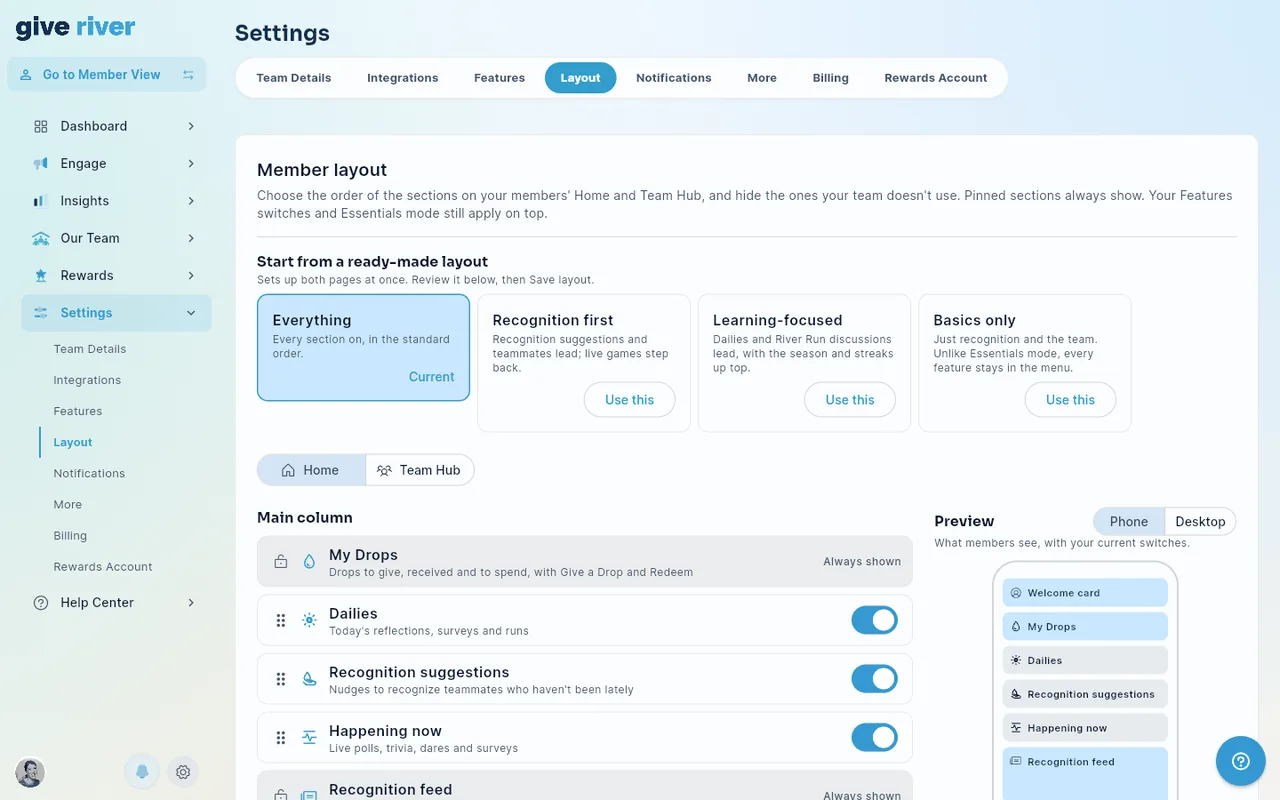
Using the layout editor
- Pick Home or Team Hub at the top.
- Drag a section by its handle (⋮⋮) to move it up or down.
- Use a section's switch to show or hide it.
- Check the Preview on the right. Switch between Phone and Desktop to see both layouts. On a wide screen the preview stays beside the section list as you scroll, and once you've made a change an Unsaved changes · Save layout bar appears under it.
- Click Save layout. Members see the new layout right away.
Your changes aren't live until you save them. Reset to default puts every section back in its original order and default on/off state. You still need to click Save layout afterwards.
Ready-made layouts
To skip the dragging, start from a ready-made layout at the top of the page. Each one sets up both Home and Team Hub:
| Layout | What it does |
|---|---|
| Everything | The standard order, with every section on except the optional Suggest to give card. |
| Recognition first | Recognition suggestions and teammates lead; Happening now (live polls, trivia and dares) is hidden. |
| Learning-focused | Dailies (with Continue your run) and River Run discussions lead, with the season at the top of the side column. |
| Basics only | Just recognition and the team on Home and Team Hub. |
Click Use this on a layout, review it in the editor and preview (you can still adjust it), then click Save layout. The layout that matches your current setup is marked Current.
Basics only is different from Essentials mode (in Settings > Features). Basics only trims Home and Team Hub, but every feature stays in the menu. Essentials mode also hides whole features, such as River Runs, Rankings and Wellspring.
Season layouts
You can switch members to a ready-made layout for the length of a season — for example, Learning-focused during a learning challenge. Under Season layouts, pick a layout next to a current or upcoming season. It's saved right away.
- The season's layout applies only while the season is active and running (between its start and end dates).
- When the season ends, members go back to your own layout. You don't need to change anything.
- To stop using a season layout, pick Your layout next to that season.
- While a season layout is active, a banner at the top of the Layout page says which layout members are seeing and until when. You can still edit your own layout; members see it once the season ends.
Columns
Each page has two columns:
- Main column — shown on every device.
- Side column — shown on desktop and tablet. Phones don't have a side column, with two exceptions:
- On Home, the Season, Events, Team charities and Celebrations cards show on phones in a swipeable Today strip right under My Drops, in the order you set for the side column. Switching one off here removes it from the strip too. (Your teammates and Suggest to give stay desktop and tablet only; the recognition suggestions cover them on phones.) The phone preview shows the strip.
- Team Hub's Events section moves to the bottom of the main column.
Sections that always show
Some sections are pinned. They're marked with a lock and Always shown, and you can't move or hide them:
| Page | Pinned sections |
|---|---|
| Home | My Drops (top of the main column), the Recognition feed (bottom of the main column), and the Welcome card (top of the side column) |
| Team Hub | The Welcome card (top of the side column) |
Both pages also share the team banner across the top, above both columns.
These keep the basics in the same place for everyone: how many drops members have, where to give recognition, and where to redeem.
Sections you can arrange
| Page | Column | Sections |
|---|---|---|
| Home | Main | Dailies · Recognition suggestions · Happening now |
| Home | Side | Suggest to give · Your teammates · Season · Team charities · Events · Celebrations |
| Team Hub | Main | Events & surveys · Groups & chat · Run discussions · Team members |
| Team Hub | Side | Season · About our team · Events · Suggest to give |
Suggest to give starts switched off on both pages — the recognition suggestions in Home's main column already cover it. Switch it on here if you want it in the side column. Events & surveys is the row of tiles at the top of Team Hub for current events and open surveys; it hides itself when there's nothing current.
The bottom bar
Members get a bottom bar on phones — in the iOS and Android apps and in a phone's web browser. You choose what's in it under Bottom bar on the Layout page:
- Under Tabs in the bar, drag a tab by its handle (⋮⋮) to change the order. The first tab is on the left.
- Click × to remove a tab. The bar needs at least 3 tabs.
- Under Add a tab, click a page to add it to the end of the bar. The bar holds up to 5 tabs.
- Check What members see — a preview of the bar with your current feature switches.
- Click Save bottom bar. Reset to default goes back to the default bar (you still need to save).
The default bar is Home, Team Hub, River Runs, Drop Shop and My River. You can also add Wellspring, River Rankings (shown as Rankings) and Charity Channel (shown as Charities). There's no separate "Give" tab: members give recognition from the My Drops card at the top of Home. Pages that aren't in the bar stay in the menu (☰) at the top of the screen.
The bar follows your feature switches: a tab whose feature is off in Settings > Features (or hidden by Essentials mode) is marked Hidden from members and left out of the bar. If that leaves fewer than 3 tabs, members' bars are filled back up from the default tabs, and the preview shows the result. Charity Channel appears only for members who have picked a charity. Season layouts don't change the bottom bar.
The team banner
The banner at the top of Home and Team Hub is your team's cover image (upload it in Settings > Team Details). To change how it's framed, click Adjust banner — on the banner itself on Home or Team Hub, or next to the image in Team Details. Drag the image to reposition it and use the slider to zoom; the previews show how it will look on a desktop and on a phone. Click Save Changes. Reset goes back to the full image. Your uploaded image isn't changed, so you can re-frame it any time.
To show or hide your team logo in the banner's top-left corner, use Settings > Features > Team logo on the banner.
How this works with Features and Essentials mode
The layout and your feature switches work together. A section shows only if it's switched on in the layout and its feature is on.
- If a feature is off in Settings > Features, its section is marked Turned off in Features in the layout editor, and the preview leaves it out. You can still move it, and it reappears in that spot when you turn the feature back on.
- While Essentials mode is on, most sections are marked Hidden in Essentials mode. You can still arrange the layout, and members will see it when you turn Essentials mode off.
Some sections also hide themselves when they have nothing to show — for example, Events when there are no upcoming events, or Team charities when the Charity Channel is off.
Who can change the layout
The Layout tab is available to admins whose role includes the Admin Settings permission. See Role-Based Permissions.
Did this article help?
Related articles.
See the platform in action.
30-day free trial. No credit card. River Guide included on Core and Growth.