User Profile
Your Give River profile is your personal identity on the platform — less a contact record, more "this is me": what you're into, what you're good at, and what teammates can connect with you about.
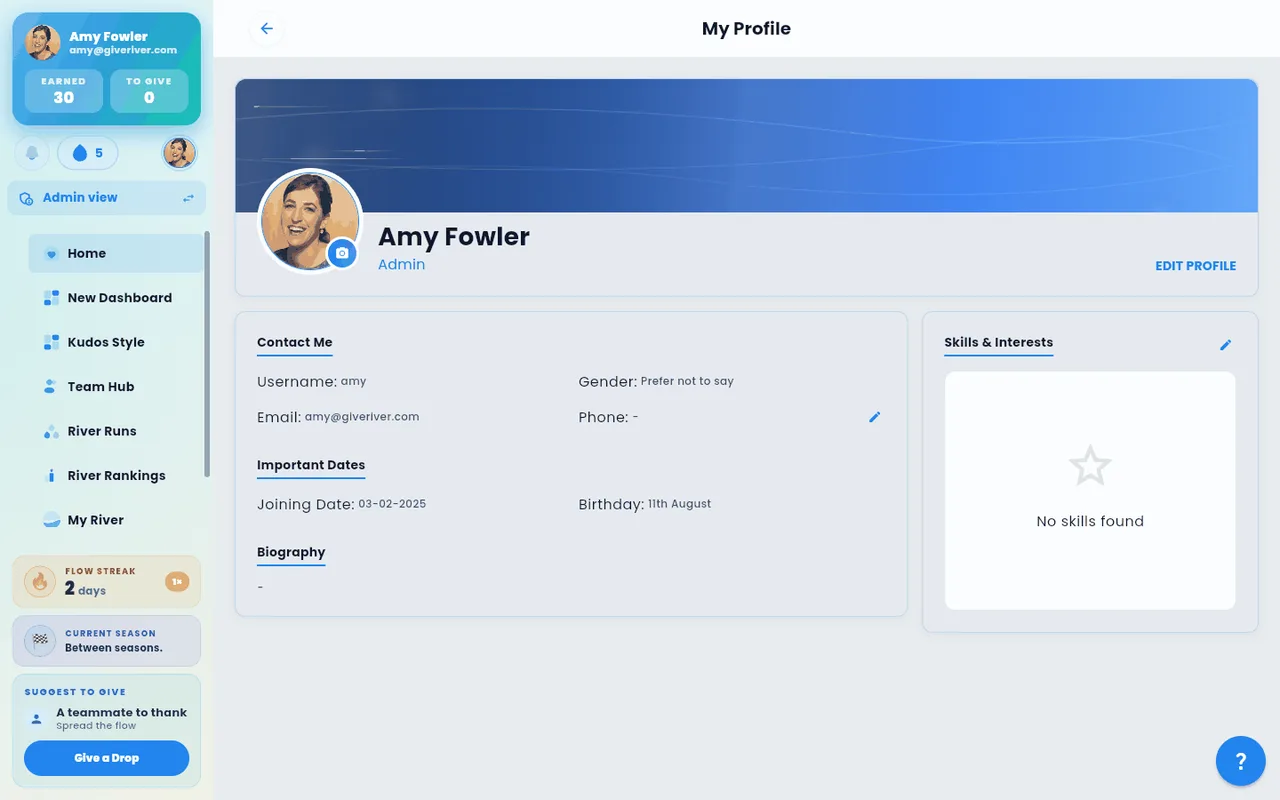
What You See on Your Profile
To open your profile, click your photo at the bottom of the side menu (on a phone, open the menu ☰ first). You can also open the Settings menu (the gear next to your photo; on a phone, your photo in the top-right corner) and tap your name.
The top of the page is your identity card — your banner, your profile photo with a camera badge, your full name, your role, and a small chip with your team's logo and name. Right under it, a small card shows your reporting line (see Reports To and Direct Reports). Below that, the page is organized around you as a person:
| Section | What it holds |
|---|---|
| About Me | A short personal intro, in your own words |
| Fun Fact | One short, surprising thing about you, on its own warm highlight card |
| Interests & Hobbies | Selectable chips (Hiking, Cooking, Music, …) plus anything you create yourself |
| Skills | Chips for the things you're good at — so teammates know who can help with what |
| Details | The quiet stuff: username, job title, department, location, email, phone, gender, birthday, joining date. Job title, department and location are set by your admin (in Members) and show only when set. |
On a computer, About Me and Fun Fact sit side by side, then Interests & Hobbies and Skills, with Details across the bottom. On a phone they stack in that same order.
Reports To and Direct Reports
If your team has a manager set for you, or people who report to you, a small card under the identity card shows it:
- Reports to — your manager's photo, name and job title. Tap it to open their profile.
- Direct reports — the photos of the people who report to you and how many there are. Tap it to see the full list, then tap anyone to open their profile.
On a computer the two sit side by side; on a phone they stack. If you have neither, the card doesn't appear. You'll see the same card on a teammate's profile, showing who they report to and who reports to them.
Reporting lines come from your admin: they set each person's manager in Members (or by dragging people on the Org Chart), or they're synced from your HR system — see HRIS Integration. You can't change your manager from your profile; if it's wrong, ask your admin. Only active members of your own company are shown.
Your Banner
The banner across the top of your profile is yours to choose. Everyone starts with the Give River river artwork. To change it, tap the pencil in the banner's top-right corner:
- Pick a template — River, Waves, Ripples, Current, Rain or Horizon — then tap Save. The templates take on the colors of the app theme you're using, in light and dark mode.
- Upload photo — choose a JPG or PNG, then drag and zoom to frame it. It's saved as soon as you finish cropping.
Teammates see your banner when they open your profile, but only you can change it. Your banner also heads your My River page, and you can change it from there too.
Editing Is Inline
The profile itself is the editing surface — no separate "Edit Profile" form:
- About Me / Fun Fact — tap the text to edit it right there, then Save. While one is empty, it shows a small illustration with an Add your intro / Add a fun fact button instead.
- Interests & Skills — tap + Add interest / + Add skill to pick from suggestions or type your own; tap the ✕ on any chip to remove it. On an empty section, tap one of the suggested chips to add it instantly.
- Profile photo — tap your photo; see Your Profile Photo below.
- Name, username, birthday, gender — tap Edit profile on the identity card (or Edit details on the Details card) to open Profile Details. Change what you need and tap Update.
- Phone — tap the edit icon next to your phone number in Details. A new number is confirmed with a one-time code sent to it.
Your Profile Photo
Tap your photo on your profile to open Create your avatar (it asks "How do you want to show up?"):
| Option | What it does |
|---|---|
| Use my photo | Pick a picture, crop it to a square, and it becomes your profile photo |
| Cartoon me | Turns your photo into a friendly illustrated portrait |
| Spirit animal | Turns your photo into an animal character. Pick a fox, lion, owl, dolphin, bear, butterfly or wolf, or tap Let Give River choose |
| Realistic me | Turns your photo into a polished, professional-looking portrait |
| Surprise me | Give River picks a style for you |
For any of the styles, choose and crop a clear, front-facing photo of yourself, then wait a few seconds. On the preview, tap Use this avatar to make it your profile photo, or Try another for a new version.
- Weekly limit: styled avatars are limited (usually 3 a week, counted over the last 7 days), and the panel shows how many you have left. Try another counts as a new one. Use my photo never counts. If an avatar can't be created, that attempt doesn't count either; try again or use a different photo.
- Your photo: the picture you choose is sent securely to the partner service that creates the avatar, and isn't stored. Only the avatar you choose to use is saved to your profile.
Your new photo shows everywhere your picture appears: on posts, in chat, on your profile and in rankings.
Signing In and Your Account
Give River doesn't use passwords. You sign in with a one-time code sent to your email (or by text to your phone), or with Google or Apple. See Signing In to Give River.
The email address in Details is the one you sign in with; if it needs to change, ask your admin. To sign out or delete your account, open the Settings menu and choose Logout or Delete Account.
Viewing Another User's Profile
Tap anyone's name or photo throughout the app to open that person's profile. You'll see their banner, role, who they report to and who reports to them, About Me, fun fact, interests and skills — handy for finding common ground. Their Details card shows their username, job title, department, location, gender, birthday and joining date. Their birthday shows as the month and day only (for example "Oct 26"), never the year, and their phone number stays private.
A Recognize button sits beside their name (under it on a phone): it opens Recognize with them already picked, so you can go straight to saying why and choosing how many drops to give. See How to Send a Drop.
Date of Birth
The Date of Birth field is optional. Fill it in (Edit profile on the identity card) if you'd like Give River to surface your birthday in the team's Celebrations, or skip it entirely.
Teammates only ever see the month and day of your birthday, never the year or your age. Your full date of birth and your phone number are visible only to you and to your company's admins who manage members.
Privacy Note
Your recognition posts follow your post visibility settings (public or private). See Privacy Settings for who can see your posts.
Did this article help?
Related articles.
See the platform in action.
Free for up to 25 members, or try Core or Growth free for 30 days. A card is required; Free is never charged, and a trial bills when it ends unless you cancel.