How to Send a Drop (Peer Recognition)
A Drop is how you recognize someone on Give River — a public or private shout-out you send to a colleague, optionally with some drops (💧) attached. Every Drop you post appears in your team's feed and, optionally, in your own Journal.
Before You Start
- You need drops left to give to attach drops to a post. Your drops to give renew on the weekly or monthly cycle your admin sets. You can see how many you have on the My Drops card on Home and on your My River page.
- You can always post a recognition even if you have no drops left; it just goes out without drops.
Two Ways to Send a Drop
Give River has two ways to post, depending on what you want to create:
| Recognize (step by step) | Styled post (Create) | |
|---|---|---|
| Best for | Thanking one or more teammates, with drops | A designed, picture-style post |
| Steps | 4 (Who → Why → How much → Preview) | Design on a canvas, then post |
Method 1: Recognize someone
Recognizing a teammate takes four short steps. On a phone they slide up from the bottom of the screen; on a computer they open in a window in the middle.
Where to start
You can open Recognize from any of these:
- Home → My Drops card → Give a Drop (opens on the first step, Who).
- Home → Dailies → give your unspent drops shortcut.
- Home → Your teammates → Recognize next to a teammate.
- Home → Recognize your team (managers) or Spread the flow nearby → Recognize under or next to a person. These cards show people in a scrolling row by default; the view icon beside the card's chevron switches to a list, and the chevron folds the card to one line ("5 people to recognize"). Both choices are saved to your account.
- A teammate's profile → Recognize (under their name).
- A post in the feed → the author's photo → Recognize on the profile preview.
- Celebrations → 🎉 Congratulate — opens with a birthday, anniversary or congratulations message already started.
- Share something with [your team]… → Recognize tile.
When you start from a person, they're already added as a recipient and you land straight on Why. They really receive your recognition — and any drops — not just a mention of their name.
The progress bar under the title shows the four steps. Tap a step you've already done to go back to it, or use the back arrow. The bottom of every step shows the drops you'll have left to give after this recognition, the same number as the "you have N left" line, and it updates as you add people or change the amount.
Step 1 — Who
Pick the people you want to recognize. You can pick more than one.
- Haven't been recognized lately — teammates nobody has recognized in a while (for managers, your own team first).
- Your team — people in your department or at your location.
- Search teammates — type a name or @username to find anyone else.
Ugo, your team's River Guide, writes the welcome posts but isn't a person, so it isn't in these lists (or in @mentions, chats and the Team Hub roster).
Tap a person to add them (a check mark appears); tap again, or the ✕ on their name at the top, to remove them. Next stays greyed out until you've picked at least one person.
Step 2 — Why
Write what they did and why it mattered. Next stays greyed out until there's a message.
- Company values (optional) — tap any of your team's value tags (for
example
#teamwork) to add them to the post. They're optional. - + — add a Photo, a GIF or a Sticker. Only one GIF or one sticker at a time; adding photos replaces a GIF or sticker, and the other way round. A sticker costs you 5 extra drops for each person, and each of them receives those 5 drops — it's a transfer, not a fee.
- Who can see this — choose the audience: Team River (your whole team's feed, optionally narrowed to certain locations or departments), Select members, or Private (your Journal only). If you pick Select members, the people you choose there can see the post (and get a message saying you shared it with them), but they don't receive drops — only the people you picked in Who do, and only they count toward what it costs you.
Step 3 — How much
Choose how many drops each person gets — from 1 up to 5 (or your team's lower limit, if your admin set one). Everyone you picked gets the same amount.
A live line shows exactly what will happen, for example "Noah gets 5 drops · you have 20 left", or "3 people each get 2 drops · you have 14 left". Amounts you can't afford are greyed out. If you don't have enough drops for everyone, you can still post your recognition without drops. If your audience is Select members, a note reminds you how many more people can see the post — they don't get drops.
Step 4 — Preview, then Post
You see your post exactly as it will appear in the feed — your name, the people you're recognizing, your message, value tags and drops. Use Change people, Edit message or Change drops to go back, or change Who can see this right here. Tap Post to send it. Your recognition appears in the feed and the drops move to each person straight away.
The drop splash
When your drops arrive, a short water-drop splash plays over the screen with a line like +2 drops to Leslie (or +2 drops each to Leslie and Noah). It fades on its own after a moment and never gets in the way — you can keep tapping while it plays. It also plays when you give drops with the Give button on someone's post. If you post a recognition without drops, you see Recognition posted! instead.
The people you recognized get a matching moment the first time they open Home and see your recognition: Leslie gave you 2 drops. They see it once per recognition, on each device. If several people recognized them while they were away, they get one moment that adds it all up — for example Leslie and 2 others gave you 7 drops. When the welcome-back summary that opens on Home has already shown their new drops (5 new drops for you!), it takes the place of this moment. Anonymous recognitions don't get one, so the giver stays unnamed.
If your device is set to reduce motion, the splash is a still card instead.
Keyboard (web): press Ctrl+Enter (⌘+Enter on a Mac) to go to the next step or post, and Esc to close.
Other kinds of posts
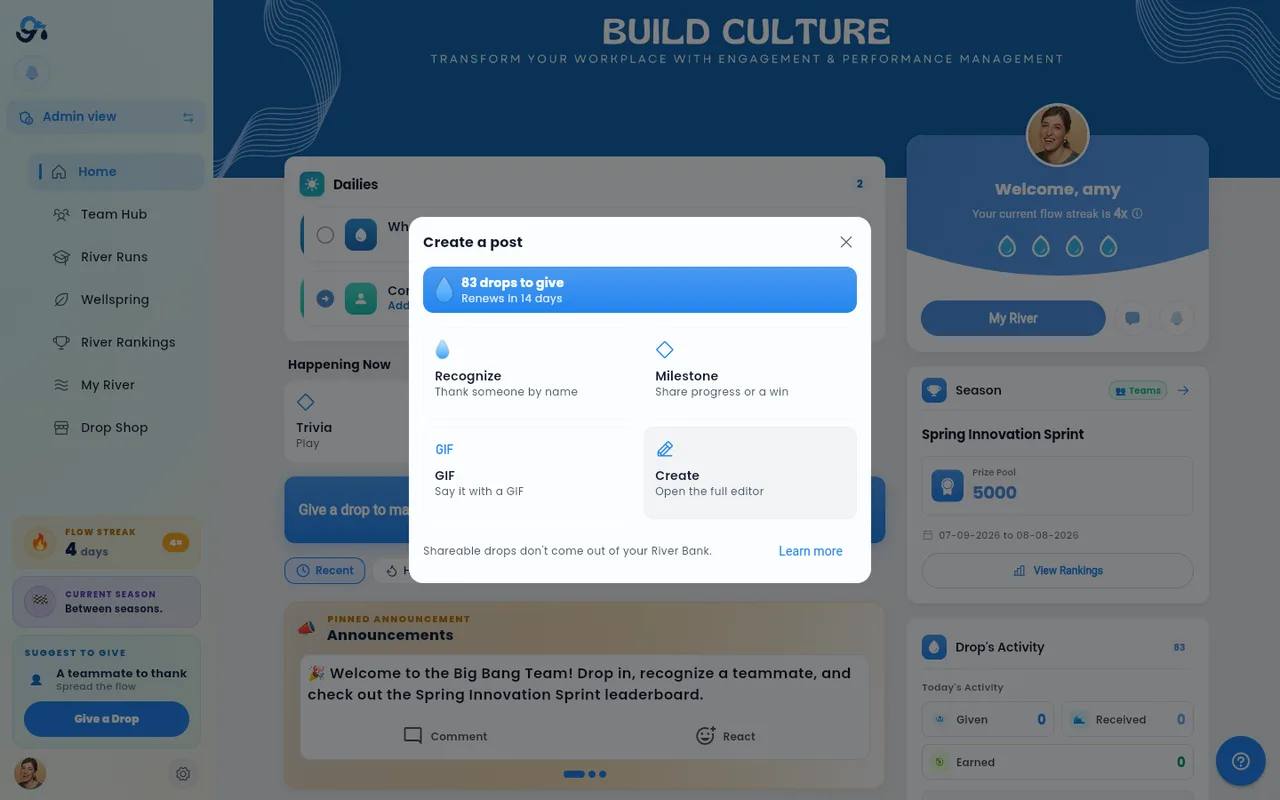
Share something with [your team]… above the Home feed opens the Create a post window for everything that isn't a recognition:
| Tile | What it does |
|---|---|
| Recognize | Opens the four-step Recognize flow above |
| Milestone | Share progress or a win; starts your message with #milestone |
| Goal win | Celebrate a goal you or a teammate completed; starts with #goals |
| GIF | Opens the GIF search straight away |
| Create | Opens the styled-post canvas (Method 2) |
The Milestone, Goal win and GIF tiles open a free-form editor with Mention, Give drops and Tag options above the text box, and photo, GIF, voice and Custom post buttons below it.
Typing @ in the text box opens the same Mention list: keep typing a username to narrow it, then pick the person. If nobody matches, the list says No matches.
Method 2: A styled post (Create)
Use Create when you want a designed, picture-style post: your words on a colored or photo background, with stickers and emoji.
Above the Home feed, tap Share something with [your team]…, then the Create tile.
Build your design on the canvas. The toolbar lets you:
- switch the canvas between portrait and landscape,
- change the background (tap again for the next color blend) or use one of your photos,
- add text, stickers and emoji,
- change the font, text color, text background, and bold, italic, underline or strikethrough.
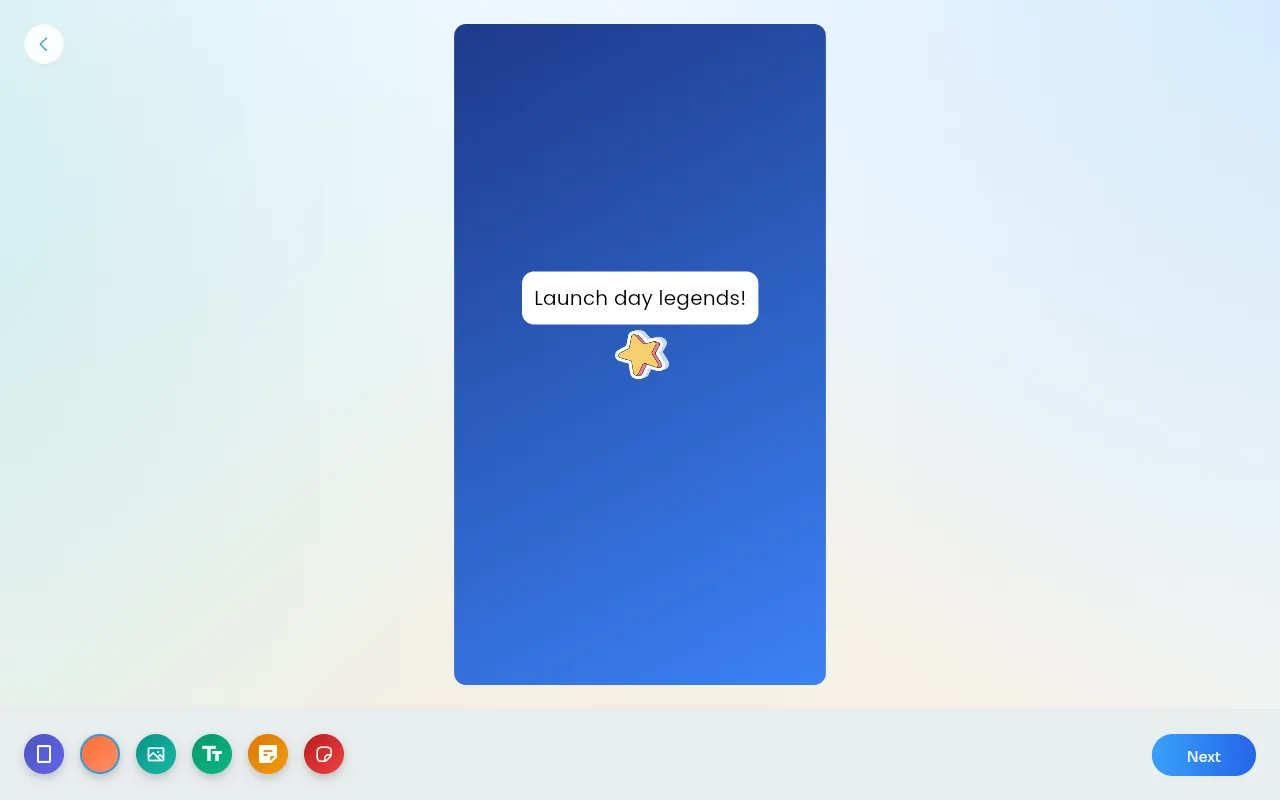
Tap Next. Your design is attached to the post as a picture.
Finish the post as usual (add a message, mention people or give drops) and post it.
If you tap Next on an empty canvas, Give River asks you to add some content first.
Drop Budget — Frequently Asked Questions
How many drops do I have? Your current balance is shown at the bottom of the Recognize steps, on the My Drops card on Home, and on your My River page. Admins set the allocation amount and cycle (weekly or monthly).
What happens when my drops run out? You can still post recognition messages; you just can't attach drops until they renew at the start of the next cycle.
When do my drops expire? The My Drops card shows when your drops renew. Unused drops reset at the end of each cycle, so it's worth using them before they expire.
Can I take my drops back after posting? No. Once you post, the drops are transferred and can't be taken back.
Tips
- Recognize people by name — the people you pick in Who receive the drops, which count towards their earned-drops total and leaderboard ranking.
- Use core value hashtags — tagging a post with your company's values (e.g.
#integrity) helps surface it in filtered feeds and analytics. - Keep it private — to reflect privately without sharing, set Who can see this to Private; the post goes to your Journal only.
- Challenges — to challenge teammates, see Drop Dares and Challenges.
Did this article help?
Related articles.
See the platform in action.
Free for up to 25 members, or try Core or Growth free for 30 days. A card is required; Free is never charged, and a trial bills when it ends unless you cancel.