Core Values Hashtag Tagging
Core values tags let you connect recognition posts to the specific values your organization cares about. Tags appear as #hashtags inside post text, and tapping one shows every post with that value.
What are core values tags?
Tags are labels your admin sets up for your team. They appear as chip buttons in the post composer, and when selected they are inserted as #tagname into your post text. Tags are different from free-form hashtags — they come from a curated list your admin maintains.
Adding a tag to a recognition
When you Recognize someone (Home → Give a Drop), the Why step lists your team's tags under Company values (optional). Tap a tag to add it — tap again to remove it. You can pick several, or none. The tags are added to the end of your post as #tagname, after your message; typing a #tag into the message yourself works too.
Adding a tag to other posts
- Open the Create a post window (Share something with [your team]… above the feed) and pick Milestone, Goal win or GIF.
- Tap the tag button (tag icon, labelled "tag") in the inline action bar beneath the text field.
- A popup appears showing all tags defined for your team, displayed as colored chips.
- Tap the tag you want to add. It is inserted into your post as
#tagnameat the current cursor position. - The popup closes automatically.
- Repeat to add more than one tag to the same post.
Browsing posts by tag
Tap any #hashtag inside a post to open a list of all the posts that include it.
Featured tags rise to the top
If your admin marks a tag as Featured, any post using it is pinned to the top of the feed and its background is tinted with the tag's color — an easy way to spotlight the values your team is rallying around right now.
Tag management (admins)
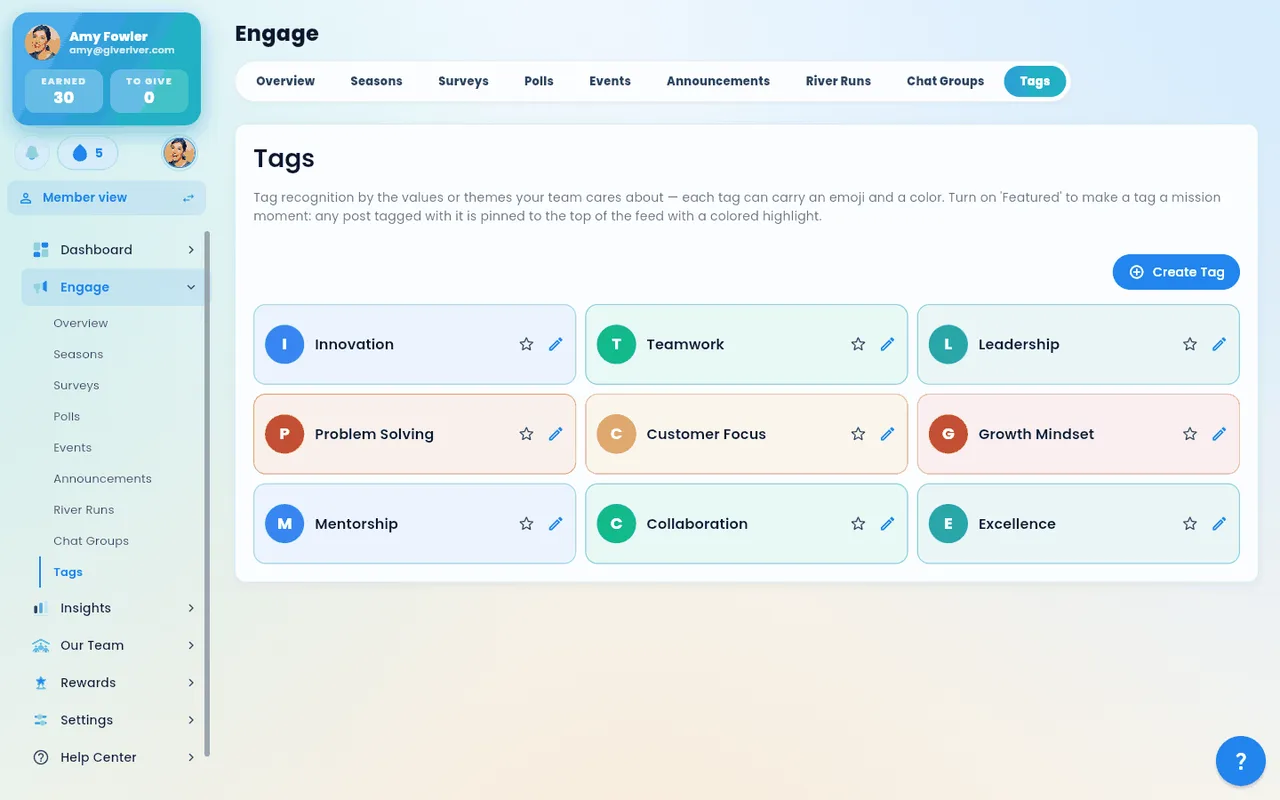
Administrators can create, rename, and delete tags for the team in Settings › Tags (Admin view). Changes take effect right away: new tags appear in the post composer, and deleted tags are removed from it.
| Action | Who can do it |
|---|---|
| Create a tag | Admins (and roles with the Tags permission) |
| Rename a tag | Admins (and roles with the Tags permission) |
| Delete a tag | Admins (and roles with the Tags permission) |
| Add a tag to a post | Any team member |
| Browse posts by tag | Any team member |
Tips
- There is no limit to how many tags you can add to a single post.
- If your team has not set up any tags yet, the tag popup will show "No tags available." Ask your administrator to add some.
Did this article help?
Related articles.
See the platform in action.
Free for up to 25 members, or try Core or Growth free for 30 days. A card is required; Free is never charged, and a trial bills when it ends unless you cancel.