Custom Badges and Awards
Badges are custom achievement awards that your admin creates for the team. Each badge is linked to a specific trigger — an action a member takes (such as giving Drops) — and is automatically awarded when that member hits a target count. Earning a badge also grants the recipient a Drops reward.
How Badges Work
Admins define a badge with:
- A trigger (the action that earns it, e.g., "Completed River Runs").
- A target (how many times the action must be performed).
- A Drops reward given to the member when the target is reached.
Give River tracks each member's progress against active badges automatically. When a member hits the target, the badge is awarded and the Drops are added to their balance. The badge also appears in the Celebrations section on Home.
For Team Members
You do not need to do anything special to earn badges — they are awarded automatically as you interact with Give River. Examples:
- Finish a number of River Runs and earn a "Lifelong Learner" badge.
- Complete other team actions tracked by your admin's badge triggers.
To see your badges, open My River and find the Badges card: Progress shows the badges you're closest to earning, and Earned shows the ones you have. Tap See all for every badge you've earned, grouped by type. Tap a badge to see what it's for, how to earn it, when you earned it, and how many times (for example ×3). Badges earned by teammates appear as awards in the Celebrations section on Home.
For Admins: Creating a Badge
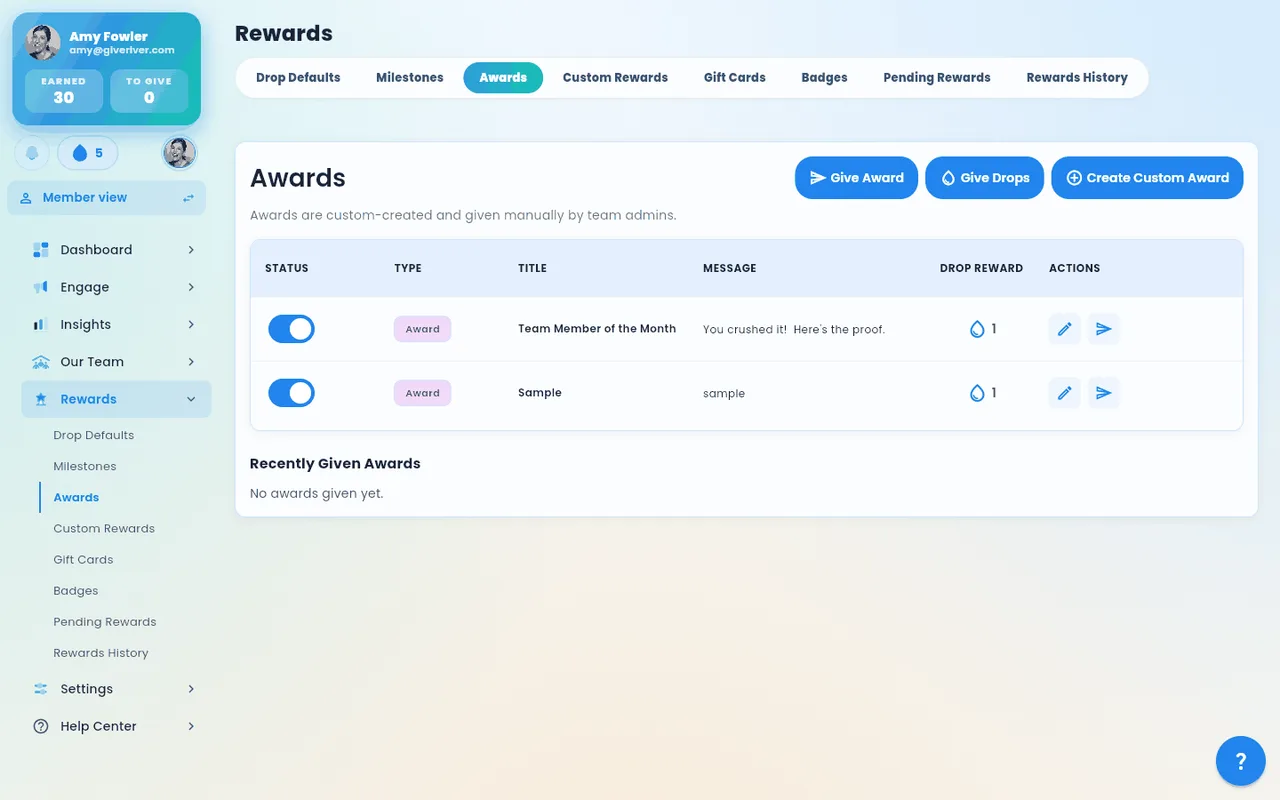
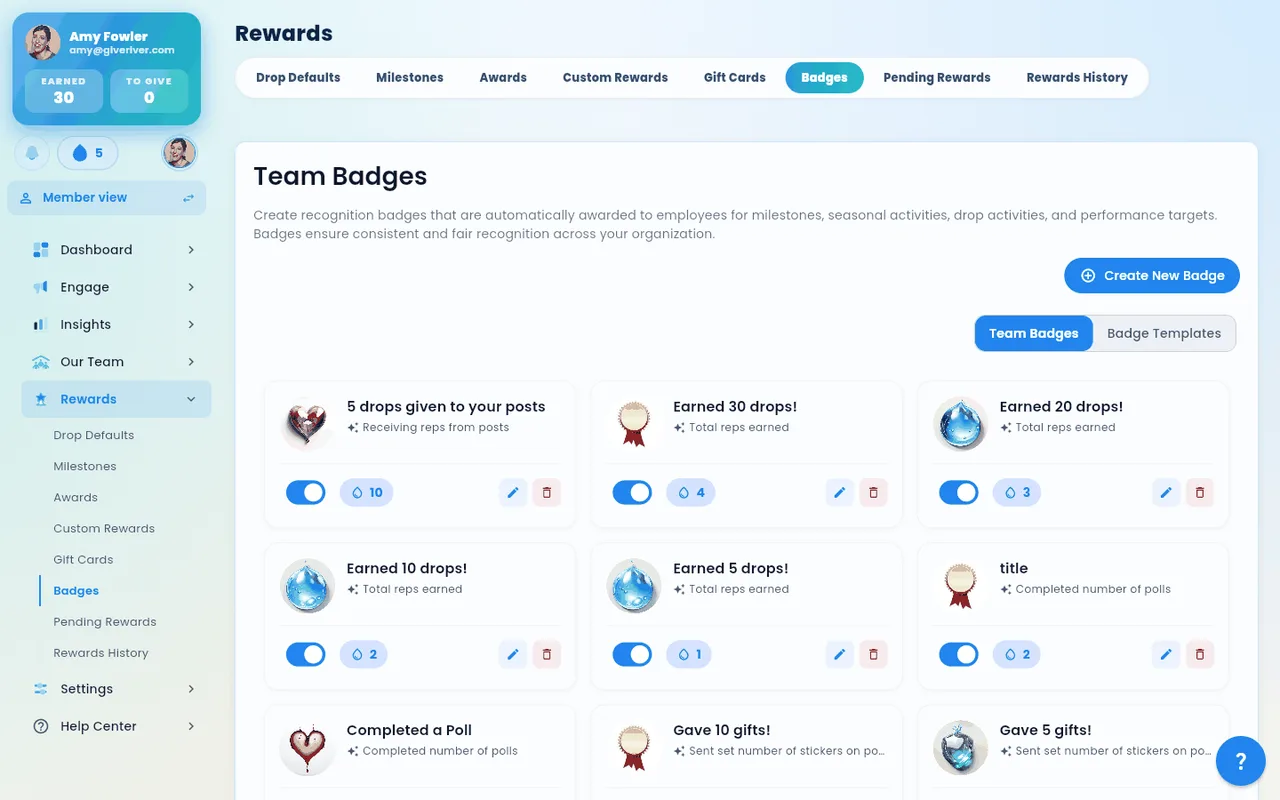
Badges are managed under Rewards › Badges.
- Click Create New Badge to open the badge creation dialog.
- Fill in the Badge Information section:
| Field | Required | Description |
|---|---|---|
| Badge Image | No | Upload a square (1:1) image for the badge icon. |
| Badge Title | Yes | The name of the badge shown to members. |
| Trigger Type | Yes | The action that earns the badge (selected from your team's available triggers — see the list below). |
The triggers
| Trigger | What the Target counts |
|---|---|
| Drops earned | Number of drops earned |
| Completed Drop Dares | Number of Drop Dares |
| Completed Daily Drops | Number of Daily Drops |
| Completed River Runs | Number of River Runs |
| Answered polls | Number of polls |
| Created Drop Dares | Number of Drop Dares |
| Dropped on posts | Number of posts |
| Sent stickers on posts | Number of stickers |
| Received drops on posts | Number of drops received |
| Reached a Flow streak | Flow level reached, from 2 to 4 (see below) |
| Won a season | Number of seasons won |
| Gave all your drops in a week (or month) | Number of weeks (or months) this was true |
| Earned the most drops allowed in a week (or month) | Number of weeks (or months) this was true |
| Completed River Runs in a week (or month) | Number of weeks (or months) this was true |
The last three are period triggers. They say "week" or "month" to match your team's drop cycle. For Completed River Runs in a week, an extra field, River Runs per week, says how many River Runs a member must finish in one week for that week to count (1 by default) — e.g. 2 River Runs per week, 4 weeks: earned after four weeks in which the member finished at least two River Runs. "Joined teams" and "Sent invites" are only used by Give River's global badge templates, so they are not in your list.
Reached a Flow streak counts the member's Flow level (1× to 4×), the daily-visit habit on the Home welcome card: it goes up by one on each new day the member opens Give River. The badge is awarded on the visit that brings the member to the target level, so use a target from 2 to 4; a higher target can never be reached. If you hide the Flow level for your team, Flow streak badges aren't awarded.
- Fill in the Badge Configuration section:
| Field | Required | Description |
|---|---|---|
| Target Value / Number of weeks | Yes | For a lifetime trigger (e.g., "Completed River Runs") this is the total count needed across the member's whole tenure. For a period trigger (see below), the field is relabelled Number of weeks (or Number of months) and asks how many weeks the trigger must be true. A short line under the field always says what the number counts. |
| Drop Reward | Yes | Number of Drops awarded when the badge is earned. |
| Description | No | Optional text describing what the badge is for. Members see it when they tap the badge in My River. |
| Enabled | — | Toggle to activate or deactivate the badge (edit mode only). |
- Click Create Badge (or Save Changes when editing) to save.
Period-based Badges
Some triggers are period-based rather than lifetime: they count whether a member hit a threshold within a period, where a "period" is your team's drop cycle (e.g., weekly or monthly). Picking a period trigger changes the create / edit dialog in three ways:
- The Target Value field becomes Number of weeks or Number of months (e.g., "earn this badge after 6 weeks"), with the hint "Number of weeks this was true".
- An info note under the field explains that a period follows your team's drop cycle.
- A Consecutive periods required toggle appears:
- Off (default) — any 6 qualifying periods over time count, not necessarily back-to-back.
- On — the periods must be consecutive (e.g., 6 months in a row, no gaps).
These fields are hidden for lifetime triggers, so the create dialog stays simple when periodicity doesn't apply.
Spotting a period badge
On the admin Badges list, period badges show a compact period chip on the card: the target-period count plus a small icon indicating whether they must be consecutive (with a tooltip if you hover). Lifetime badges show no chip.
Badge Templates
In the admin Badges view, toggle between Team Badges (custom badges you have created) and Badge Templates (pre-built badge designs provided by Give River). Templates give you a starting point that you can customize.
Managing Badges (Admin)
- Edit: Click a badge to update its title, image, trigger, target, or reward.
- Enable / Disable: Use the Enabled toggle in the edit dialog to turn a badge on or off without deleting it.
- Delete: Available from the badge edit dialog. Deleting a badge stops future awards but does not remove badges already earned.
Tips
- Use clear, motivating badge names that reflect the action (e.g., "Top Recognizer", "Team Champion").
- Set realistic targets — a target that is too high may discourage participation.
- Combine badge Drops rewards with your broader recognition strategy to reinforce the behaviors you value most.
Did this article help?
Related articles.
See the platform in action.
Free for up to 25 members, or try Core or Growth free for 30 days. A card is required; Free is never charged, and a trial bills when it ends unless you cancel.