Your First Sign-In and the App Tour
New to Give River? Here's what happens the first time you sign in, and how to take the short tour of the app whenever you like.
Joining your company
Companies aren't listed or searchable in Give River, so you join yours by invitation:
- Invite link — open the link your admin shared. If you land on Account Not Found, paste the link (or the invite code) under Have an invite? and tap Continue.
- Email invitation — open the link in the invitation email.
- Ask your admin — they can invite you from Members, or approve you if you've already asked to join.
Charities and causes are different: you can browse and search them freely.
For how signing in works (a one-time code sent to your email or phone, or Google or Apple), see Signing In to Give River.
Complete your profile
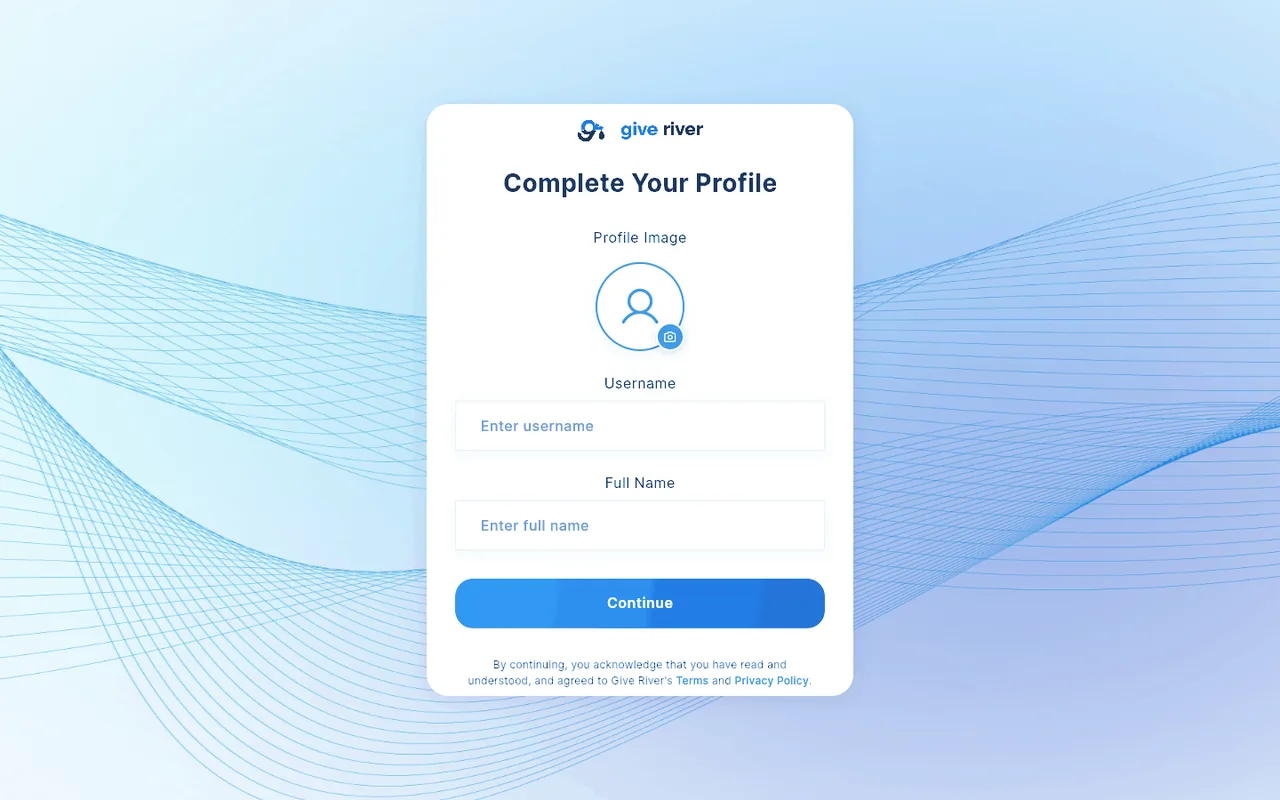
The first time you sign in, Give River asks you to Complete Your Profile:
- Add a profile image (optional) — pick one from your photos or take a picture.
- Check your Username and Full Name.
- Tap Continue.
You land on Home. You can add the rest (About Me, a fun fact, interests and skills) on your profile anytime; see User Profile.
The app tour
When you're new to Give River (you first signed in less than 14 days ago, even if your company set up your account earlier), the first time you open Home a short tour of the app starts.
- It stops at each page in your menu (on a computer) or bottom bar (on a phone), in the same order: Home, then the drops you have to give and the Dailies on Home, then pages such as the Team Hub, River Runs, the Drop Shop, My River, Wellspring, Rankings and the Charity Channel, whichever your team has.
- Each step highlights its place on screen. A step whose place isn't on your screen (for example a page your admin left out of the bottom bar) is skipped.
- On a phone it stops after seven steps; on a computer it covers every page in your menu (up to ten steps).
- Use Next and Back, or Skip tour (or ×, or Escape) to leave at any point. If reduced motion is on, the highlight jumps instead of gliding.
The tour starts on its own only once, and never on top of another dialog. Finishing or skipping it is saved on your account, so it won't start again on your phone or another computer.
Your admin can also ask for it: if they choose Show tour on next sign-in for you, the tour starts the next time you open Give River, whether or not you've seen it before. Skip it anytime, as usual.
Take the tour again
- Open the round Help & Support (?) button and choose Take the app tour, or
- open the Help Center and tap Start tour on the New here? Take the 1-minute tour card.
Admins also have an admin tour of the admin side; see The admin tour. If you just created your team, Team setup opens first, right after checkout, and the admin tour starts once you launch your team.
For new members, Home doesn't show the "welcome back" summary until you've been through the tour (or skipped it), nor on the day you first sign in.
Before your first River Run
The first time you open the River Runs library, Give River asks you to agree to the River Runs terms and conditions. See River Runs Consent.
Did this article help?
Related articles.
See the platform in action.
Free for up to 25 members, or try Core or Growth free for 30 days. A card is required; Free is never charged, and a trial bills when it ends unless you cancel.