Admin Onboarding Email Sequence Configuration
Give River can automatically send email notifications to team members at key moments in their journey. Admins configure which emails are enabled from the Settings > Notifications tab.
To write your own emails, plan a season's emails or send the weekly Game Day email, use Engage › Emails instead — the Team emails row at the bottom of the Notifications tab links there. See Team Emails.
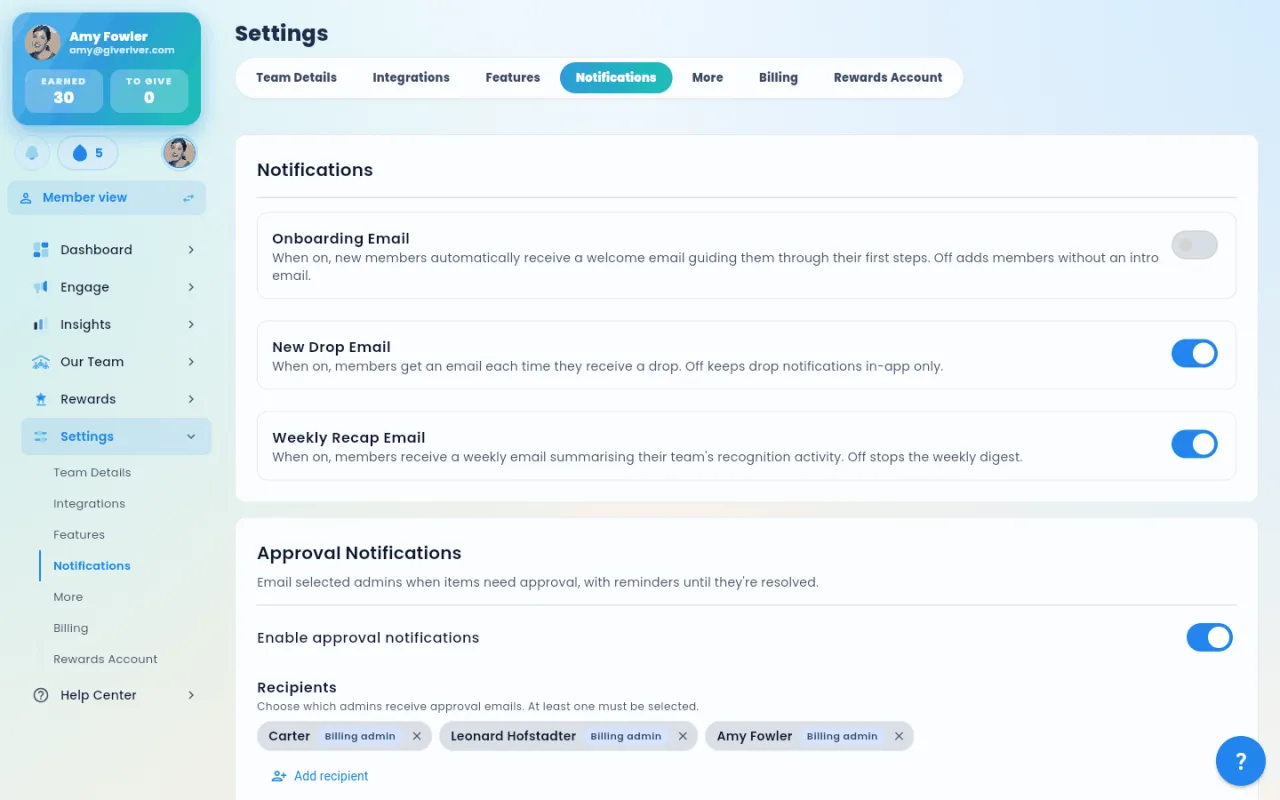
Accessing Notification Settings
- Navigate to Settings in the main sidebar.
- Click the Notifications tab.
Available Email Notifications
Three email types are configurable:
| Email Type | Description | Setting Key |
|---|---|---|
| Onboarding Email | Sent to new members when they join the team, welcoming them and explaining how to get started | is_onboarding_email_enabled |
| New Drop Email | Sent to a member when they receive a drop (recognition) from a colleague | is_new_drop_email_enabled |
| Weekly Recap Email | A weekly summary email sent to all members recapping team activity and their personal drop balance | is_weekly_recap_active |
You can change the wording of the New Drop Email (and of the team invitation email) under Engage → Emails → Templates → Automatic emails — see Team Emails. These switches still decide whether it's sent.
Below these toggles, a Monthly reward report row links to Rewards > Reports, where you choose who receives the monthly reward redemption report (see Admin Reward Reports).
The "Email members automatically" switch
Teams that connect an HRIS (BambooHR) also get a team-wide Email members automatically switch, in the connection dialog under Settings → Integrations → HRIS Platforms. When it's off, none of Give River's automated member emails go out — the three emails above plus birthday and work-anniversary emails, required-training reminders, drop-expiry reminders and goal reminders — whatever these toggles say. Admin emails (approval requests, reports) are not affected. It's off by default for teams that connect BambooHR; see HRIS Integration.
Enabling or Disabling an Email
Each email type is controlled by a toggle:
- Locate the email type in the Notifications tab.
- Read the description below the title to confirm the email's purpose.
- Toggle the switch ON to enable or OFF to disable that email.
- Changes save immediately — no additional save button is required.
If an API error occurs, the toggle reverts to its previous state automatically.
What the Onboarding Email Contains
The onboarding email is triggered when a new member joins your team. It typically includes:
- A welcome message
- Instructions on how to give their first drop
- A link to log in to the platform
The email content is pre-configured by Give River. To request customization of the email template (e.g., adding your logo or custom text), contact Give River support.
Recommendations
| Scenario | Recommended Setting |
|---|---|
| New team getting started | Enable all three emails to maximize member engagement |
| Mature team with high email volume concerns | Consider disabling New Drop Email if members find it noisy |
| Team that prefers Slack notifications instead | Disable all and rely on Slack integration notifications |
Email Delivery
Emails are sent from Give River's email delivery system to the address on file for each member. Your toggles decide which of these emails your team sends. Members can also opt out themselves: each member's Email Preferences has a switch per email type (such as Weekly Recap, New Drop Alerts and Team emails from your admins) — see Email Notification Preferences — and every team email has a one-click unsubscribe link.
If members report not receiving expected emails, verify:
- The relevant toggle is ON in Settings > Notifications, and — if your team uses BambooHR — Email members automatically is ON in the HRIS connection dialog.
- The member's email address is correct in their profile.
- The emails are not being filtered to spam by the member's email provider.
Did this article help?
Related articles.
See the platform in action.
Free for up to 25 members, or try Core or Growth free for 30 days. A card is required; Free is never charged, and a trial bills when it ends unless you cancel.