Admin: Chat groups
Owners, Admins and roles with Chat Groups manage every chat group in the team. Location Managers manage their own location's group and the groups they created.
Engage → Chat groups lists all of your team's chat groups, including the ones you aren't in. From here you can rename a group, change its photo and description, add and remove people, choose group admins, decide who can post, and archive, restore or delete a group.
Messages stay private. Nothing on this page shows what anyone wrote: Last activity is only the date of the latest message.
Where to find it
Go to Engage in the admin sidebar and open the Chat groups tab. Create chat group at the top starts a new group.
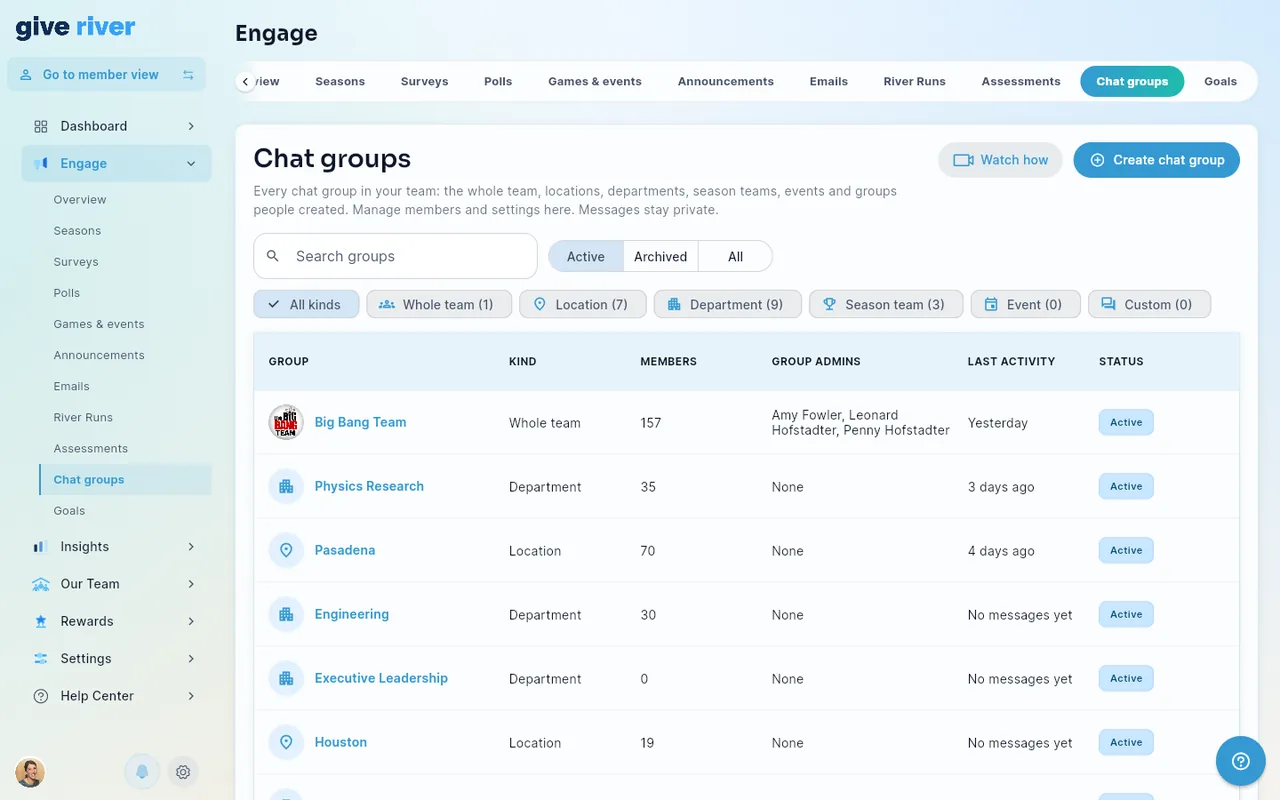
The list
Each row shows the group's photo and name, its kind, how many members it has, its group admins and its last activity. Tap a row to open the group.
| Kind | What it is |
|---|---|
| Whole team | Everyone in your team |
| Location | Everyone assigned to that location |
| Department | Everyone assigned to that department |
| Season team | A team inside a season |
| Event | The chat of one of your team's events |
| Custom | A group someone created |
To find a group:
- Type in Search groups to match names.
- Choose Active, Archived or All. Active is the default.
- Tap the kind chips to show only those kinds. Each chip shows how many groups of that kind there are. All kinds clears the choice.
The list shows the most recently active groups first. Show more loads the next ones.
A group's panel
Tapping a group opens its panel: on a computer it slides in from the right, and on a phone it opens as a sheet. Every change is saved straight away.
- Details: change the name and description, then tap Save details. Change photo picks and crops a new picture. A location or department group always carries the location or department's name: rename the location or department from the Member List's Manage org fields menu instead (see Admin: Members).
- Who can post: Everyone, or Group admins only.
- Members: everyone in the group, with group admins first. The ⋮ menu on a person has Make group admin or Remove as group admin, and on most groups Remove from group. Add people opens a list of team members who aren't in the group yet. Making someone a group admin never changes their role in the team.
- Archive or delete: see below.
Groups that follow your team
The Whole team, Location and Department groups look after themselves:
- A new location or department gets its group as soon as you add it.
- People join their location and department groups when you assign them, and leave the old ones when they move or leave the team.
- You can't remove people from these groups by hand. To move someone, change their location or department.
- If someone left one of these groups themselves, they stay out until you bring them back with Add back. The list only offers people the group is for.
Archive, restore and delete
- Archive hides the group from everyone's chats. Its members and messages are kept. Archived groups appear under Archived, where Restore brings them back.
- Delete removes the group and its messages for everyone. You're asked to confirm first, and it can't be undone.
Some groups can't be deleted straight away:
- Whole team, Location and Department groups can be archived but not deleted.
- A group a member created can be deleted once it's archived or empty. Archive it first.
When delete isn't available, the panel says why.
Who manages which groups
| Role | Groups they see and manage |
|---|---|
| Workspace Owner and Admin | Every group of the team |
| Manager, and other roles, with the Chat Groups permission | Every group of the team |
| Location Manager with the Chat Groups permission | Only their own location's group and the groups they created |
| Anyone without the permission | None: Chat groups doesn't show |
Managers and Location Managers have Chat Groups unless your team's admins turn it off for that role; see Role-based permissions.
When a Location Manager adds people, the list offers only people from their location.
Action log
Every change made here is listed in Dashboard → Audit Log: edits, people added and removed, group admins, who can post, and archive, restore and delete. See Admin Audit Log.
Did this article help?
Related articles.
See the platform in action.
Free for up to 25 members, or try Core or Growth free for 30 days. A card is required; Free is never charged, and a trial bills when it ends unless you cancel.