River Run: Creating and Managing River Runs (Admin)
Who Can Create River Runs?
Only admins (and roles with the River Runs permission) create River Runs. They do it in Admin view, under Engage › River Runs.
Creating a New River Run
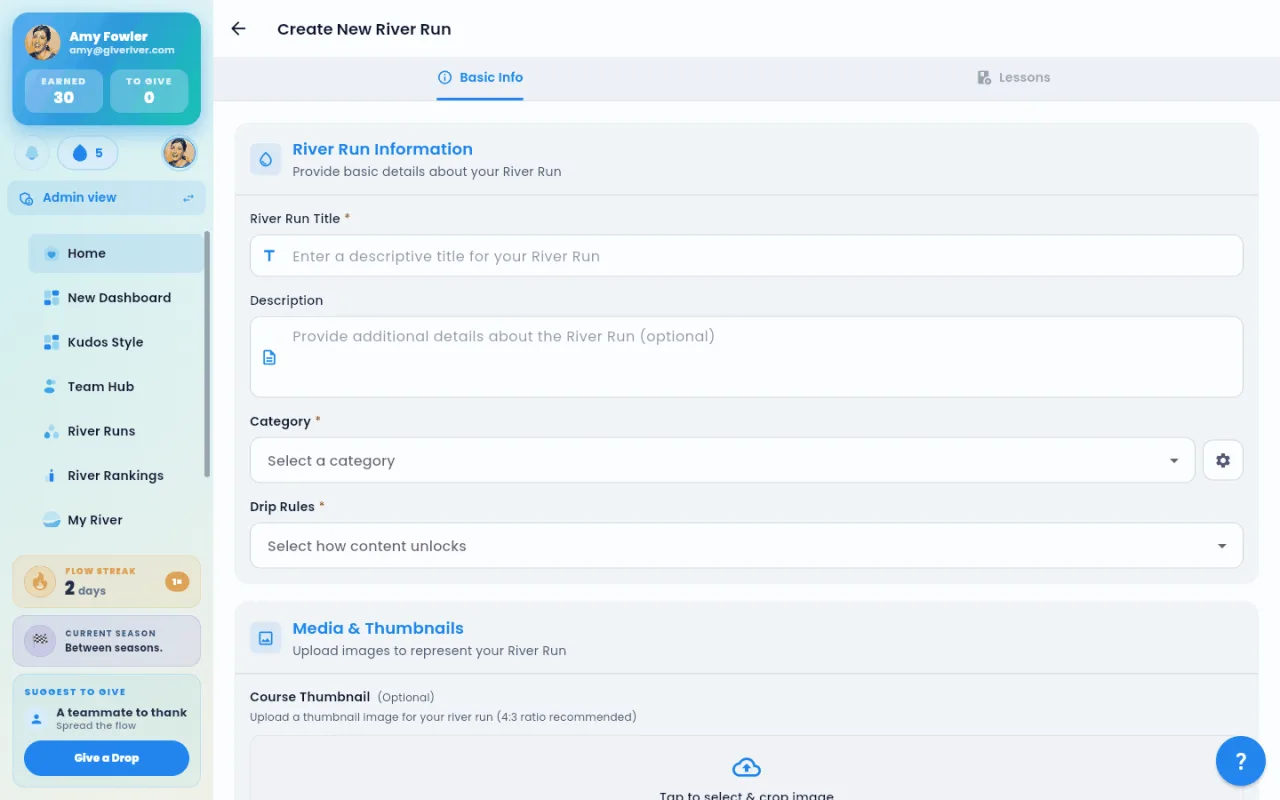
River Run creation uses a two-tab workflow: Basic Info and Lessons (Streams).
Step 1: Open the Create Page
- In Admin view, go to Engage › River Runs.
- Click Create New River Run.
- The create page opens on the Basic Info tab.
Step 2: Fill In Basic Info
Complete the following fields:
| Field | Required | Description |
|---|---|---|
| Title | Yes | The name of the River Run shown to employees |
| Description / Summary | No | A short overview of what the run covers |
| Thumbnail image | Recommended | Cover image displayed on run cards |
| Category / Sub-category | No | Used for filtering in the library |
| Instructor name & image | No | The person credited as the run's creator |
| Start / end dates | No | Optionally restrict when the run is available |
| Status | Yes | Draft, Active, or Deactivated |
- Tap Save. The River Run is created and you are automatically moved to the Lessons tab.
Step 3: Add Sections and Streams (Lessons)
River Runs are organized into Sections (groupings), each containing one or more Streams (individual lessons).
To add a section:
- On the Lessons tab, tap Add Section.
- Enter a section title and save.
- Sections can be reordered using the sort/drag interface.
To add a Stream to a section:
- Inside a section, tap Add Lesson.
- A modal dialog opens. Fill in:
| Field | Required | Notes |
|---|---|---|
| Lesson Type | Yes | Video, Audio, Text, Other, or Quiz |
| Title | Yes | Name of the Stream |
| Description | No | Brief summary of what the Stream covers |
| Duration | Yes | How long the Stream takes: minutes (5), minutes:seconds (5:30) or hours:minutes:seconds (01:05:00). It is shown as hours:minutes:seconds after you save |
| Content | No | Body text or notes for text-type Streams |
| Video URL | If video type | Link to YouTube, Vimeo, or hosted file |
| Audio URL | If audio type | Link to audio file |
| Document URL | No | Additional resource link (PDF, etc.) |
| Release Rule | Yes | Controls when the Stream unlocks (see below) |
| Completion question | No | Questions members answer right after they complete the Stream (not shown for quizzes) |
- Tap Add Lesson to save. If a field needs fixing, the dialog scrolls to it, puts the cursor in it and shows a short message.
Completion question: turn on Ask members a question when they complete this stream, then tap Add Question to add each question (Single Choice, Multiple Choice, Open Ended or Scale). Members see the questions in a pop-up as soon as they mark the Stream complete. The questions are saved when you save the Stream. See River Run: Completion Question for the details.
Release Rules (Drip Settings):
| Rule | Behavior |
|---|---|
| Unlock after completing the previous stream (the default) | The Stream stays locked until the learner finishes the Stream before it |
| Unlock after specific hours since previous stream was unlocked | The Stream opens a set time after the previous Stream opened |
| Unlock after specific hours since previous stream was completed | The Stream opens a set time after the learner finishes the previous Stream |
| Immediately Unlocked (Always accessible) | The Stream is open from the start, whatever the learner has finished |
For the two timed rules, a Release Delay field appears: enter the wait as Day:Hour:Minute (0:2:30 is 2 hours 30 minutes). When you edit a Stream, the dialog shows its saved release rule and delay, and they stay as they are unless you change them.
The first Stream of a run is always open. Members see a locked Stream with a lock icon and can't open it until its rule allows; finishing a Stream unlocks the next one right away.
Adding a Quiz Stream
Quizzes are a special Stream type. When you select Quiz as the lesson type:
- Save the lesson first.
- From the Lessons tab, open the quiz lesson and use the Add Quiz option to create the quiz structure:
- Quiz title (required)
- Section assignment (required)
- Duration (optional timer; set to 00:00:00 to disable)
- Total marks (required)
- Instructions (optional)
- Status: Active, Deactivated, or Draft (set when editing)
- Rewards & results (optional): Drops for completing, a pass mark (%), bonus Drops for passing, and Anonymous results (admins see totals only, not who answered what)
- After creating the quiz, add individual questions using the question editor. Questions can be multiple choice, single choice, fill in the blank, open-ended, or scale. Mark the correct option(s) for choice questions; open-ended and scale questions aren't scored.
- To see how members did, tap the chart icon on the quiz card (View results).
See River Run Quizzes for the full details.
Editing an Existing River Run
- In the Engage › River Runs list, find the run and tap Edit.
- The same two-tab interface opens. Both tabs are accessible immediately when editing.
- Make changes to Basic Info or Lessons and save each section.
Deleting a River Run
- In Engage › River Runs, open the ⋯ menu on the run's card.
- Tap Delete.
- Read the confirmation and tap Delete again.
Deleting removes the run with all of its sections and Streams, including quizzes. Members who joined it lose it from their River Runs, along with their progress in it. The confirmation says how many members joined. This can't be undone.
- Delete appears only on runs your company built. Give River library runs are hidden from your company in the Run catalog instead.
- A run assigned as Required Training can't be deleted. Remove its assignments first (see Required Training).
Good to Know
- What you enter on the Basic Info tab stays put when you switch to the Lessons tab and back.
- A red error under a field clears as soon as you fix the value.
- Members can't create their own River Runs.
Did this article help?
Related articles.
See the platform in action.
Free for up to 25 members, or try Core or Growth free for 30 days. A card is required; Free is never charged, and a trial bills when it ends unless you cancel.