Season Creation and Management
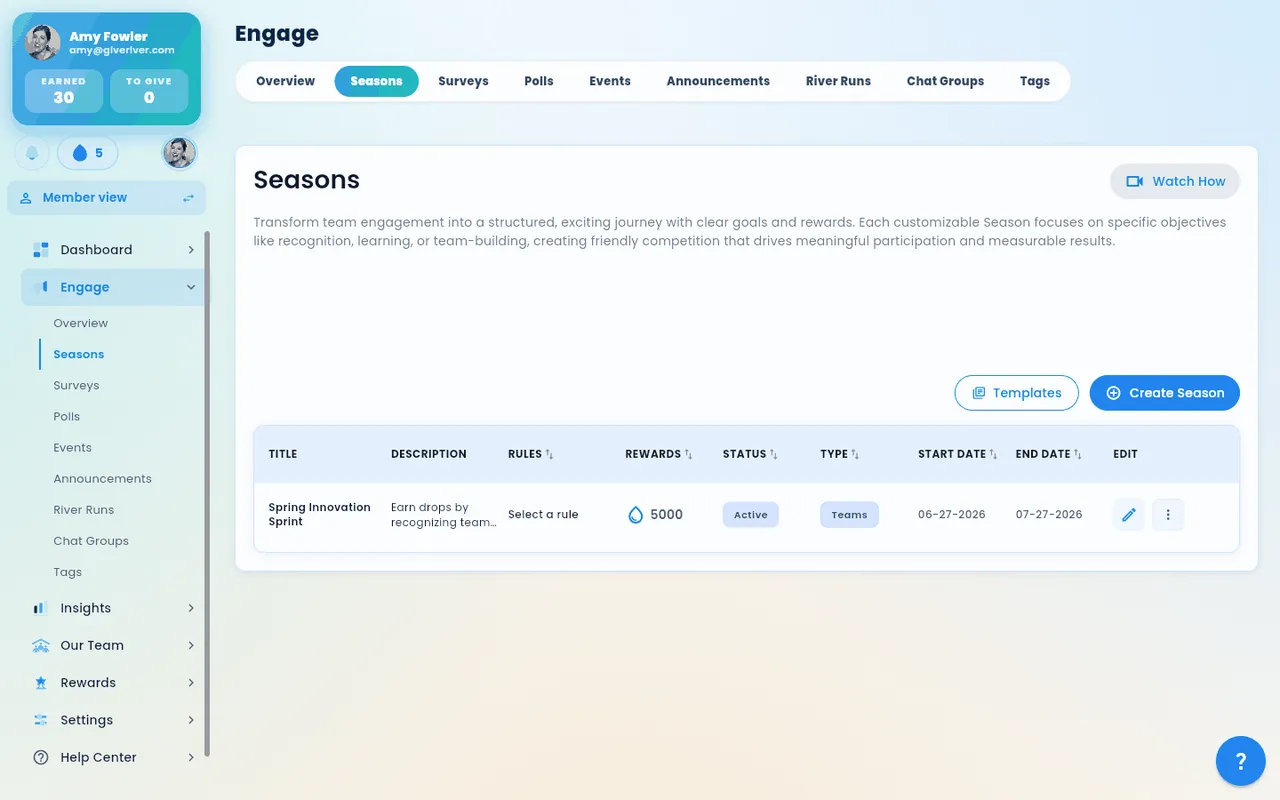
Seasons are time-boxed engagement periods that give your team a shared goal, a defined start and end date, and a focused leaderboard. Admins create and manage seasons from the Engage section of the admin panel.
The wizard's Set Goal step (Boost Performance & Productivity, Build Connectedness & Culture, Foster Growth & Learning or Promote Wellness) is saved with the season as its focus. Choosing Boost Performance & Productivity makes it a Performance season, with extra goal features for that season (see Performance seasons below, and How Performance Seasons Work). SMART goals created during a season automatically link to it, and the season's detail page in Insights includes a SMART Goals wrap-up (goals created, completed, completion rate, participants, and drops paid).
Accessing Season Management
- Log in with your admin account.
- Navigate to Admin > Engage > Seasons.
- The Seasons page loads with a table of all existing seasons.
The Seasons Table
The table shows up to five seasons at a time. Each row includes:
| Column | What it shows |
|---|---|
| Title | The name of the season |
| Description | A short summary of the season's purpose or theme |
| Rules | The rules governing how drops are earned or counted |
| Rewards (💧) | The drop reward amounts associated with the season |
| Status | Draft, Scheduled, Live or Ended (see below) |
| Type | Individual or Teams |
| Start Date | When the season begins |
| End Date | When the season ends |
| Edit | Button to open the edit wizard |
Click any column header (Rules, Rewards, Status, Type, Start Date, End Date) to sort the table by that column.
If you have more than five seasons, click See All to open a full-screen dialog showing the complete list.
Season Status
Each season has a setting of Active, Inactive or Draft:
| Setting | Meaning |
|---|---|
| Active | The season runs between its start and end dates. Rankings and drop activity count toward this season. Active seasons can't overlap, so only one runs at a time. |
| Inactive | The season has ended or been paused. Activity no longer counts toward it. |
| Draft | The season has been created but not yet started. Members do not see it yet. |
The Status column turns that setting and the season's dates into the same pill used across Engage and Insights:
| Pill | When |
|---|---|
| Draft | The season is a draft, or paused (Inactive) before its end date. |
| Scheduled | Active, with a start date still ahead. |
| Live | Active and between its start and end dates. |
| Ended | Its end date has passed. |
Changing a Season's Status
- In the Seasons table, click the three-dot menu (action menu) on the right side of any season row.
- Select one of the following:
- Set Active — makes this the currently running season
- Set Inactive — ends or pauses the season
- Set Draft — moves the season back to draft state
Creating a New Season
- On the Seasons page, click Create Season (or the equivalent create button).
- The Season Wizard opens as a multi-step dialog. Work through each step in order:
Performance seasons
A season whose goal is Boost Performance & Productivity is a Performance season: for that season only, SMART goals move to the front. Under the goal cards, the Performance season features box has one switch per feature. All are on for a new Performance season; switch off any you don't want, now or later by editing the season. For the full picture, including what happens between seasons, see How Performance Seasons Work.
| Switch | What members get |
|---|---|
| Goals on Home | A My goals this season section on Home (their season goals, the next milestone and its drops, a quick check-in), and a Set a goal for this season card in Dailies during the season's first two weeks. Choose the Performance layout under Settings → Layout → Season layouts to put it first. |
| Milestone drops count in the standings | Approved goal-milestone drops add to each member's season score — and to their team's score in a Teams season. They count toward the season that's running on the day a milestone is approved, and under the Earned and Combined rules only; with Given or Received scoring they don't (the box says so). Season prizes are paid on the same numbers. |
| Goal reminders | A Dailies card when a milestone or goal is due within 3 days, or when a goal that was on track or at risk falls behind pace. At most one a day, on weekdays between 9 a.m. and 6 p.m. in the member's time zone, plus a push notification unless the member turned it off (My Goals > bell icon). Never email. |
| Team goals | One shared goal per team, set by the team's manager (Individual season: for their direct reports; Teams season: the captain, a manager of a team member, or an admin). Members' new goals start linked to it; it's reached when every linked goal is done, and every member whose linked goal has an approved milestone gets its bonus — paid like milestones and, under Earned or Combined scoring, counted toward the standings. Shows as the Team goal card on Team Hub, where managers also suggest goals to their reports. |
| Carry over unfinished goals | When the season ends, each member with an unfinished goal gets a card in Dailies named after the season (for example Q3 has ended) and decides, goal by goal: Carry over into the next season, Mark complete, or Let it go. Nothing happens until they choose. Carry over needs a season running at the time, so if there's a gap between seasons that option waits for the next one (the other two work any time). Finished milestones, paid drops and this season's results stay with this season. |
The switches do nothing for other season goals. Seasons created before these features existed keep them all off until you switch them on.
Keep the season Active until the day after it ends. Season prizes and the season-ended cards only go out for a season that's still Active after its end date. Set it to Inactive after that, not before.
Between seasons, members can keep checking in, submitting milestones and completing goals, and managers can keep approving them. Those drops are paid, but they don't count toward any season's standings. The Home section, the Team goal card and goal reminders return with the next Performance season (members who chose Remind me all year keep getting reminders).
When a member carries a goal over, the season that ended still counts it in its goal wrap-up (as unfinished), so its numbers don't change. Managers see their reports' goals, pace and check-ins under My River → My Goals → My team — see SMART Goals for Managers. Insights → Goals shows how quickly managers review milestones each season (see Admin Insights and Analytics).
Wizard Steps
| Step | What you configure | Required |
|---|---|---|
| 1. Season Type | Choose Individual or Teams (see Season Types and Templates) | — |
| 2. Set Goal | The season's primary goal. Picking Boost Performance & Productivity also shows the season's Performance season features (see Performance seasons) | Yes |
| 3. Season Details | Title, description, start and end dates (or a duration preset) | Yes — the end date must be after the start date |
| 4. Rewards | The distribution rule and the drop prize for each winning place (see Season prizes) | Yes — a rule, and drops for at least one place |
| 5. Participants | Roles or people to leave out of the rankings | Optional |
| 6. Badge Reward | A badge for winners | Only if you turn the badge on (then its title and description) |
| 7. Team Target | A collective drops target | Only if you turn it on (then a target above 0 and its reward) |
| 8. Season Teams | (Teams seasons only) Set up the teams | At least one team |
| 9. Preview | Review everything before creating | — |
- Click Next to advance. Next won't leave a step until its required fields are filled in; it tells you what's missing instead. You can go Previous at any time, and you can jump back to any step from the list on the left. A step shows a tick only once it's complete.
- The Preview step lists anything still missing — click an item to jump to its step. Create Season (or Update Season) stays disabled until nothing is missing. Creating publishes the season in Draft status.
- Return to the Seasons table and use the action menu to Set Active when you are ready to launch.
Season Prizes
The Rewards step starts every new season with 50, 30 and 20 drops for 1st, 2nd and 3rd place. These are drop prizes paid automatically when the season ends:
- Individual seasons: the members who finish 1st, 2nd and 3rd on the season leaderboard (ranked by the distribution rule you pick) receive those drops.
- Teams seasons: every member of the 1st-, 2nd- and 3rd-place teams receives the full amount for their team's place.
A How season prizes work box at the top of the step explains this and shows each prize's dollar value at your club's drop value (set in Admin > Rewards > Drop Defaults). If no drop value is set, the box says so instead of showing dollars.
50 / 30 / 20 is only a starting suggestion. Type any amount into a place, use Add Position to pay more places, or Remove to pay fewer. The number of winners is the number of places with more than 0 drops. The Season Pot is the sum of all the places. The Preview step repeats the explanation so you can check the prizes before you create the season.
Editing an Existing Season
- In the Seasons table, click the Edit button on the row for the season you want to change.
- The Season Wizard opens with the current settings pre-filled.
- Navigate to the step containing the setting you want to change.
- Make your edits and click Save.
Forking a Challenge Template into a Season
The Season Wizard can now fork an existing challenge template as a starting point for a new season, instead of building everything from scratch.
- In the Wizard's challenge step, click Use template / Fork.
- Pick a template from your team's challenge templates list.
- The wizard pre-fills the season's challenge configuration from the template. Continue through the remaining steps and tweak anything you want — the fork is editable; you're not bound to the template after forking.
This is the fastest way to launch a season that uses a repeatable challenge format (e.g., a quarterly "kindness streak") without retyping the rules.
Unsaved-Changes Guard
The Season Wizard now tracks unsaved edits properly across all steps. If you try to close the wizard with edits in progress, you'll see a Discard changes? prompt explaining what will be lost. Closing without edits skips the prompt — no false alarms.
Tips
- Plan your season before creating it — once active, some settings (like season type) cannot be changed.
- Use Draft status to prepare a season in advance and review it before launching.
- Active seasons can't overlap, but an ended season can stay Active while the next one runs. If you set an ended season to Inactive, wait until the day after its end date, so its prizes (and, for a Performance season, its season-end goal cards) go out first.
- Season rankings are visible to all members in the River Rankings leaderboard under the Season tab while the season is active.
- Completed seasons and their results remain visible in the Seasons table for historical reference.
Did this article help?
Related articles.
See the platform in action.
30-day free trial. No credit card. River Guide included on Core and Growth.