Drop Shop
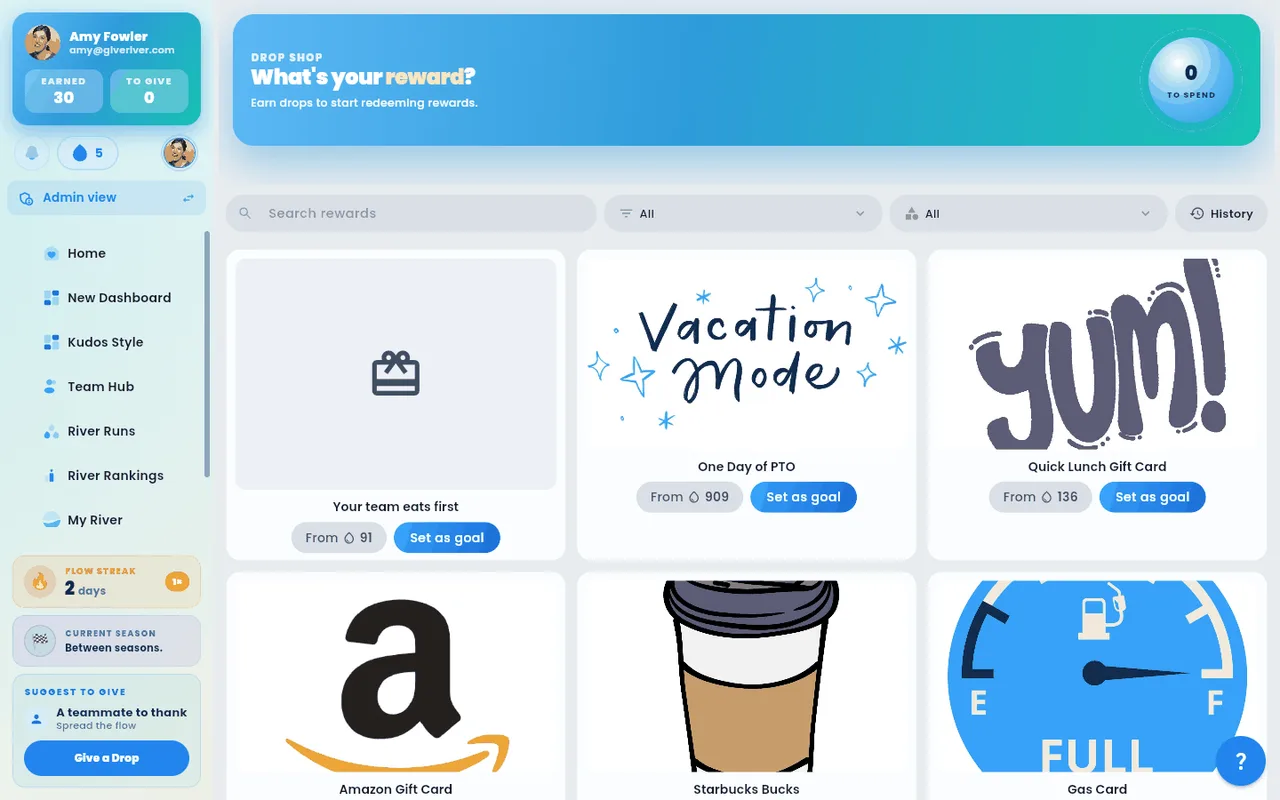
The Drop Shop is where you spend your River Bank — the drops you've received from teammates and earned through challenges and engagement. (The drops you give each cycle are a separate balance and can't be spent here; the shop's banner says so, beside your balance.) You can browse custom rewards created by your organization, redeem Tango gift cards from major brands, and review your past redemptions — all in one place.
Accessing the Drop Shop
- Tap Redeem on the My Drops card at the top of Home, tap Drop Shop in the bottom bar on your phone (when your admin has it there), or select Drop Shop from the main menu.
- The shop loads your current River Bank balance (To spend) and your active reward goal automatically.
If you don't see the Drop Shop anywhere, your team's administrator has turned it off.
Your Reward Goal
When you're saving toward a reward, the banner at the top of the Drop Shop shows it beside your balance:
- How many drops you still need, for example "120 drops to unlock CEO for a day"
- Your balance against the reward's cost, with a progress bar
When you can afford it, the banner says so. With no goal set, the banner shows just your balance. To set a goal, open a reward you can't afford yet and tap Set as goal; setting another goal replaces it.
To stop saving toward a reward, tap the × (Remove goal) at the end of the progress bar on the banner and confirm. Your drops stay in your River Bank and nothing is redeemed; the banner goes back to your balance, and you can set a new goal any time.
Finding Rewards
The bar under the banner holds everything for browsing:
| Control | What it does |
|---|---|
| Search box | Finds a reward or gift card brand by name |
| Redeemable filter | All shows everything; Redeemable shows only what you can afford right now |
| Category filter | Custom Rewards shows your organization's own rewards (experiences, perks, merchandise, etc.); All adds brand-name gift cards when your admin has turned them on; a gift card category (e.g., Dining, Shopping) narrows the gift cards |
| History | A log of every redemption you have made, with its status. Tap it again to go back to the rewards. |
Custom Rewards
Pick Custom Rewards in the category filter, or leave it on All.
Browse the list (or grid on tablet and web) of available rewards. Each card shows:
- A reward image
- The reward name
- The drop cost (displayed as "From 💧X")
Tap a reward card to open its details (a sheet on a phone, a panel on a computer). It shows:
- The reward image, name and full description, plus how you'll receive it when your admin has added that
- What it costs in drops, and roughly what that's worth in dollars
- Your balance, and your balance after redeeming (or how many more drops you need)
- That an admin reviews custom reward requests before the reward is sent
Tap Redeem (or Set as goal) right from the details, or Close to keep browsing. The Redeem button on the card itself works too.
If you have enough drops, tap Redeem. The confirmation names the reward, what it costs, and how many drops you'll have left — tap Redeem to complete the redemption, or Cancel to back out.
If you do not have enough drops yet, tap Set as goal. The prompt shows how many drops you need and have; confirm, and the reward becomes your reward goal on the banner so you can track your progress.
Some rewards come in a limited number; their details show how many are left. When the last one is redeemed, the reward is sold out and leaves the shop. If you redeem it at the same moment someone else takes the last one, you'll see "This reward is sold out." and no drops are taken. If an admin rejects a request, that one goes back into stock.
Gift Cards
- Set the category filter to All or a gift card category.
- Use the search bar to find a specific brand by name.
- Use the Redeemable filter dropdown to show only gift cards you have enough drops to redeem right now, or leave it set to All to browse everything.
- Use the Category filter dropdown to narrow results by category (e.g., Dining, Shopping, Entertainment).
- Tap any gift card to open its detail page.
Redeeming a Gift Card
On the gift card detail page:
- Review the brand image, description, and terms and conditions.
- Fixed-amount cards: Select a denomination from the grid (e.g., $10, $25, $50, $100). Each tile shows the dollar face value and the equivalent drop cost.
- Variable-amount cards: Enter a dollar amount in the dollar field, or enter drops in the drop field. The two fields update each other automatically based on your organization's drop-to-dollar conversion rate.
- Check the Balance chip to confirm your available drops. Once you pick an amount, a summary shows what it costs, your balance after redeeming (or how many more drops you need), and whether the card is sent automatically or an admin approves it first.
- If you have enough drops, tap Redeem. Confirm the prompt to finalize.
- If you need more drops, tap Set as Goal to save the card as your current target.
After a successful redemption, the gift card is delivered to you and the redemption appears in your History.
History
Tap History (the clock button on a phone) to see all past redemptions in reverse chronological order, streamlined to focus on the item itself — no recipient or trailing metadata cluttering the row. Each entry shows:
- The reward or gift card name (front and centre)
- The drop amount spent
- The current status (e.g., Pending, or Approved in green)
- If an admin rejected the request and said why, the Reason under the name. You also get it in the rejection notification, and the drops you spent are returned to you.
Tap a row to expand its detail (including the redemption date and any fulfilment information). Use it to verify that a redemption was processed or to follow up with your admin if a reward has not arrived.
On a Phone
On a phone, the Drop Shop toolbar wraps onto two rows, so the search box has room next to the filters.
Tips
- Your redeemable drop balance is separate from any drops still in a recognition budget. Only earned drops that have cleared can be spent in the Drop Shop.
- Setting a reward goal does not reserve drops — it simply tracks your progress. Drops can still be spent on other redemptions while you are saving toward a goal.
- Gift cards appear only when your admin has turned them on. If you don't see any gift cards, ask your admin.
- Admins can also send you a gift card or custom reward as a gift. See the Give a Drop Shop Item article for details on how that works.
Did this article help?
Related articles.
See the platform in action.
Free for up to 25 members, or try Core or Growth free for 30 days. A card is required; Free is never charged, and a trial bills when it ends unless you cancel.