Charity Channel
The Charity Channel is your organization's hub for social impact. It surfaces the causes and charities your team cares about, shows what your colleagues have chosen to support, and makes it easy for you to discover and align with a cause of your own.
Accessing the Charity Channel
- Tap Charity Channel in the main navigation (the location varies by your organization's menu configuration).
You may also see a compact Team Charities card in the side column of the Home page (on wider screens), just below the Season card. It previews up to three of the charities your team supports; tap See all on that card to open the full Charity Channel. The card only appears when the Charity Channel is enabled for your organization and your team has charities selected — otherwise it stays hidden.
- If the feature is active, the channel loads with a full-width banner image and a "Make An Impact" badge at the top.
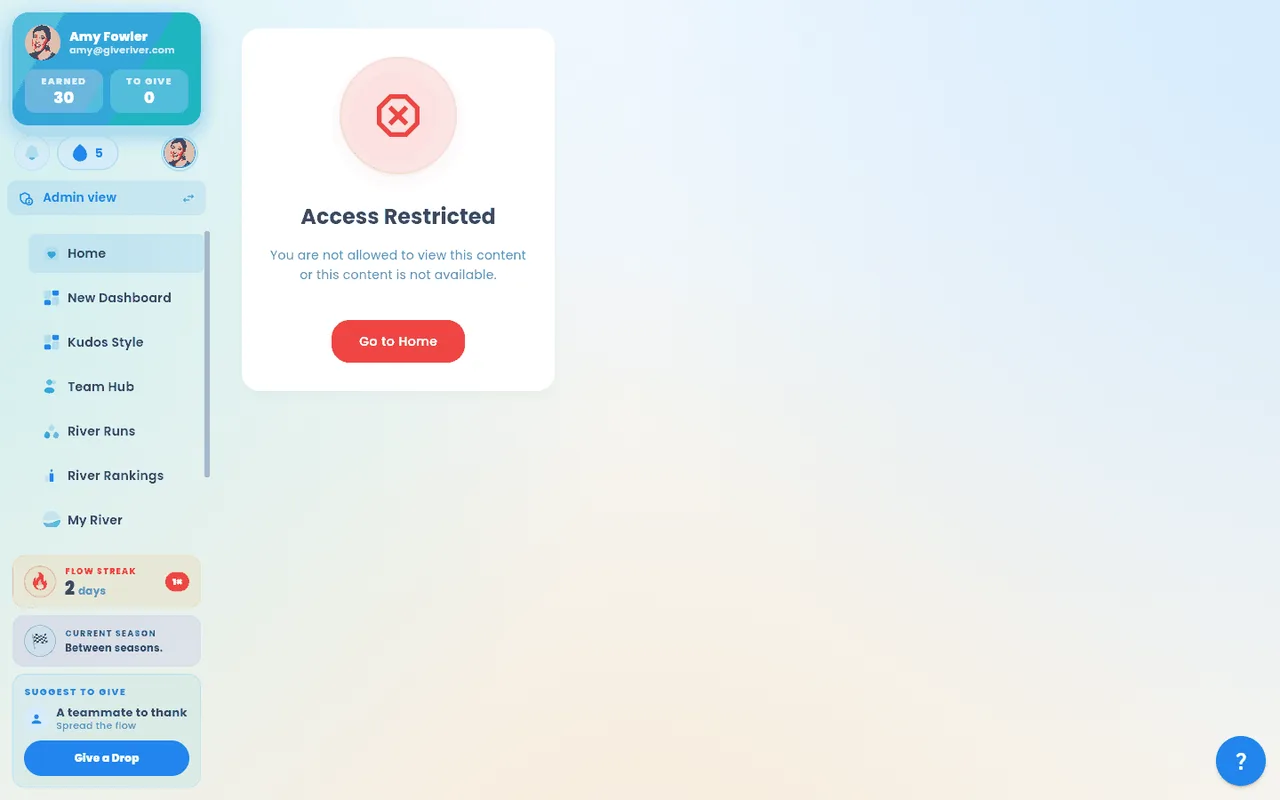
- If the feature is not enabled for your organization, you will see an access-restricted message instead.
What You Will See
The Charity Channel is organized into four sections:
| Section | What it shows |
|---|---|
| Team Causes | Causes that your colleagues have selected across the organization |
| Team Charities | Charities that teammates are actively supporting |
| My Selected Causes | The causes you have personally chosen |
| My Selected Charities | The charities you have personally chosen |
Each section shows a preview of items. Tap See all on any section to view the full list.
If none of your teammates have selected causes or charities yet, and you have not selected any yourself, the channel displays an empty state prompting you to get started.
Browsing Causes
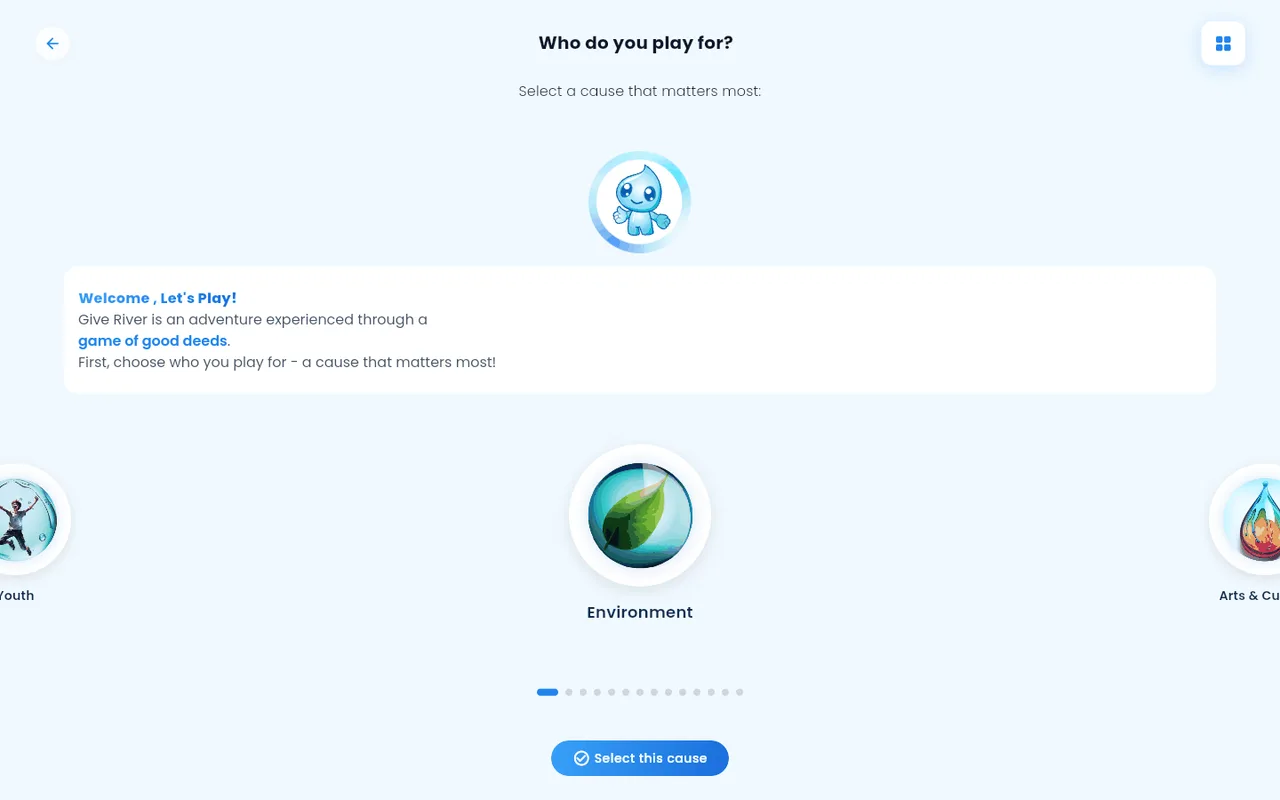
- In the Team Causes or My Selected Causes section, tap See all to go to the full Causes browser.
- The Causes page lists all causes available in your organization.
- Tap a cause to read more about it.
- Select causes you want to support. Your selections appear in the My Selected Causes section of the Charity Channel.
Alternatively, scroll to the bottom of the Charity Channel and tap Browse Causes from the Discover More Causes card.
Browsing Charities
- In the Team Charities or My Selected Charities section, tap See all to open the full charities list dialog.
- Browse charities by name or category.
- Tap a charity to learn more and choose to support it.
- Your selections appear in the My Selected Charities section.
Alternatively, tap Explore Charities from the Discover More Causes card at the bottom of the Charity Channel.
The "Discover More Causes" Card
At the bottom of the Charity Channel, a card provides two quick-access buttons:
- Browse Causes — takes you to the full list of causes you can align with
- Explore Charities — opens the charities browser
Use this card any time you want to explore new causes or charities without scrolling through the individual sections above.
How Causes and Charities Affect Rankings
The causes and charities you select feed directly into the River Rankings leaderboard. The Rankings screen includes tabs for:
- Charity Leaders — members who have given the most toward charity-aligned goals
- Cause Leaders — members supporting specific causes
Selecting a cause or charity connects your recognition activity to the broader social impact your team is making together. See River Rankings for more details.
Tips
- You can support multiple causes and charities at the same time — there is no limit to the number you can select.
- Your selections are visible to teammates in the Team Causes and Team Charities sections, helping build a shared sense of purpose.
- Admins manage which causes and charities are available to your organization. If you would like a specific charity added, contact your administrator.
Did this article help?
Related articles.
See the platform in action.
Free for up to 25 members, or try Core or Growth free for 30 days. A card is required; Free is never charged, and a trial bills when it ends unless you cancel.