Charity and Cause Selection
Give River lets you personally align with causes and charities that matter to you. Your selections are displayed on the Charity Channel alongside your teammates' choices and are reflected in the River Rankings leaderboard.
What Are Causes and Charities?
| Term | Meaning |
|---|---|
| Cause | A broad mission or value area your organization supports (e.g., Environmental Sustainability, Mental Health Awareness) |
| Charity | A specific non-profit organization tied to one or more causes |
You can select one or more of each. Selecting a cause or charity does not automatically donate money — it signals your personal alignment and connects your recognition activity to the impact your team is tracking collectively.
How to Select a Cause
From the Charity Channel
- Open the Charity Channel from the main navigation.
- Scroll to the My Selected Causes section, or tap Browse Causes from the Discover More Causes card at the bottom.
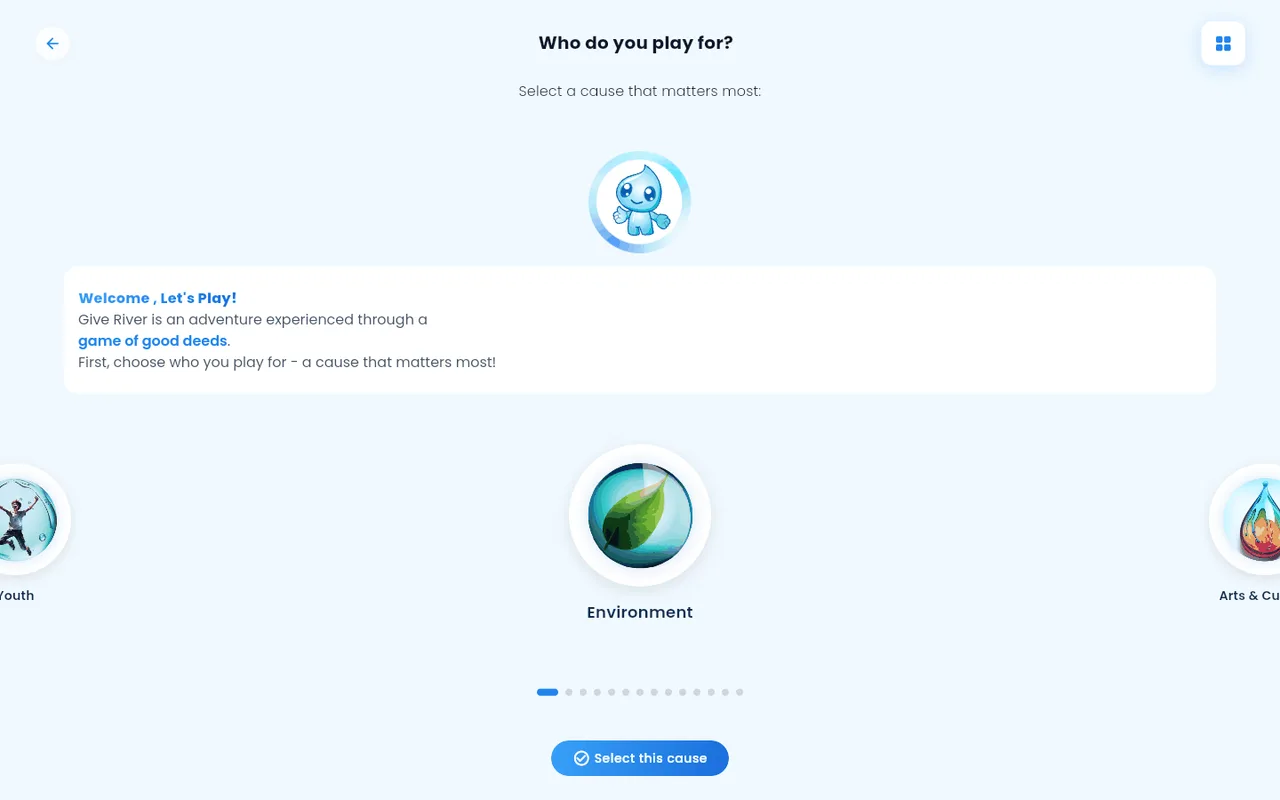
- The Causes browser opens, showing all causes available in your organization.
- Tap a cause card to view its description and details.
- Tap Select this cause to add it to your list.
- Your chosen cause appears in the My Selected Causes section of the Charity Channel.
From the Discover More Causes Card
- On the Charity Channel, scroll to the bottom.
- Tap Browse Causes.
- Follow steps 3–6 above.
How to Select a Charity
From the Charity Channel
Open the Charity Channel from the main navigation.
Scroll to the My Selected Charities section, or tap See all in the Team Charities section to open the full list.
Alternatively, tap Explore Charities from the Discover More Causes card.
The Choose your charities page opens.
Browse or search for a charity by name. The list starts with charities for the cause you picked, or for your own cause. If you haven't chosen a cause, it shows the charities already on Give River. If nothing matches, you'll see No charities found. Try a different name.
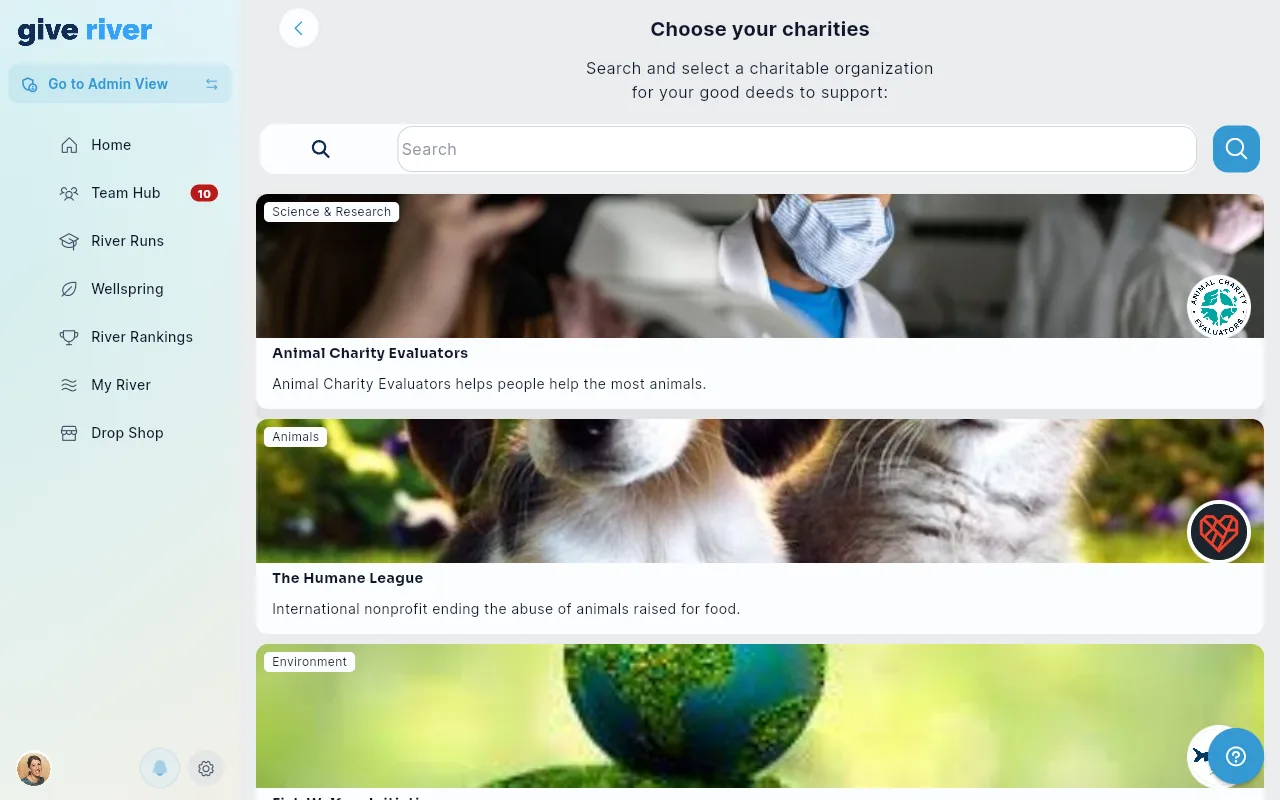
Tap a charity to view its details.
Tap Join to add it to your personal list. Primary makes it your one primary charity, which earns rewards as you earn drops. Invite shares it with a teammate.
The charity appears in the My Selected Charities section of the Charity Channel.
Viewing Your Selections
Your currently selected causes and charities are always visible in the Charity Channel under:
- My Selected Causes
- My Selected Charities
You can also see what causes and charities your teammates have selected under Team Causes and Team Charities in the same screen. This visibility helps teams discover shared values and align around common goals.
Removing a Selection
- Navigate to your selected cause or charity in the My Selected Causes or My Selected Charities section.
- Tap the cause or charity to open its detail view.
- For a charity, tap Leave. For a cause, tap its remove button. It comes off your personal list.
How Selections Appear in Rankings
Your cause and charity selections flow into the River Rankings leaderboard. Rankings include:
- A Charity Leaders tab showing the top contributors aligned with charity goals
- A Cause Leaders tab showing engagement around specific causes
This means the causes and charities you select become part of how your team measures its collective social impact over time. See River Rankings for more detail on how the leaderboard works.
When You'll Be Asked
Cause and charity selection is opt-in: Give River does not force the picker on you at every login. You may be invited to choose causes when you first join, and you can update your selections any time from the Charity Channel.
Tips
- There is no limit to how many causes or charities you can select.
- Your selections are visible to your teammates on the Charity Channel, which encourages alignment and shared purpose.
- Causes and charities are managed by your administrator. If a cause or charity you care about is not in the list, contact your admin to request it be added.
- The Charity Channel and cause/charity selection features must be enabled by your admin. If you cannot see these options, the feature may not be active for your organization.
Did this article help?
Related articles.
See the platform in action.
Free for up to 25 members, or try Core or Growth free for 30 days. A card is required; Free is never charged, and a trial bills when it ends unless you cancel.