Onboarding Flow
When you open Give River for the first time, you'll be guided through a short intro experience before you sign in, followed by a post-signup walkthrough that sets up your notifications and location. Both flows take under two minutes.
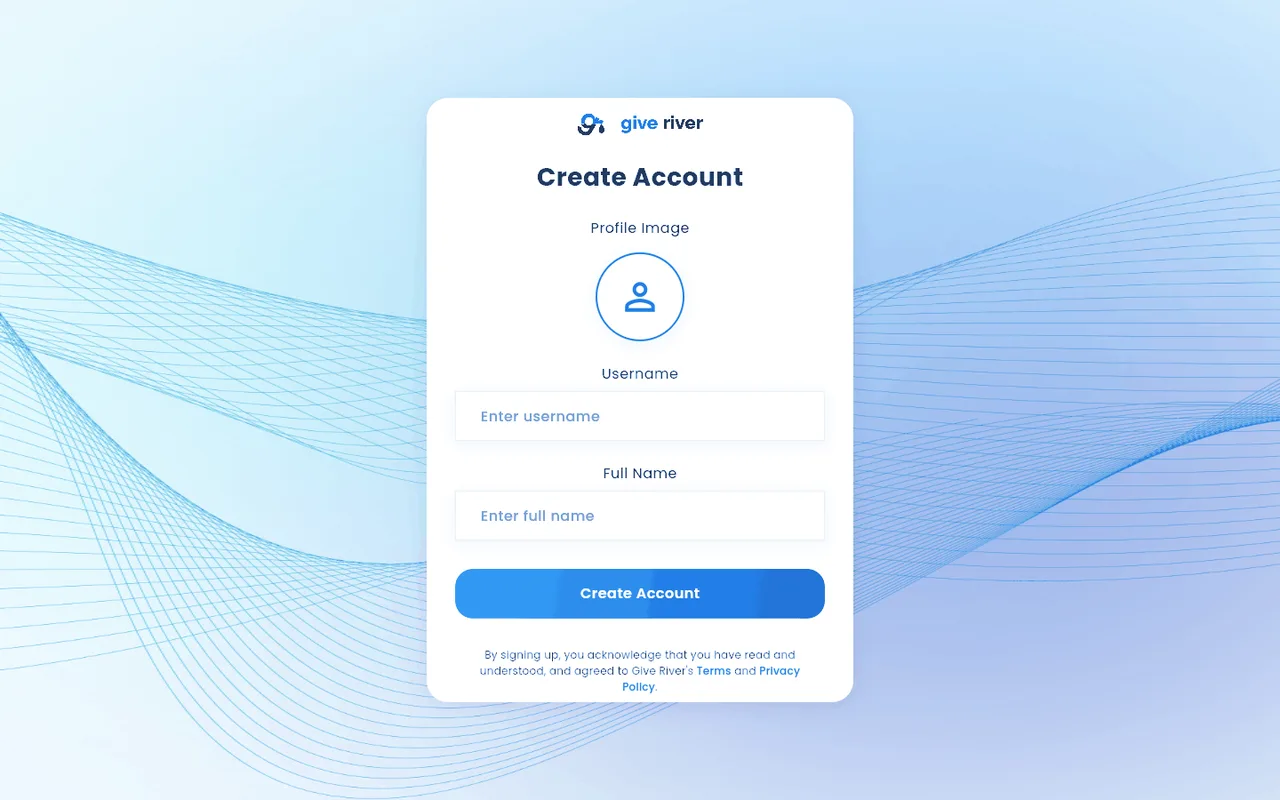
Pre-Login Intro Slides
Before creating an account, Give River shows a three-screen animated introduction to the platform.
- Slide 1 — An illustrated opening screen with a gradient heading and supporting text. Tap the forward arrow to continue, or tap Skip to jump straight to login.
- Slide 2 — A second informational slide building on the concept of recognition and generosity.
- Slide 3 — An animated Lottie sequence that cycles through the core idea: "on Give River / good deeds earn drops / anytime you / see or share / kindness or generosity / tap to / add your drop." A Begin button plays the final animation and then takes you to the login screen.
You can swipe between slides or use the navigation buttons. Tapping Skip on slide 1 takes you directly to login, bypassing all three intro screens.
Post-Signup Welcome Wizard
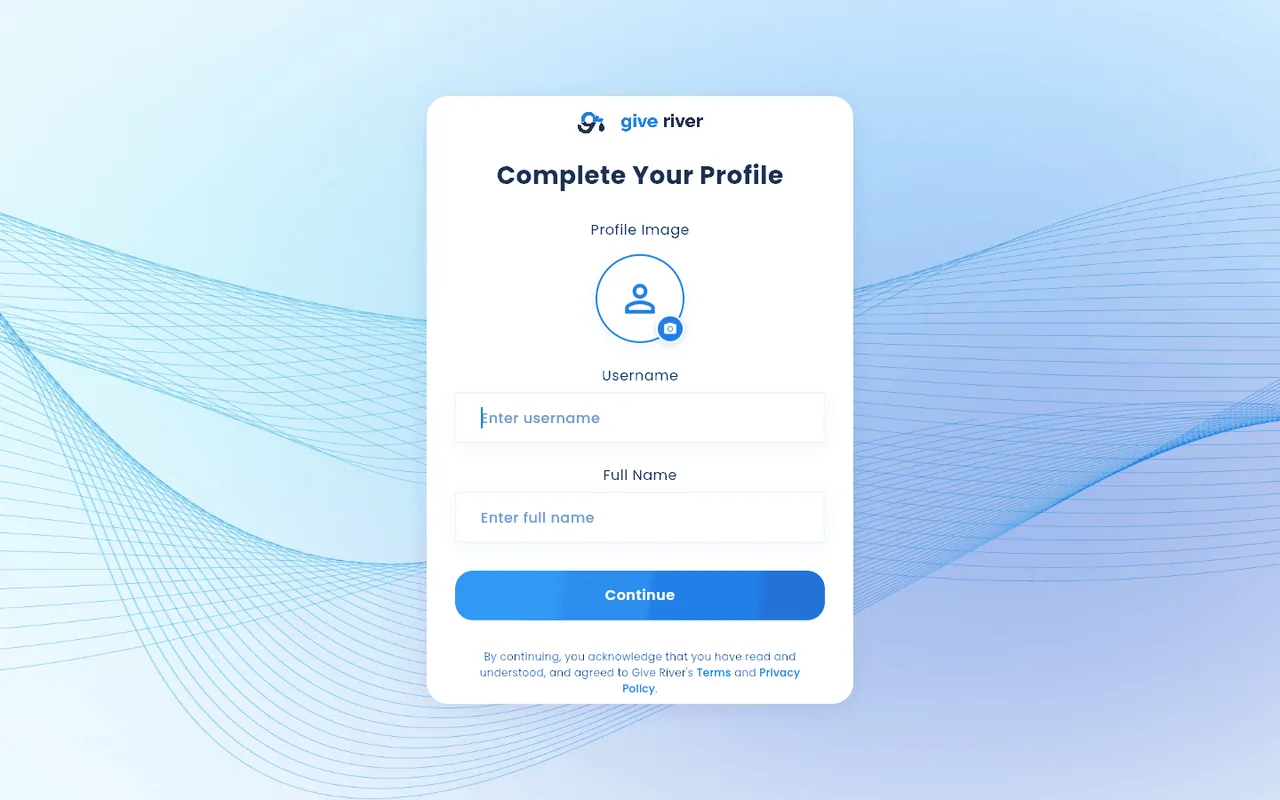
After you create your account and verify your identity, Give River runs a four-step gamified welcome experience (sometimes called the "game screen"). This is different from the intro slides — it only appears once, right after your first sign-in.
| Step | What Happens |
|---|---|
| 1 — Act & Tap | An illustrated screen explains the drop tap mechanic. You're prompted to allow push notifications so you never miss recognition. |
| 2 — Location | Give River requests optional location access to help surface nearby team activity. |
| 3 — How It Works | A third slide continues the walkthrough with additional context. |
| 4 — Better Together | A final "Better Together" screen with a Let's Go button. |
When you tap Let's Go on the final screen, Give River routes you to the Causes list so you can choose the charitable cause your drops will support. This only happens on first signup — if you return to this screen later (e.g., from a settings prompt), tapping Let's Go takes you to the main Home feed instead.
First-Use Contextual Guides
After the welcome wizard, Give River shows one-time popup guides the first time you encounter key features:
- Welcome to the River — introduces the River feed
- Drop Options — explains what you can do when adding a drop
- Generosity Journal — explains how the journal works
- River Run Consent — a "Kind reminder!" dialog before your first River Run (see River Runs Consent)
- Clubs — guides you through scanning, searching, creating, or skipping clubs
- Teams — explains how to find your charity team
- Invite Friends — the "Better Together" invite prompt
- Notification Permission — a second prompt if you didn't allow notifications in step 1
Each guide appears only once. Once you dismiss it, it won't show again.
Did this article help?
Related articles.
See the platform in action.
30-day free trial. No credit card. River Guide included on Core and Growth.