Team Creation and Settings
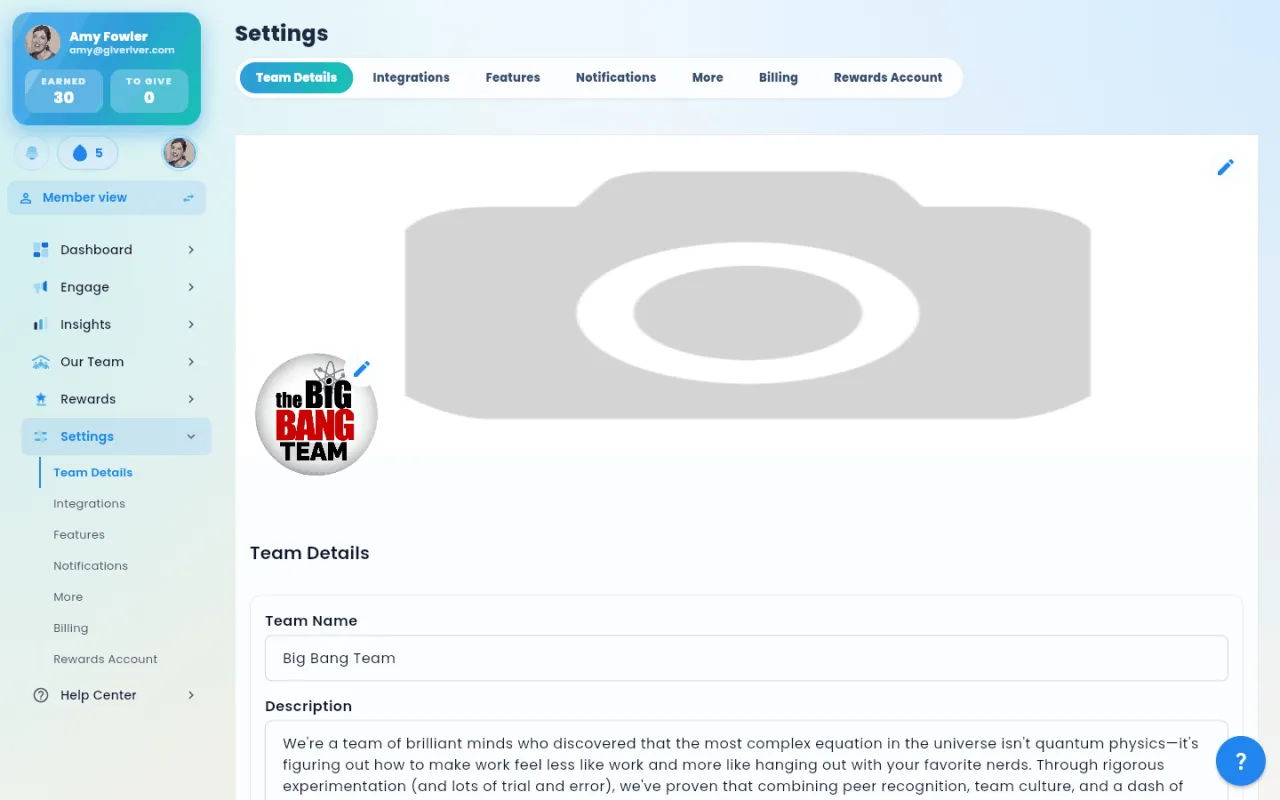
Team settings control your organization's profile, branding, privacy rules, invite links, and the structural details of your Give River workspace. These are found under Settings > Team Details.
Signing Up a New Team
Anyone with a work email can start a new Give River team. Start from our pricing page: pick a plan there and its button opens sign-up. (The app's sign-in screen is for people who already have an account or are joining their company's team, so it has no Create a team link.) Sign-up takes four short steps:
- Email — enter your work email. Personal addresses (such as Gmail or Yahoo) aren't accepted. If your company's email domain already belongs to a Give River team, a note under the field says so: ask your admin for an invite, or sign in if you already have an account. Already have an account? Click Sign in under the field to go back to the sign-in screen.
- Code — enter the 4-digit verification code we email you. Codes expire in 15 minutes. If the code doesn't match, a note under the boxes says so and the boxes clear so you can try again. Didn't get the email? Click Resend code under the boxes for a new one; it's available 30 seconds after a code is sent (until then the link counts down).
- Team info — your first name (so we know what to call you), your team's name (we fill it in from your email's domain — change it if it isn't quite right), and optionally its website and a description. You can change the team details later under Settings > Team Details. Your logo and cover image come right after checkout, on the Look step of Team setup.
- Plan — choose Free, Core or Growth (and, for Core and Growth, a monthly or annual billing period), tick the terms box, then click Start for free (Free) or Start free trial (Core, Growth) to go to secure Stripe checkout. Until you pick a plan the button just says Continue; the terms checkbox and the button stay at the bottom of the card, so on a phone you can see your plan and the terms together. Next to the button, a short list says what happens next: for a trial, $0 today, We email you 3 days before your trial ends and how easy it is to cancel; for Free, Card stays on file, never charged on Free and Upgrade anytime.
The terms box. Ticking it confirms: "I'm authorized to act for (your team's name) and agree, on its behalf, to the Terms of Service (including the limitation of liability and indemnification sections) and the Privacy Policy." Tap Terms of Service or Privacy Policy in the sentence to read either one in your browser. The button stays off until the box is ticked. We keep a record of who accepted, for which team, and when.
When our Terms change. If we update the Terms of Service or Privacy Policy, the team owner and admins see We've updated our Terms of Service and Privacy Policy the next time they open Give River, with the same sentence to tick and an Accept button. One owner or admin accepting covers the whole team. Not now closes it, and it comes back the next time you open the app. Members don't see it, and nothing else in the app waits on it.
A card is required for every plan, Free included. On Free (up to 25 members) you're never charged. Core and Growth start with a 30-day free trial: you won't be charged until the trial ends. Plan names, prices and the trial length shown on the plan step come straight from our billing system. See Plans and the Free plan for what each plan includes.
A sign-up link can pick the plan for you: /create-team?plan=free, ?plan=core or ?plan=growth selects that plan. From the first step on, a small chip under the step indicator shows it (for example Core · 30-day free trial or Free · up to 25 members); click Change on the chip to pick another plan. A link can also fill in your email with &email=you@company.com (you still click Continue yourself). If you came from our website, the link may carry where you found us (utm_source, utm_medium, utm_campaign, ref); we save that with your team so we know which pages helped.
After checkout, Give River shows Setting up your team… for a few seconds while it confirms your subscription, then Your team is ready for a moment (Ugo says thanks, by name), and then opens Team setup, signed in to your new team. If it takes longer than usual, click Try again — or sign in with your work email to finish.
Left checkout without finishing? You'll see Checkout not finished: no charge was made, and your team is saved. Click Continue sign-up to go back to the plan step with your email, team and plan as they were. (If you come back in a different browser tab, we fill in your email instead; continue from there and you'll skip straight to the plan after the code.)
Finishing a sign-up later: if you stop partway (for example, you close the checkout page), just sign in with the same work email. We'll send you a new code and pick up where you left off, so you don't have to re-enter your team details.
Accessing Team Settings
- Navigate to Settings in the main sidebar.
- The default tab is Team Details.
Team Details Fields
| Field | Description |
|---|---|
| Team Name | The display name of your organization on the platform |
| Team Logo / Cover Image | Upload an image to brand your Give River workspace |
| Invite Link | A shareable link people can use to join the team (instantly with Automatic Join on and an approved email domain, otherwise after an admin approves) |
| Invite Link Toggle | Enable or disable the public invite link |
| Charity / Cause | Link your team to a charitable cause; members can donate drops |
Updating Your Team Name
- Click the Team Name field.
- Type the new name.
- Click Save Changes.
Uploading a Team Logo or Cover Image
Team logo:
- Click the edit icon on the logo.
- Select an image file from your device.
- Crop or adjust if prompted.
- The logo saves automatically after upload.
Cover image: the cover image is the banner at the top of your members' Home and Team Hub, so changing it always goes through a confirm step.
- Click the pencil in the cover image's top-right corner (hover it for Edit team banner). The Edit team banner window opens — the same one as the pencil on the banner on Home or Team Hub.
- Click Upload new to pick and crop a JPG or PNG (up to 5 MB), click one of your team's 5 most recent banners, or pick one of the Give River banners. To go back to the default banner, click Give River default at the end of the recent row.
- Drag the preview, or use the Vertical position and Zoom sliders, to reposition it.
- Click Save, then Yes, update banner in the Confirm team banner prompt.
Nothing changes until you confirm: Cancel (or closing the window) leaves the banner as it was. Once saved, the new banner shows here and on Home and Team Hub right away. See Arranging Home and Team Hub for more on the editor.
Managing the Invite Link
The invite link lets people join the team without a direct email invitation.
People can only join your team by invitation or by request — nobody can add themselves. What the link does depends on Automatic Join:
- Automatic Join on: someone who signs up from the link with an email on one of your approved domains joins right away. Anyone else sends a join request.
- Automatic Join off: everyone who uses the link sends a join request. Requests appear in Dashboard › Action Items under Joins, and the admins who get approval emails are notified.
- Toggle Invite Link ON to activate the link.
- Copy the link using the copy icon and share it with prospective members.
- To deactivate the link (preventing new joins via that URL), toggle it OFF.
Note: Toggling the link OFF does not remove members who already joined using it.
Choosing a Charity / Cause
- Tap or click the charity selector.
- Browse or search the list of available charities.
- Select your organization's preferred cause.
- Members will see this cause and can allocate a portion of their earned drops to it.
Settings Tab Reference
The Settings screen contains multiple tabs beyond Team Details:
| Tab | Purpose |
|---|---|
| Team Details | Organization profile, branding, invite link |
| Integrations | Slack, HRIS, and other third-party connections |
| Features | Toggle platform features on/off (River Runs, Surveys, Drop Shop, etc.) |
| Notifications | Configure which email notifications are sent to members |
| Rewards Account | Gift cards, Auto Redeem, the rewards balance and Business Details |
The drops audit log is at Dashboard → Audit Log → Drop Log.
Creating Additional Teams / Sub-Teams
If your plan supports multiple teams, you can create additional teams from the team switcher. Contact Give River support if you need to add a sub-team or business unit to your account.
Who Can Join
Automatic Join (in Settings › Team Details) decides whether people who use your invite link with an approved email join right away, or send a request you approve (see Managing the Invite Link above).
Your team is never listed or searchable in Give River: people outside it can't see its name or logo. They join through your invite link, an email invitation, or a request you approve. (Charity and cause groups are the exception; they stay searchable.)
Did this article help?
Related articles.
See the platform in action.
Free for up to 25 members, or try Core or Growth free for 30 days. A card is required; Free is never charged, and a trial bills when it ends unless you cancel.