Polls
Polls let admins collect a quick vote from the team. They appear on the Home page and stay open until their end date. Team members can vote once, and results update as votes come in.
For Team Members: Responding to a Poll
- Open the Home page.
- In the Happening Now row, tap Polls. Your polls open as Team Poll cards. If there's more than one, swipe left or right (or tap the dots) to move between them. Tap outside the card to close it.
- Read the question shown at the top of the card. The current vote count is shown below the question.
- Tap one of the lettered answer options (A, B, C, …) to cast your vote.
- After voting, the option you picked is highlighted and you can see how the votes are spread across all options. You can't change your vote after it's submitted.
- If the poll has a Drops reward, a message confirms the Drops you earned for taking part.
Polls work the same way on the web and in the mobile app. Your vote counts on every device.
For Admins: Creating a Poll
Polls are created from the Admin panel under Engage > Polls.
- Click Create Poll to open the poll creation dialog. To begin with a ready-made poll instead, click Start from a template (see Starting from a template below).
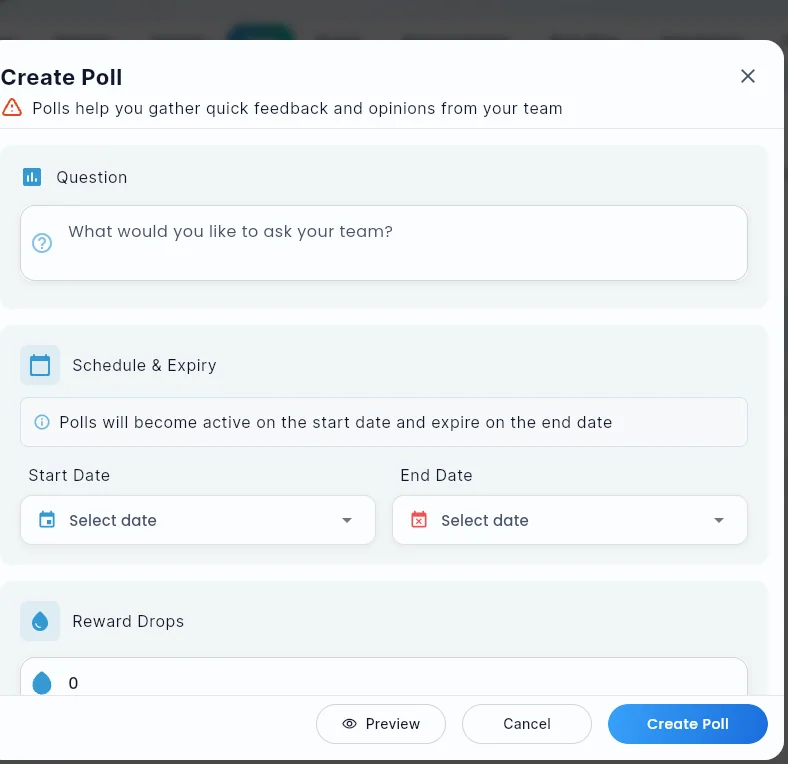
- Fill in the required fields:
| Field | Description |
|---|---|
| Question | The poll question shown to team members (up to 3 lines). |
| Start Date | The date the poll becomes visible to members. |
| End Date | The date the poll closes and can no longer be voted on. It can't be earlier than the start date. |
| Reward Drops | Number of Drops given to each member who votes (enter 0 for no reward). |
| Options | Answer choices for the poll, up to 6. Two options are added to start with; add or remove as needed. |
| Who is this for? | Everyone (the default), or pick people, teams & groups, locations, departments, roles or a saved segment. The live count shows how many members will get the poll. |
| Save as a team template | Optional. Tick it to keep the question and its options as one of your team's templates, so you can reuse them later. |
- Click Create Poll to publish. The poll appears on the Home page from the scheduled date, for the people it's for.
Starting from a template
Templates are ready-made polls you can start from, so you don't have to write every question from scratch. You'll find Start from a template in three places:
- Next to the Create Poll button on Engage > Polls.
- At the top of the Create Poll dialog.
- Under the "no polls yet" message, before your team has created any polls.
The template window groups polls by category: Fun, Pulse check and Planning. Use the chips at the top to show one group, or Your team to see only the templates your team made or changed. Each card shows the question, a short description and the first few answer options.
Click a card (or Use template) to fill the Create Poll form with its question and options. Nothing is sent yet: check the question and options, set the dates, reward and audience, then click Create Poll as usual.
Your team's templates
Give River provides a set of templates for every team. Your team can also keep its own:
- Save a poll as a template. In the Create Poll or Edit Poll dialog, tick Save as a team template before you save. The question and options are kept as a team template, marked Your team. If the poll started from one of your team's templates, the box reads Update the team template and saves your changes back to that template.
- Edit a template. In the template window, open the three-dot menu on a card and choose Edit. Change the question, description, category or answer options, then click Save template.
- Change a Give River template. Editing a Give River template (or saving a poll that started from one as a team template) keeps your changes as your team's own version, marked Edited. Give River's version stays the same for everyone else.
- Go back to the Give River version. On an Edited template, open the three-dot menu and choose Reset to Give River version. Your team's changes to it are removed and the original comes back.
- Delete a template. On a template your team made, open the three-dot menu and choose Delete. Give River templates can't be deleted, but you can edit them.
Only admins who can manage polls see templates, and your team's templates are only visible to your team.
Sending a poll to part of the team
Under Who is this for? you can send a poll to part of your team. People, groups, locations, departments and roles combine as "anyone who matches at least one". A saved segment is a reusable rule; see Audiences & Saved Segments.
The audience is worked out when the poll is sent (on its start date, or straight away with Send Poll in the Polls list). Only people in the audience on that day get the poll; people who join afterwards don't. Once a poll has been sent, its audience can't change. Duplicate the poll to send it to someone else.
Managing Polls (Admin)
The admin Polls list shows each poll's Status and Responses:
Status is a pill: Draft (not scheduled), Scheduled (waiting for its send date), Live (sent and open) or Ended (past its end date). It's the same Draft · Scheduled · Live · Ended set used across Engage and Insights.
Responses reads like "70 of 120 (58%)": how many people voted out of everyone the poll was sent to. Before a poll is sent it says Not sent yet.
Edit: Click a poll in the admin Polls list to update the question, options, dates, or reward. The audience can be changed until the poll is sent.
Duplicate: Use the Duplicate action to create a copy of an existing poll with a new schedule. The copy starts with the same audience.
Delete: Open an existing poll and click Delete. The confirmation names the poll; deleting it removes its votes, and drops members already earned stay theirs.
Previewing a Poll (Admin)
Before publishing, click Preview in the create or edit dialog to see how the poll will look to members on the Home page. Use it to spot long options or unclear wording before anyone sees the poll.
Leaving Without Saving (Admin)
If you start creating or editing a poll and try to close the dialog with changes you haven't saved, you'll be asked to confirm. This keeps you from losing a poll by accident.
Tips
- Keep poll questions short. Members see them inside a compact card on the Home page.
- Use Drops rewards to encourage people to take part.
- Members see one poll at a time on the Home page card, and can swipe to see all open polls.
- Start from a Pulse check template for a quick read on how the team is doing.
Did this article help?
Related articles.
See the platform in action.
Free for up to 25 members, or try Core or Growth free for 30 days. A card is required; Free is never charged, and a trial bills when it ends unless you cancel.