Team Hub
The Team Hub is where your team talks. It holds your group chats, your team roster, and your team's profile.
It's laid out like Home, so moving between the two feels seamless: the same team banner across the top (with your team logo in the top-left corner when your admin has it on), and the same column widths and card style. Unlike Home, the Team Hub leads with your team itself — its groups, events and members — rather than your personal welcome card. (Your admin can add the welcome card back in Settings > Layout.)
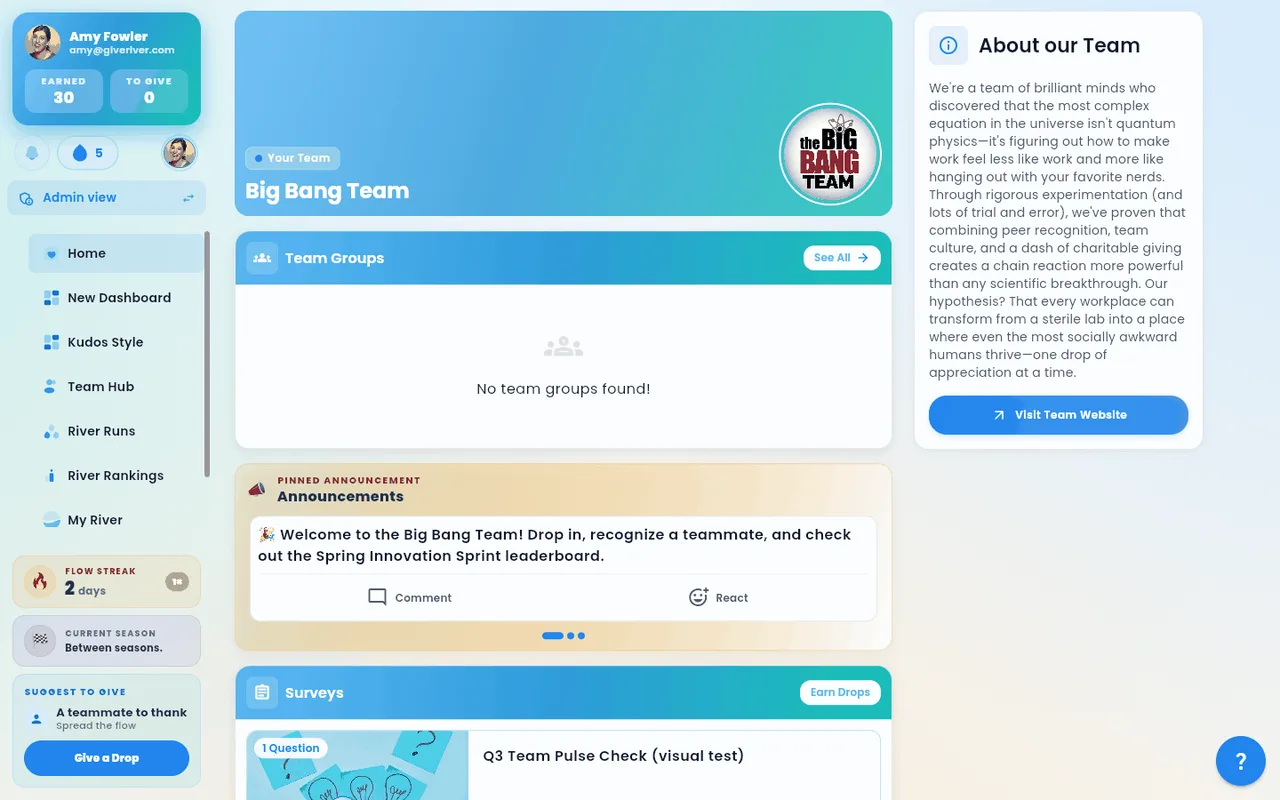
Announcements, polls, trivia and challenges used to live here too. They now appear on Home, so the day's activity is in one place and the Team Hub stays focused on conversation. Current events and open surveys also appear as tiles at the top of the Team Hub. Reflections and Mindful Minute moved to Wellspring.
What You'll Find on the Team Hub
When you open the Team Hub, you see your primary team's content organized into sections. This is the default order from top to bottom; your admin can rearrange the sections or hide some of them:
| Section | What it shows |
|---|---|
| Team Groups | The group chats you're in — your team, location, department and any groups you join — as one list: each group's picture, member count, latest message and unread count, with New message, New group and sorting (details below). |
| Team goal | During a Performance season with team goals on: your team's shared goal and its progress, and your teammates' goals (the ones shared with the team or the whole company). A line at the top says what you're looking at; the ⓘ button explains more. Goals show as one row of cards — each with the owner's photo down the left, the goal, its progress and next milestone. Swipe the row (or use the arrows); the dots below show where you are. See more opens every goal on the page as a grid, and Show less folds it back. Filter by Mine, Status (On track, At risk, Completed, Draft — your own drafts show only to you), Team and Owner, and Sort by name (the default — nobody is ranked unless you choose), progress, due date or recently updated. On a card, 👍 Cheer, Offer help (opens a chat starting with "Happy to help with …"), or Recognize the person. Cheering notifies the goal's owner. Managers set the team goal, release its bonus, and suggest goals here. See SMART Goals → Team goals and How Performance Seasons Work. Hidden outside those seasons. |
| Happening on your team | A row of tiles for your team's current events and the surveys you haven't answered yet. Tap an event to see its details, or a survey to take it. Hidden when there's nothing current. |
| Team Members | Everyone on your team, with a search box (name, title, department or location) and filters: My location (on by default when your team spans more than one location), Location, Department, Team, and My reports for managers. The count shows how many people match (for example "18 people in Pasadena"). Each person shows their photo, name and job title, then their location, department and team, with a Recognize button; tap a person to view their profile. On a phone, tap the Filters button next to the search box. |
| Run Discussions | Every Stream discussion you're part of, in one place. Completing a Stream lists its discussion here; commenting in one upgrades it, so replies to conversations you joined get the strongest highlight. Each row shows the Stream, who spoke last, the teammates in the conversation, how many messages it has, and an unread count for activity since you last looked — the Team Hub item in the main navigation carries the combined unread total. Tap a row to open the full discussion right there (read, reply, or start the thread without leaving Team Hub); the play icon jumps into the Run itself. When someone replies to a discussion post of yours, you'll also get a notification. A discussion only shows here once it has at least one post or comment, and only for Runs you're enrolled in or Streams you've completed. Hidden when there's nothing to show. |
| About Our Team | Team description and a button to visit the team website (the first card in the right column). |
| Season | The current season, your rank and a link to the leaderboard (right column, below About Our Team; hidden between seasons). |
| Team Events | Your team's upcoming events (in the right column on wide screens, at the bottom of the page on phones). Hidden when there are none, or when your admin has turned events off. |
Team Groups
Team Groups lists the group chats you're in, most recent first. The line under the title tells you how many messages you haven't read.
- What a row shows — the group's picture (a red count on it means unread messages), its name and how many members it has, a few members' faces on wider screens, and the latest message with who sent it ("Penny: see you at the lab"). A quiet group says No messages yet. Say hi! instead of disappearing.
- Opening a group — tap a row. On a computer or tablet the group opens right in the card: its banner with name and member count, buttons for Participants, Media and the full chat screen, the conversation, and a box to send a message. ← All groups takes you back to the list. On a phone, the group opens in the full chat screen; go back to return to Team Hub.
- Five at a time — the card shows your five most relevant groups; Show all N groups lists the rest, and Show fewer folds them away.
- New message — asks where your message should go: pick one of your groups to jump straight into its composer, or one of your River Runs to open its discussion.
- New group — if your admin has enabled member group creation (or you're an admin), New group creates a group: name it, pick members, and go.
- Sorting — the arrows icon offers Recent (latest message first), Most active (unread conversations first), and My order. Choosing My order adds a drag handle to each row — drag the groups into whatever order you like; it's remembered on your device.
- All chats — opens the full Chats screen, with your direct messages too.
- Unread badges — the same unread count rolls up to the Team Hub icon in the navigation, so you can see there's something new without opening the page.
- Location & department groups — if your profile has a location or department, you're automatically a member of that group chat. New colleagues in the same location or department join automatically too.
- No groups yet — the card says so and explains that location and department groups appear on their own; if you can create groups, New group is right there.
- Group setup — if you admin a group that has no messages yet, a Set up your group prompt links straight to its banner, logo, and name settings.
Navigating the Team Hub
- Open the app and tap Team Hub in the bottom navigation bar. A red badge on the icon counts your unread messages — the same total the Team Groups list shows.
- Scroll down to browse all active sections.
- Sections that have no content (e.g., no run discussions) hide themselves automatically to keep the page clean.
- Search or filter the Team Members card to find someone; Show more reveals the next people in the list.
- Tap Team Chat at the top of the Team Members card to jump directly to your team's chat room.
Games and challenges
Trivia and Drop Dares moved to Home along with the rest of the team activity.
How they work
When a round or challenge is live, the Team Hub surfaces it as a card you can act on without leaving the page:
- Company Trivia — shows the active round title, the number of questions ready, and a Play Now button. Hidden when no round is open. See Company Trivia.
- Drop Dares — shows the currently active dares for your team with a See All link to the full Drop Dares page. Hidden when no dares are active.
Both cards hide entirely when empty, so the Team Hub stays focused on what you can do right now.
Chat Pane Behavior
The Team Hub's chat pane occasionally fails on the very first room load (race with auth on cold start). The pane now auto-retries once so the most common cause of an empty chat-on-first-open is resolved without you needing to refresh. If chat is still empty after the retry, pull-to-refresh or reopen the Team Hub.
Notes for Admins
- Team content (polls, surveys, events, announcements, milestones) is still created from the Admin panel under Engage — it now appears on Home rather than the Team Hub.
- Member group creation is off by default: only admins can create chat groups. Turn it on under Settings → Features → Member group creation to give members the + New group button on Team Hub.
- Location and department groups are created automatically from your Members data — assign members a location or department and the matching group chat appears with them enrolled.
- The Surveys section only appears if Survey is enabled for your team by your admin.
- Daily Reflections and Mindful Minute now live on the Wellspring page, not the Team Hub.
- Team Hub is specific to your primary team. If you belong to multiple teams, the Hub reflects the team set as your primary.
Did this article help?
Related articles.
See the platform in action.
30-day free trial. No credit card. River Guide included on Core and Growth.