SMART Goals
Set personal goals, break them into milestones, and earn drops as you make progress, with your manager cheering (and approving) along the way.
Find your goals
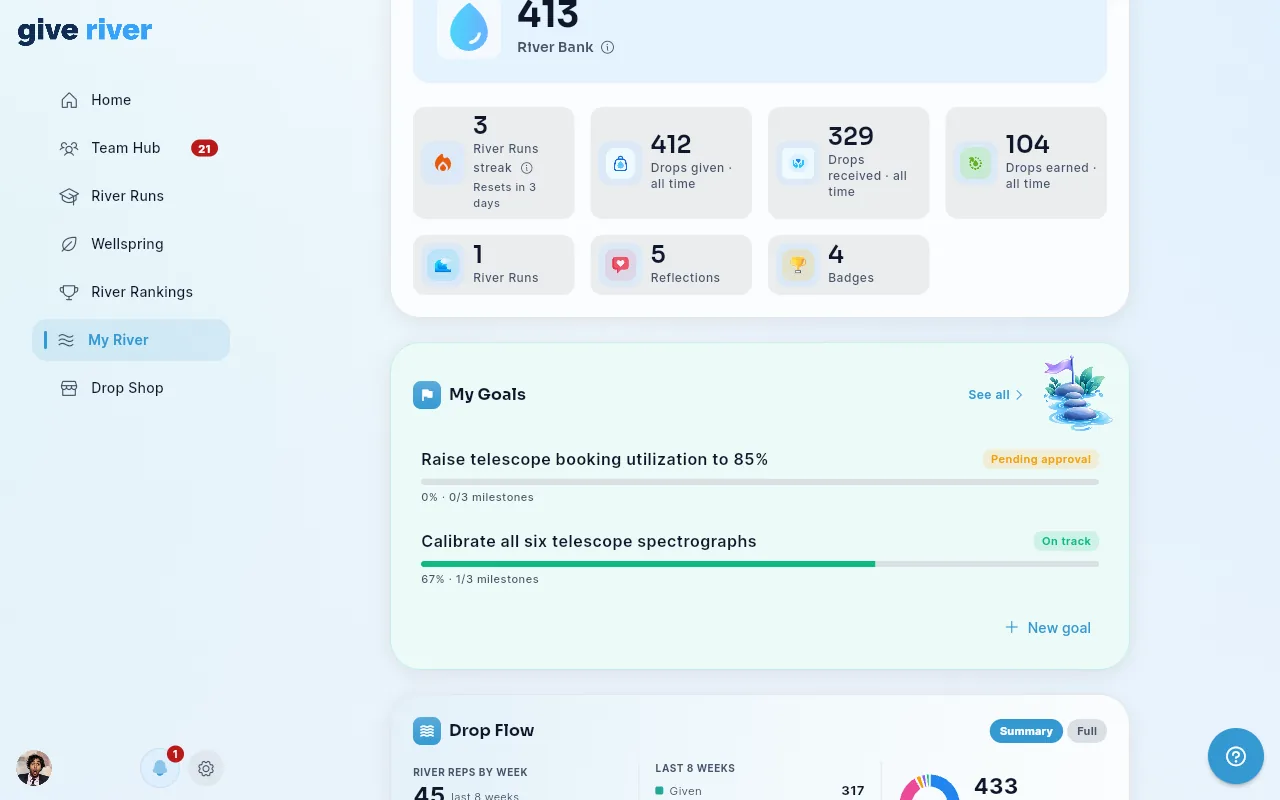
Open My River and look for the My Goals card near the top. It shows your active goals with progress bars. Tap See all for the full list, or New goal to create one.
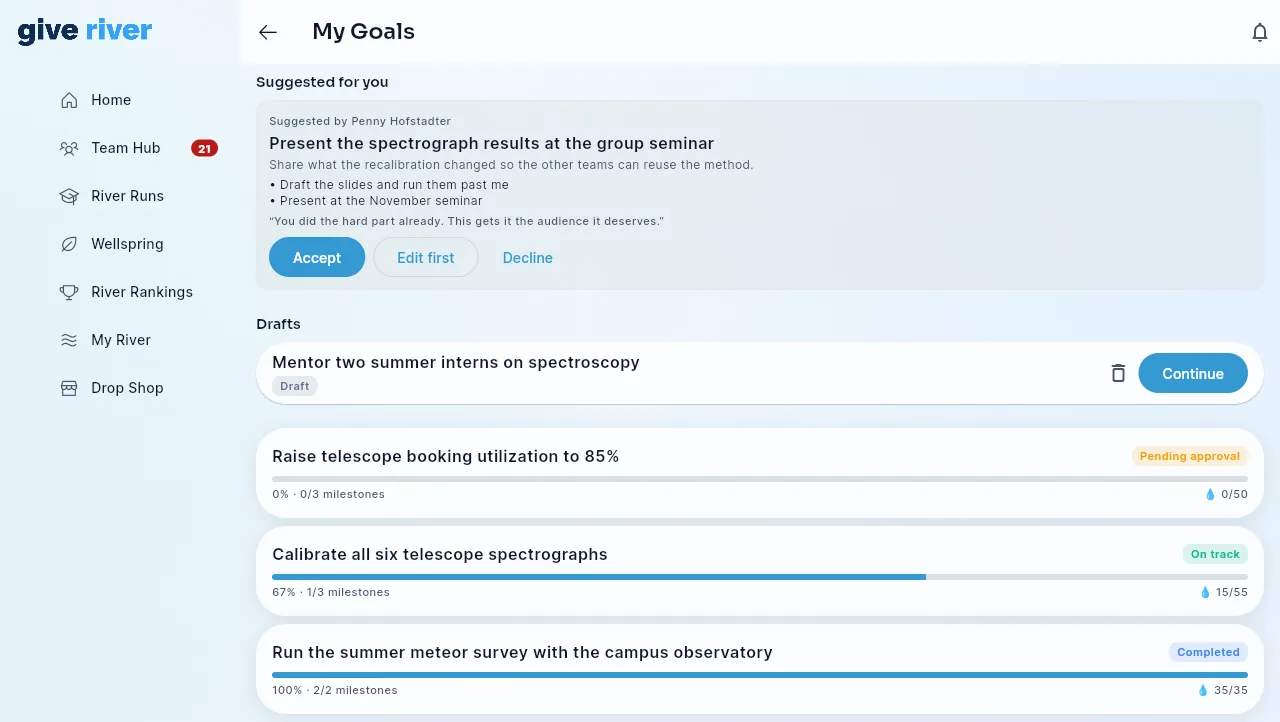
The full My Goals screen shows, from the top:
- Suggested for you — goals your manager suggested (see Goals your manager suggests).
- Drafts — goals you started but haven't submitted yet.
- Your goals, with their progress and pace.
During a Performance season your goals also show on Home. See Goals during a Performance season.
Set a goal
- In My Goals, tap New goal.
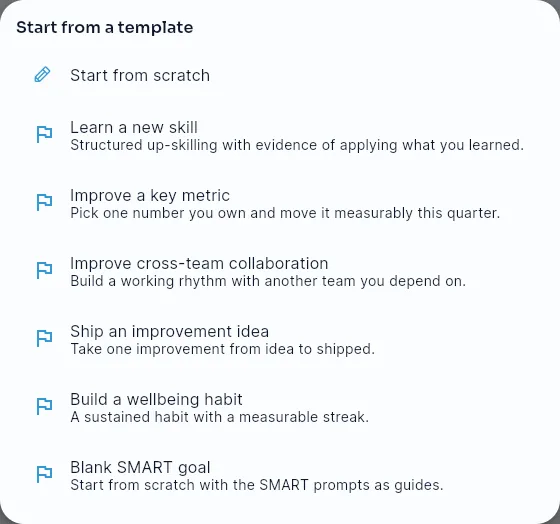
- Pick a template to start from (Give River ships several, and your admin may add more), or tap Start from scratch.
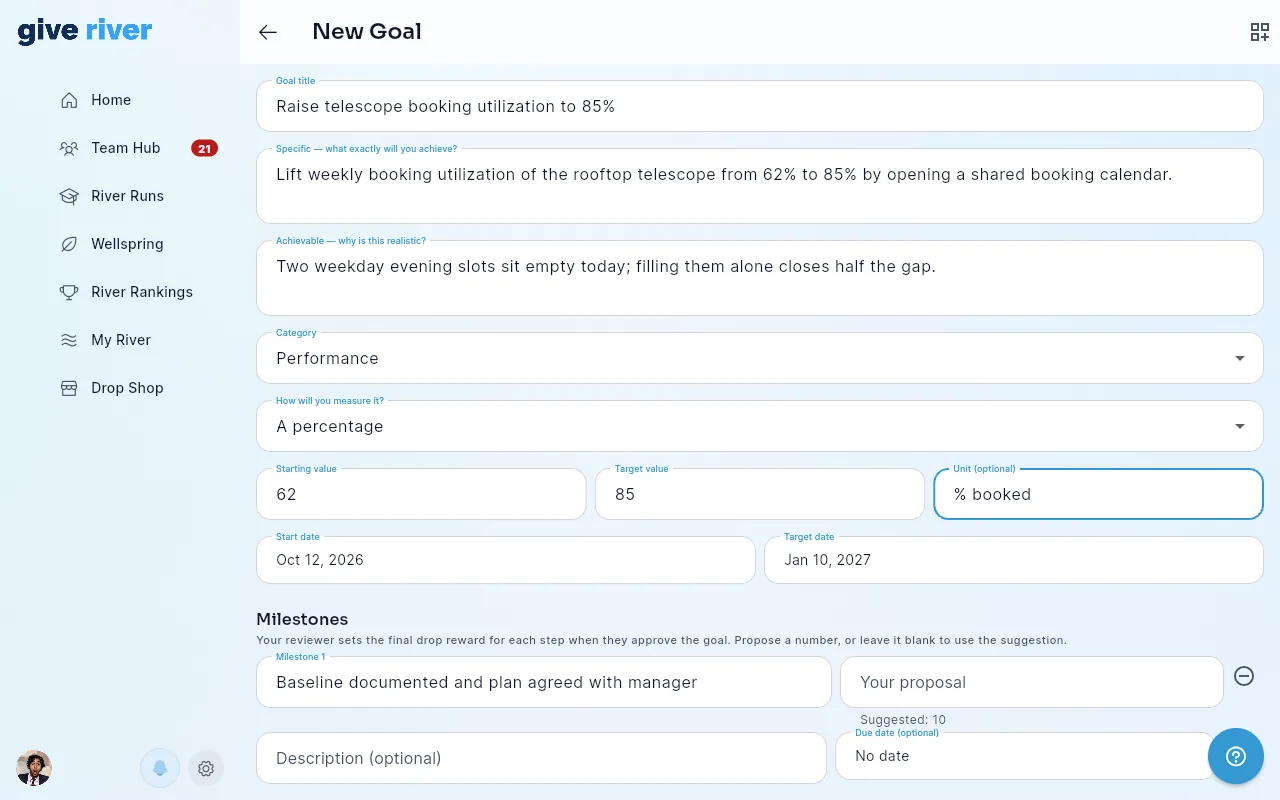
- Fill in the SMART fields:
- Goal title.
- Specific — what exactly you'll achieve.
- Achievable — why it's realistic.
- Category.
- How will you measure it? — A number, A percentage, A dollar amount, or Done / not done (by milestones).
- For a measurable goal, a Starting value, a Target value and an optional Unit.
- A Start date and a Target date.
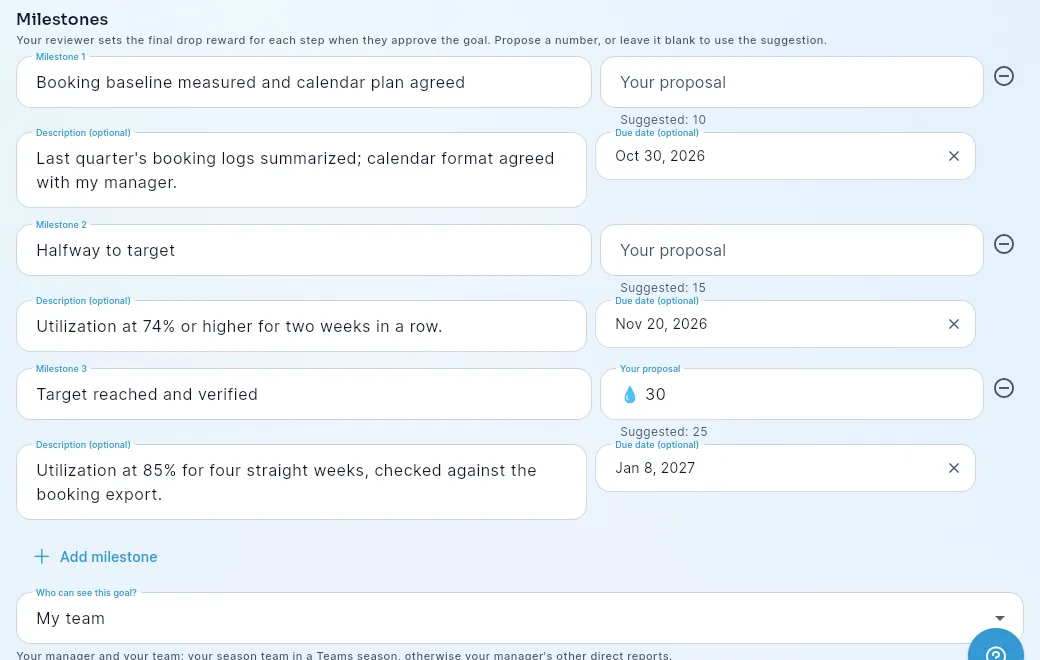
- Add 1 to 10 milestones: the concrete steps along the way. Each one pays a drop reward when it's approved (see How milestone rewards are set). Under each milestone you can add an optional Description and Due date. Due dates power your reminders, so they're worth adding.
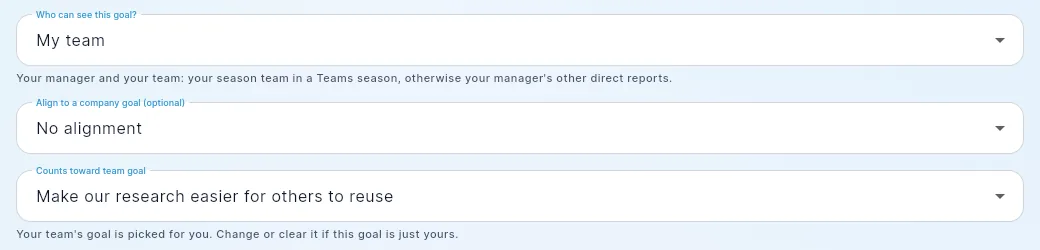
- Choose Who can see this goal? (see Who can see your goal).
- Optional: Align to a company goal, so your work rolls up to a bigger objective. The goal page then shows an Aligns to line.
- During a Performance season with team goals, Counts toward team goal is already set to your team's goal. Change it, or pick None — just mine. See Team goals.
- For a Whole company goal, choose whether to Celebrate completion on the River Feed.
- Tap New goal at the bottom of the form to submit it.
Depending on your organization's settings, your goal is active right away or waits for your manager's approval first. If you have no manager, an admin approves it.
Track something that goes down
Some goals are about reducing a number, like response time or costs. Set the Target value below the Starting value. The goal reaches its target when your value gets to the target or goes past it.
Drafts
If you leave the form before submitting, your goal is saved as a draft, as long as it has a title. Drafts sit at the top of My Goals under Drafts. Tap Continue to finish and submit one, or the bin icon to delete it. You can also delete a draft from its goal page: open the menu and tap Delete draft. Nobody else sees your drafts: not your manager, not admins.
Withdraw a goal waiting for approval
Submitted a goal too soon? While it's waiting for approval and none of its milestones has been started, open the goal, then the menu, and tap Withdraw. The goal goes back to your drafts and leaves your approver's list. Its details and milestones stay as they are, so you can edit it and submit it again, or delete it.
Who can see your goal
The form explains each option under the picker:
- Only me — just you. This is the starting choice outside a Performance season.
- My manager — you and your manager.
- My team — your manager and your team. In a Teams season that's your season team. Otherwise it's your manager's other direct reports, plus your own reports if you manage people. During a Performance season, new goals start here so teammates can help.
- Whole company — everyone in your organization. Only these goals can celebrate on the River Feed.
Admins can open any goal that isn't Only me. Their organization-wide goal list also shows the title and progress of every goal you've submitted, including Only me goals (never drafts).
How milestone rewards are set
Each milestone shows a suggested number of drops. The suggestion comes from the template you picked, otherwise from what milestones in your organization typically pay, otherwise from your drop allowance. No milestone can pay more than your organization's per-milestone maximum.
- When goals need approval (the usual setup), the drops field is Your proposal. Type a number, or leave it blank to go with the suggestion. Your reviewer sees your proposal and sets the final reward for each milestone when they approve the goal. Until then, the goal page notes that rewards aren't final.
- When goals don't need approval, the suggested rewards are filled in and become final when you create the goal. You can lower a reward, but not raise it.
Once a goal is approved, its rewards are locked. A manager or admin can lower the reward of a milestone that hasn't been paid yet (for example, if the goal's scope shrank). You'll get a notification with the new number and their reason.
Check in on your progress
Open a goal to see its progress ring, pace, milestones and check-in history. Check-ins and comments show when they happened ("2 hours ago", "Yesterday", "Sep 27, 2026") in your own time zone. A teammate's goal shows how many cheers it has, and you can Cheer it right there, just as on Team Hub.
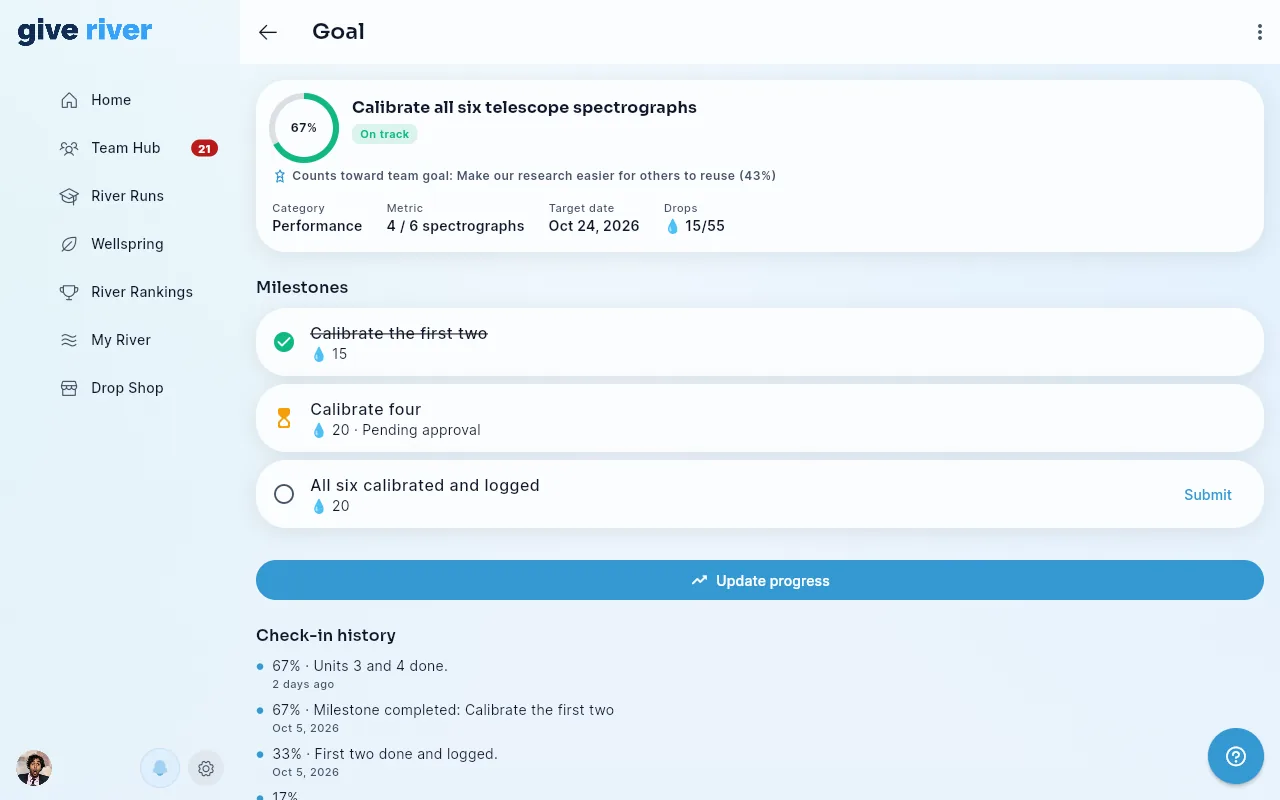
- Tap Update progress to check in: enter a new value (for measurable goals) and/or a short note about what moved. Each check-in is added to the goal's Check-in history.
- The pace chip (On track, At risk or Behind) compares your progress with the time that has passed, so it always shows where you really stand.
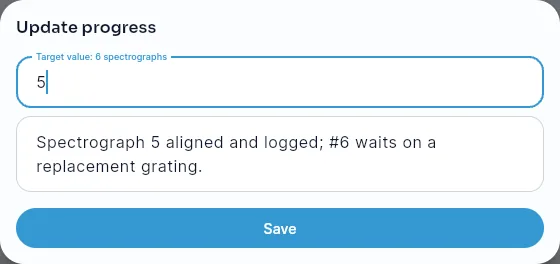
During a Performance season you can also check in straight from Home or from a goal reminder. Each check-in confirms with a Check-in saved message, and the goal's progress on Home updates right away.
Finish a milestone
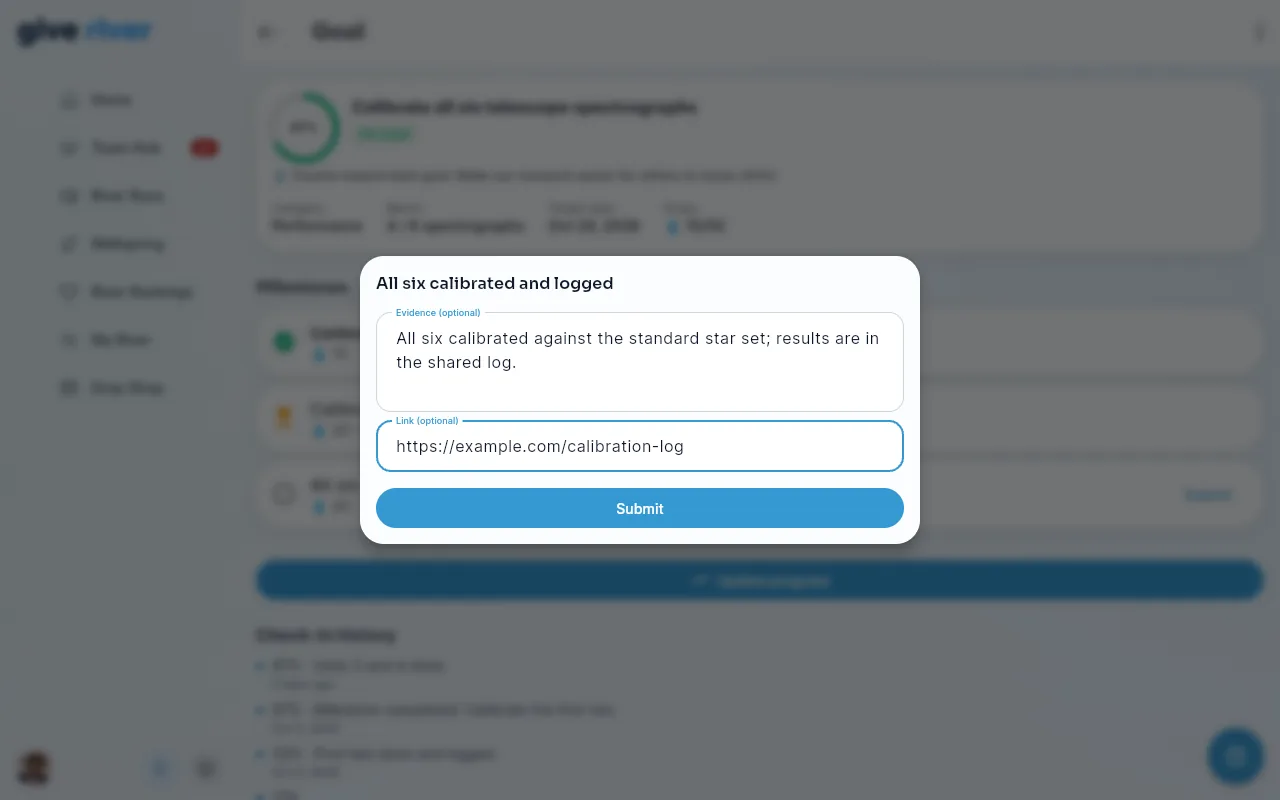
When you finish a milestone, tap Submit on it. You can add evidence: a note and/or a link. Your manager reviews it:
- Approved — the milestone's reward lands in your balance right away.
- Sent back — you'll see a note explaining what to change. Fix it and submit again.
If your organization auto-approves milestones, submitting pays the reward right away.
When a goal is sent back
If your reviewer sends the whole goal back, the goal page shows their note and an Edit and resubmit button. Change what they asked for, then tap Resubmit for approval. You can edit the SMART fields, dates and visibility, and, as long as no milestone has been started, the milestones and your proposed rewards.
Complete a goal
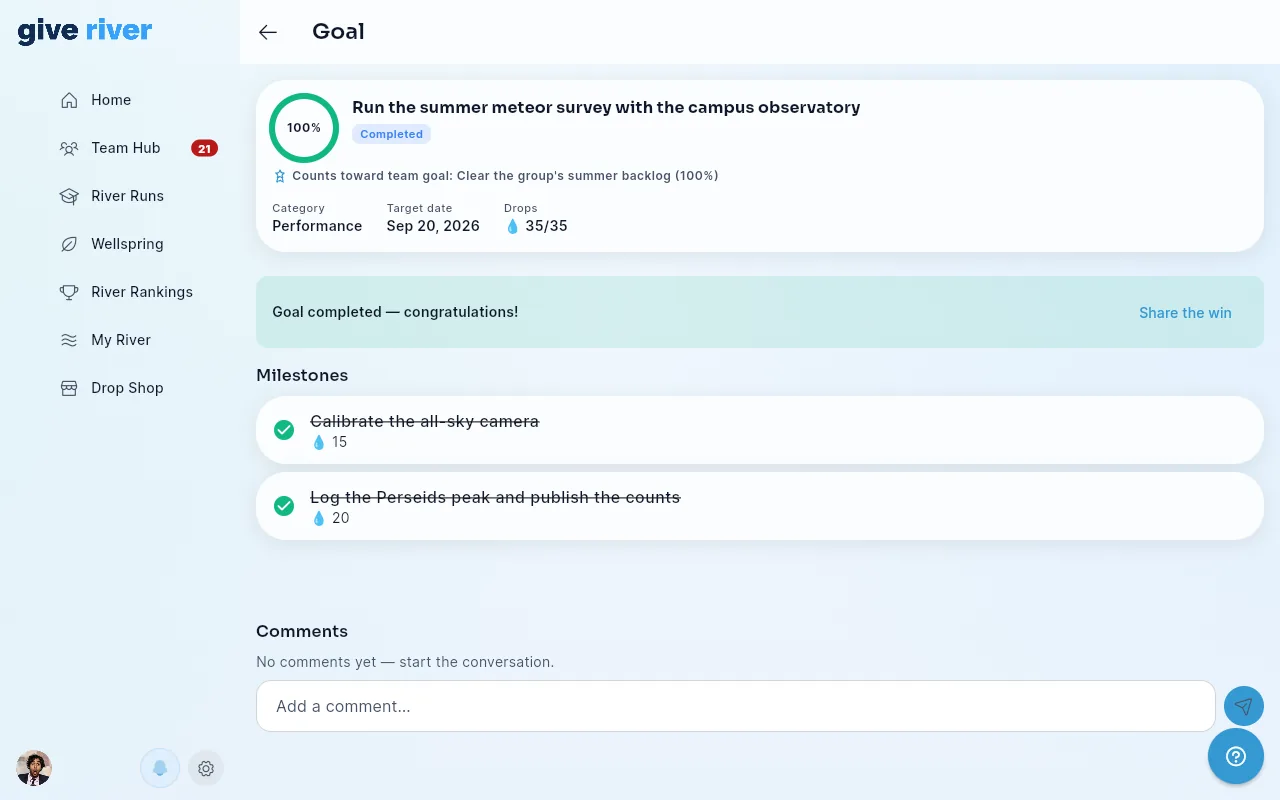
A goal completes when every milestone is approved and your target value is reached. You'll get a celebration 🎉. If the goal is shared with the Whole company and you turned on the celebration, a post tagged #goals goes to the River Feed. You can also tap Share the win on the goal page, or use the Goal win tile in Create Post.
Goals during a Performance season
When your organization runs a season with the goal Boost Performance & Productivity, goals move to the front for that season. Your admin chooses which of these are on:
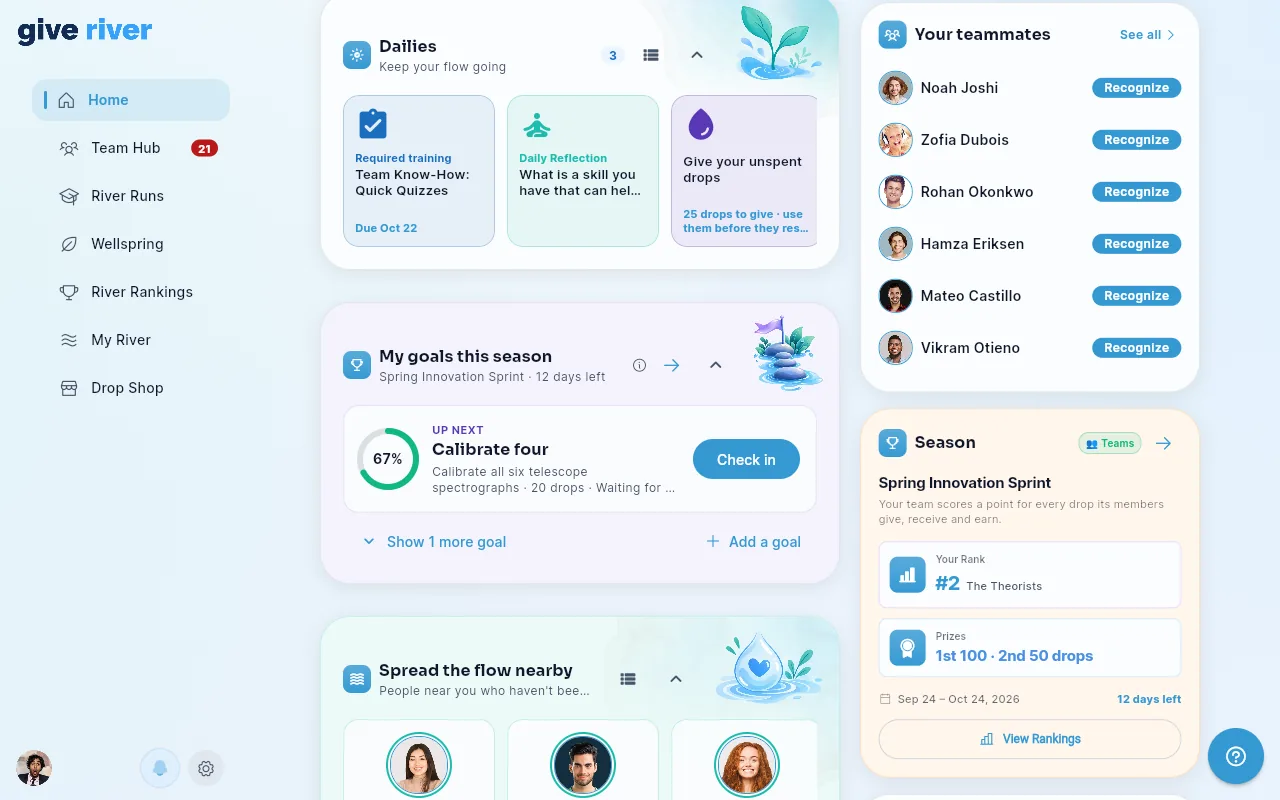
- My goals this season on Home — it leads with one goal: its next milestone in large type, a progress ring, the drops the milestone pays, when it's due, and Check in (or Finish draft for a draft). Your other goals are under Show N more goals, and the arrow opens My Goals. The ⓘ says that approved milestone drops count toward the season standings. Tap the chevron to fold the card to one line ("Next: … · 60%"); it stays folded on your other devices too. With no goal yet, it shows Set a goal for this season.
- A Set a goal for this season card in Dailies during the season's first two weeks, until you set one (or tap Not now).
- Goal reminders in Dailies (see below).
- Milestone drops in the standings — approved milestone drops count toward your season score, when the season is scored on Earned or Combined drops. They count toward the season that's running on the day the milestone is approved.
- Team goals on Team Hub (see below).
- A card named after the season (for example Q3 has ended) when a season ends (see below).
Learn more in How Performance Seasons Work.
Goal reminders
During a Performance season with reminders on, you may get a Goal reminder card in Dailies when:
- a milestone or a goal is due within the next 3 days and isn't done yet (a milestone waiting for review doesn't count), or
- a goal that was on track or at risk has fallen behind pace.
You get at most one goal reminder a day, on weekdays between 9 a.m. and 6 p.m. in your time zone. Tap the card to check in on the spot, Open goal to see the whole goal, or Not now to close it.
Change your reminder settings
In My Goals, tap the bell icon:
- Remind me all year — get deadline and pace reminders outside Performance seasons too.
- Also send push notifications — on unless you turn it off. Reminders always appear in Dailies; this adds a push notification. Goal reminders never send email.
Team goals
During a Performance season, your admin can turn on team goals: one shared goal per team. Your manager sets it (in a Teams season, your team's captain, a manager of someone on the team, or an admin can). It doesn't have a number of its own. Its progress is the share of your team's linked goals that are done.
- Join in — when you create a goal during the season, Counts toward team goal is already set to your team's goal. You can change it or choose None — just mine. On Team Hub you can also tap Count it toward the team goal under one of your goals.
- Reach it — the team goal is reached when every goal counting toward it is complete. Goals that are abandoned stop counting.
- The bonus — when the team goal is reached, everyone whose linked goal has at least one approved milestone gets the bonus drops your manager set, once. It's paid like a milestone: right away if your organization auto-approves milestones, otherwise when your manager or an admin releases it (they can still do that for 30 days after the season ends). Under Earned or Combined scoring it also counts toward the season standings (yours, and your team's in a Teams season).
Help a teammate
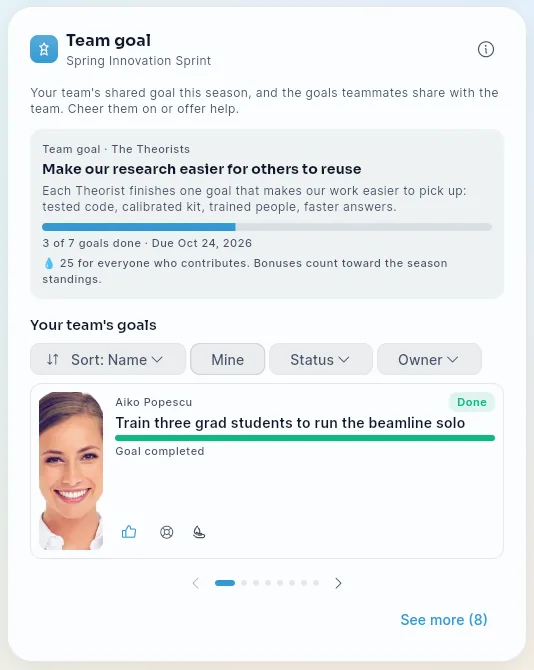
The Team goal card on Team Hub lists your teammates' goals that are shared with My team or Whole company, by name. Nobody is ranked. On a teammate's goal you can:
- Cheer — a quick high-five. They're notified. Tap again to take it back.
- Offer help — opens a chat with them, starting with "Happy to help with …".
- Recognize — opens Recognize with them already picked.
Goals your manager suggests
Your manager can suggest a goal to you, but never assign one. Suggestions appear at the top of My Goals under Suggested for you:
- Accept — the goal is created as yours and goes through approval like any goal. A suggestion without milestones becomes a draft for you to finish.
- Edit first — opens the goal form filled in from the suggestion, so you can make it your own before submitting.
- Decline — closes it. You can add a note for your manager.
Your manager is told what you chose.
When a season ends
If a Performance season ends while you still have unfinished goals from it, a card named after that season (for example Q3 has ended) appears in Dailies. It stays there while the next season runs, until you decide. Tap it to see those goals and choose, goal by goal:
- Carry over — the goal moves into the new season with the milestones you haven't finished. If its target date has passed, it moves to the new season's last day. Milestone due dates stay as they were. Finished milestones and the drops they paid stay with the season that ended, so its results don't change. The goal also stops counting toward the old season's team goal.
- Mark complete — you're done with it. Milestones that weren't approved don't pay drops. If a milestone is still waiting for review, wait for the review first. If the goal counts toward a team goal, the team goal's progress updates right away.
- Let it go — the goal closes, like abandoning it. Drops you already earned are kept.
Nothing happens until you choose, and the card stays until every goal has a decision. If you ignore it, the goal stays with the old season and you can keep working on it.
Between seasons
If one season has ended and the next hasn't started yet, you can keep going: check in, submit milestones and complete goals as usual, and your manager can still approve them. Drops for milestones approved between seasons are still paid to you, but they don't count toward any season's standings.
On the season-ended card, Mark complete and Let it go work any time. Carry over opens once the next season starts.
Comments
Every goal has a Comments section at the bottom of its page. Anyone who can see the goal can comment: encouragement, questions, coaching notes. You're notified of new comments on your goals. You can delete your own comments, and admins can remove any comment.
Abandon a goal
Life happens. From a goal's menu, tap Abandon goal (a goal that's still waiting for approval can be withdrawn instead, see above). Drops already earned are kept, but progress stops and the goal moves to your history. An abandoned goal can't be reactivated, so create a fresh one instead.
What goals don't do
Goals are yours: you write them, and your manager helps you reach them. Give River doesn't run formal performance reviews, one-on-ones or ratings, and managers can suggest goals but can't assign them.
Questions?
Your admin controls whether goals need approval, whether milestones auto-approve, and the maximum drops per milestone. Your admin also chooses which Performance season features are on. Ask them if you're unsure how your organization has set things up.
Did this article help?
Related articles.
See the platform in action.
Free for up to 25 members, or try Core or Growth free for 30 days. A card is required; Free is never charged, and a trial bills when it ends unless you cancel.