Admin Tags / Core Values Management
Tags in Give River are hashtags that members attach to drops to indicate which core value or theme a recognition moment aligns with. Admins create and manage the organization's tag list, and members see these tags when composing drops.
Each tag can carry an emoji and a color so it stands out, and can be marked Featured to spotlight the values that matter most to your team right now.
Accessing Tags
- Navigate to Settings in the admin sidebar.
- Click the Tags tab.
Anyone whose role includes the Tags permission can open it, even without other Settings permissions.
The Tags page displays all existing tags in a grid layout. On wider screens (tablet or web), tags appear in a three-column grid; on mobile, a two-column grid.
Viewing Existing Tags
Each tag appears as a colorful card so its emoji, color, and featured state are all visible at a glance:
- A colored avatar showing the tag's emoji, or the first letter of its name when no emoji is set. The avatar uses the tag's chosen color (or a rotating brand color when none is set).
- The tag name.
- A Featured pill (star icon) when the tag is featured.
- An inline star toggle — tap it to feature or un-feature the tag straight from the list, without opening the editor.
- An Edit button (pencil icon).
If no tags exist yet, the page shows a "No Tags Found" message.
Creating a New Tag
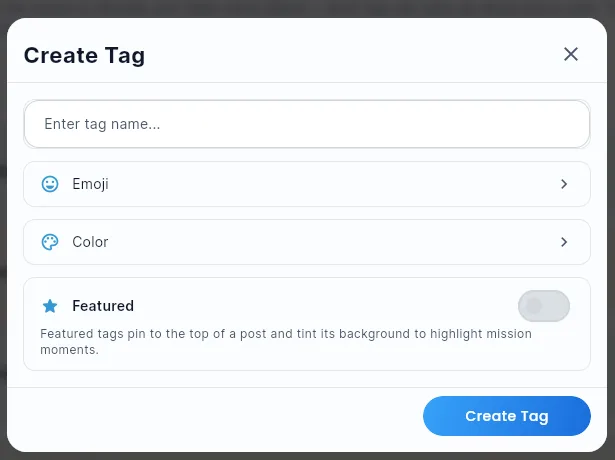
- Click the Create Tag button at the top of the Tags page.
- A dialog opens with fields for the tag's name, emoji, color, and featured state — all on one screen:
- Name — type the tag name. Names must not be empty and must contain at least one letter (cannot be numbers only).
- Emoji (optional) — tap to open the emoji picker and choose a glyph. Tap the ✕ to clear it.
- Color (optional) — tap to open the color picker. The chosen color tints the tag's avatar and chips. Tap the ✕ to clear it.
- Featured (optional) — flip the switch on to feature the tag (see below).
- Click Create Tag in the dialog footer.
- The tag appears immediately in the tags grid.
Editing a Tag
- Locate the tag in the grid.
- Click the Edit (pencil) icon on the tag card.
- The edit dialog opens with the current name, emoji, color, and featured state pre-filled.
- Change any of the fields as needed.
- Click Update Tag to save.
The changes update immediately across the platform, including on existing drops that used the tag.
Featured Tags
Turning Featured on makes a tag a spotlight for a value or theme you want to emphasise. When a tag is featured:
- Any post that uses it is pinned to the top of the feed.
- The post's background is tinted with the tag's color to highlight the moment.
Use featured tags sparingly for the handful of values you're rallying the team around — for example, spotlighting #innovation during an innovation sprint. You can feature or un-feature a tag at any time, either from the edit dialog or the inline star toggle on the tag card.
Deleting a Tag
- Click the Edit icon on the tag card you want to remove.
- In the edit dialog, click the Delete button (shown in red with a border).
- Confirm the deletion in the confirmation prompt.
- The tag is removed from the list.
Deleted tags no longer appear as options for new drops. Existing drops that used the deleted tag retain the tag text in their historical record.
Validation Rules
| Rule | Behavior |
|---|---|
| Empty name | Shows an "Invalid Input" error; tag is not saved |
| Numbers only | Shows an "Invalid Input" error; tag must contain letters |
| No letters at all | Shows an "Invalid Input" error |
| Valid name | Tag is created or updated successfully |
Best Practices
- Use tags to reflect your core values — for example:
#integrity,#collaboration,#innovation,#customer-focus. - Keep tag names short and memorable — members type or select these when posting drops.
- Add an emoji and color — a quick visual cue makes tags easier to spot in the composer and feed filter.
- Feature only a few tags at a time — featuring pins tagged posts to the top of the feed, so reserve it for the values you're actively spotlighting.
- Audit tags periodically — remove outdated tags and add new ones as your organization's values evolve.
- Avoid duplicates — check the existing grid before creating a new tag to prevent near-duplicates like
#teamworkand#team-work.
Unsaved-Changes Guard
If you start adding or editing a tag and try to close the dialog with unsaved edits, a confirmation prompt appears so you don't lose the in-progress change. The same guard applies to other Settings dialogs (Streak, Recognition, River Bank, Team Details).
How Members Use Tags
When a member composes a drop (recognition post), they can add one or more tags from the team's tag list — shown as colored chips (with their emoji) in the composer. Tagged drops appear in the team feed with the tag highlighted, and members can filter the feed by tag. Posts tagged with a featured tag are pinned to the top of the feed and tinted with that tag's color. Admins can see tag usage analytics in the Engagement tab of the Insights hub (Top Tags section).
Did this article help?
Related articles.
See the platform in action.
Free for up to 25 members, or try Core or Growth free for 30 days. A card is required; Free is never charged, and a trial bills when it ends unless you cancel.