Survey Summary
The Survey summary is a short, plain-language read of your survey results at the top of Insights → Surveys and Polls. It looks at your survey totals and says what they suggest, so you can understand the numbers at a glance. This article also covers each survey's results page.
Accessing Survey Analytics
- In Admin view, go to Insights → Surveys and Polls.
- The surveys list shows all sent surveys. Click any survey to open its detail analytics page.
Survey Analytics Detail Page
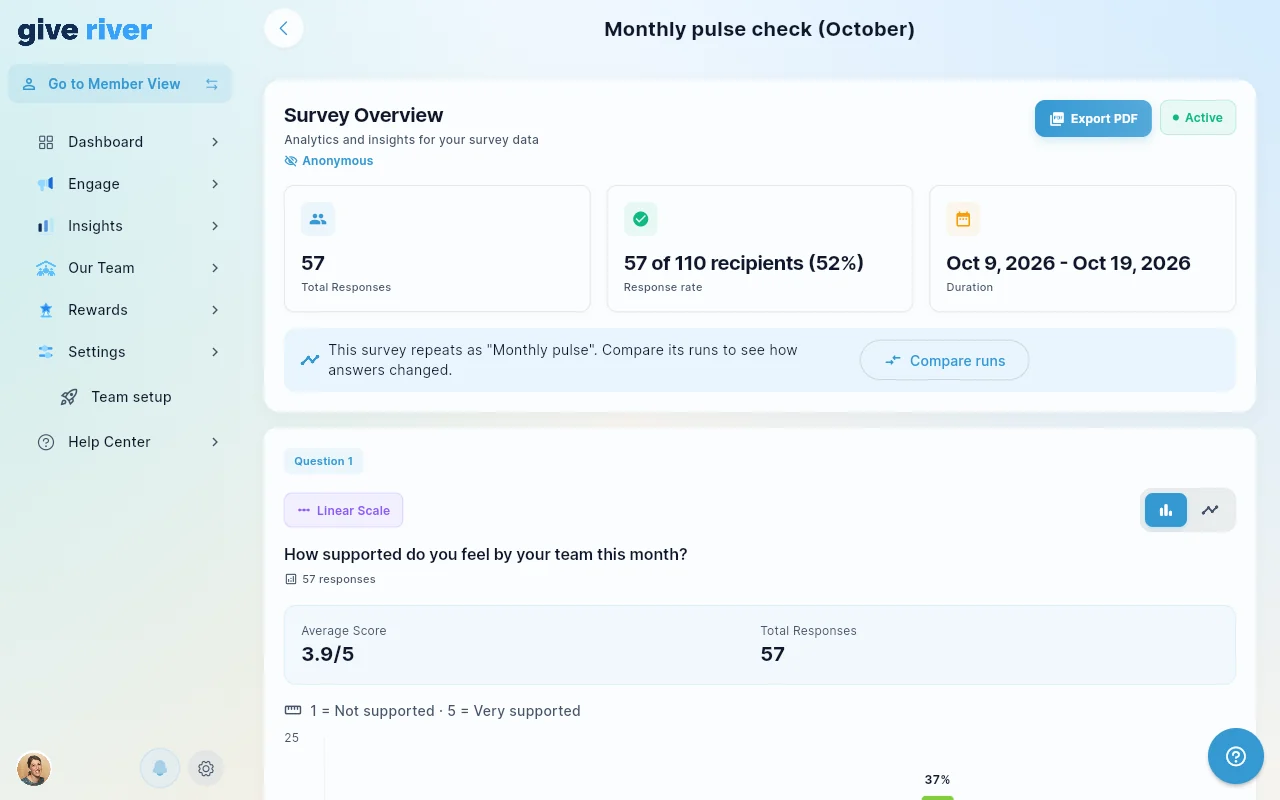
The detail page opens with:
- Survey Overview header — shows the survey title, status badge (Active, Closed, etc.), date range (start and end dates), and an Export PDF button.
- Per-question analytics — one section per survey question, scrollable below the overview.
The Summary Card
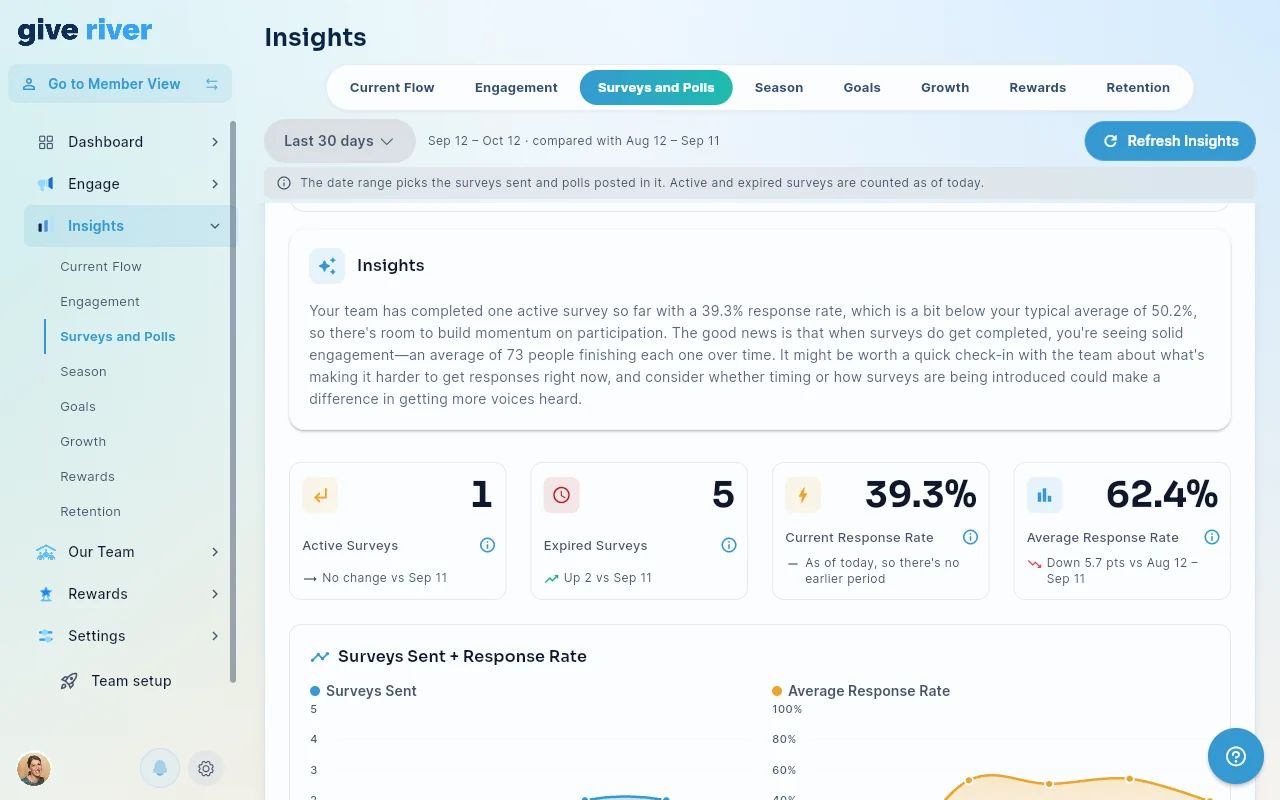
The Insights summary card appears automatically at the top of Insights → Surveys and Polls once your team has sent surveys. It contains:
- The title Insights summary.
- A short summary of the survey results in plain words.
- Observations about participation and response rates, and what they suggest.
The card is generated from your survey totals: active and expired surveys and response rates. If your team hasn't sent a survey yet, the card does not appear.
Per-Question Analytics
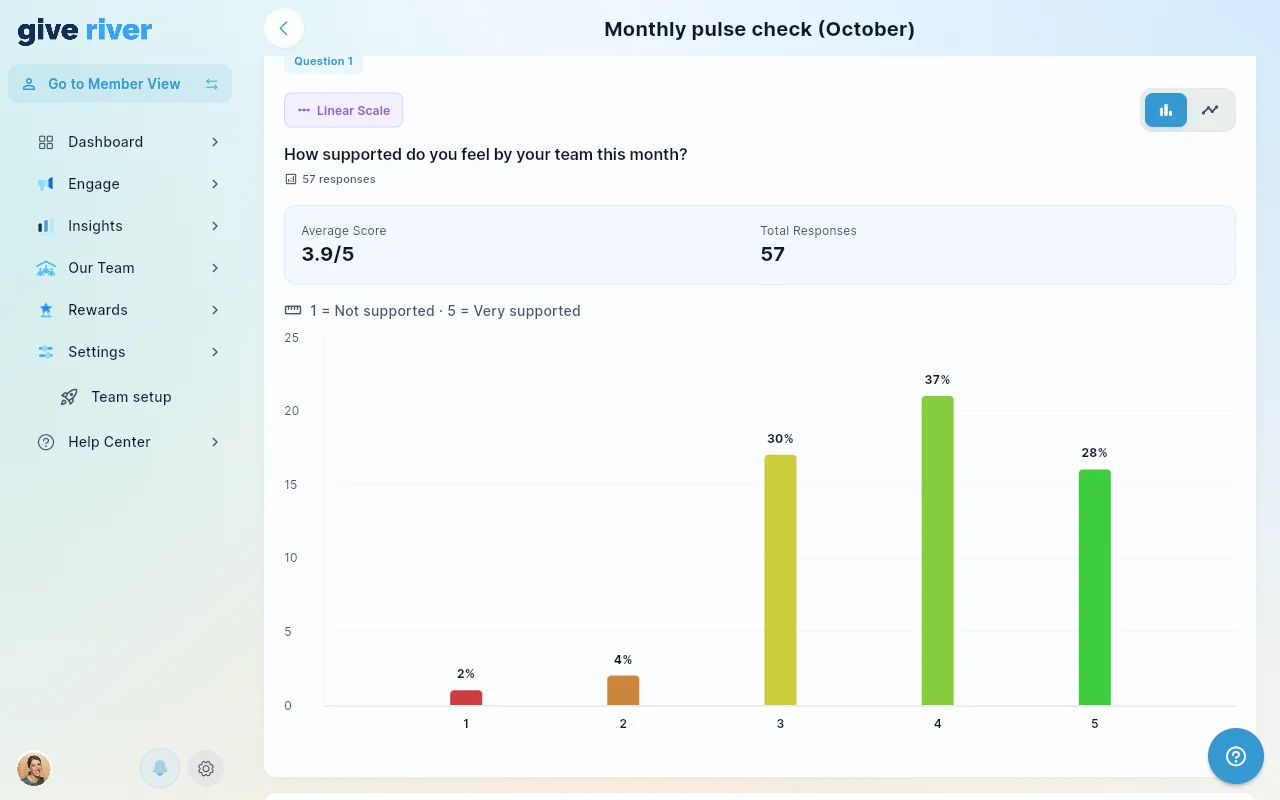
Each question is displayed in its own section with:
| Question Type | Visualization |
|---|---|
| Multiple choice / Single select | Bar chart or pie chart (togglable) |
| Rating scale | Bar chart showing distribution of ratings |
| Open-ended / Fill in the blank | Text responses listed individually |
Toggling Chart Types
For choice-based questions, use the chart toggle button on each question section to switch between bar chart and an alternative chart view.
Export to PDF
Click the Export PDF button in the survey header to download a formatted PDF report of the entire analytics page, including:
- Survey overview stats (total responses, date range, status)
- All question analytics with charts
- Open-ended responses
The PDF downloads to your device automatically. On web browsers, it triggers a file download. On mobile, it saves to your device's document storage.
Response Metrics
The survey overview section shows:
| Metric | Description |
|---|---|
| Total Responses | Number of members who submitted the survey |
| Start Date | When the survey was opened |
| End Date | When the survey closed or is scheduled to close |
| Status | Current state: Active, Closed, Draft, etc. |
Comparing Surveys Over Time
If your team has run the same survey multiple times (a recurring series), you can compare results across instances using the comparison view; see Survey Series Comparison.
How accurate are summaries?
The summary is written automatically from the response data when you open the page, and it can occasionally be wrong, so check the numbers before you act on them. If new responses come in after you open the page, click Refresh Insights on the Insights screen, then reopen the Surveys and Polls tab for an updated summary.
Did this article help?
Related articles.
See the platform in action.
Free for up to 25 members, or try Core or Growth free for 30 days. A card is required; Free is never charged, and a trial bills when it ends unless you cancel.