Custom Awards (Give Award and Give Drops)
Custom Awards are one-off recognitions an admin defines and hands out manually — separate from automatic season rewards and from Badges (which are earned automatically). You manage them under Rewards → Awards.
Where to find Awards
In Admin view, open Rewards, then the Awards sub-section. The page has three parts:
- A table of your award definitions (each award's status, type, title, message, and drop reward).
- Section actions at the top-right: Give Award, Give Drops, and Create Custom Award.
- A Recently Given Awards list beneath the table.
Creating an award definition
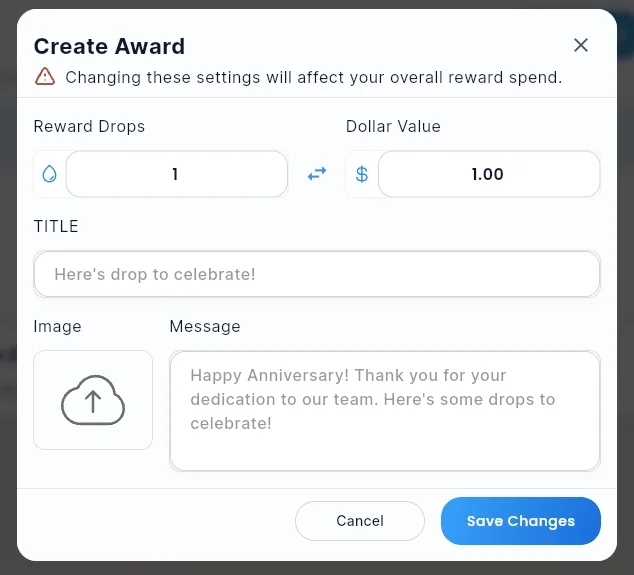
Click Create Custom Award to open the create dialog. Give the award a title, an optional message and image, and a drop reward, then save. Each row in the table can be edited, enabled/disabled (only enabled awards can be given), and sent to members via the row's send icon.
Give Award
The Give Award button hands an existing award to one or more members:
- Click Give Award. A picker lists your enabled awards.
- Choose the award. (If nothing is listed, create or enable an award first.)
- Select the recipients, preview, and send. Recipients receive the award's drop reward, and — if you choose — a post is shared to the feed.
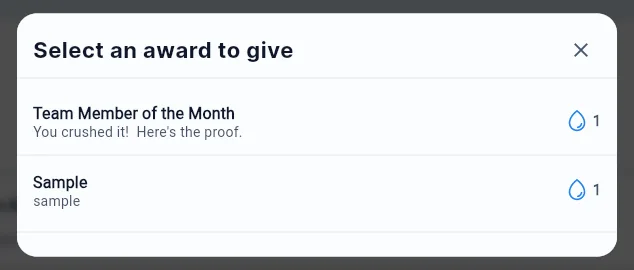
This is the same send flow available from each award row; the button just lets you start from "which award?" instead of scrolling to a specific row.
Give Drops
The Give Drops button grants a member a one-time supplemental drop allocation outside the normal season cycle:
- Click Give Drops and search for the member.
- Choose the member, enter the number of drops, and confirm.
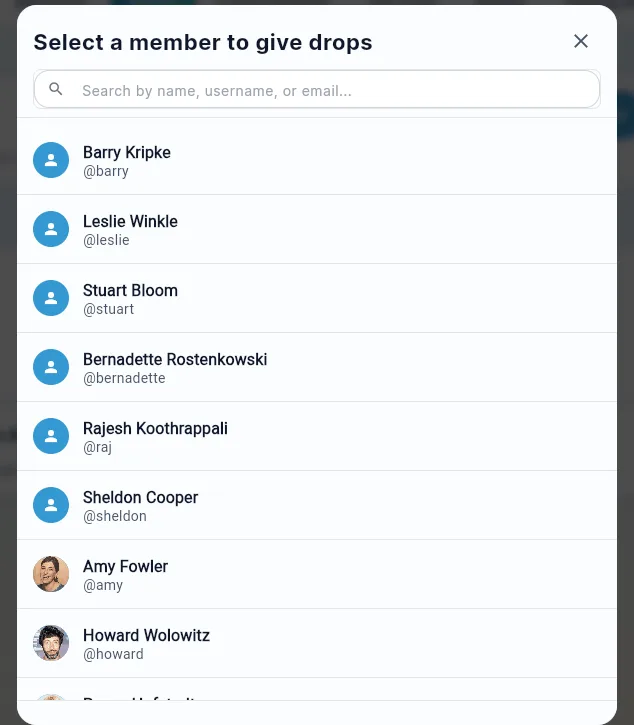
(The same one-time allocation is also available from a member's row menu under Our Team; see Admin Members Management → Additional Drops.)
Recently Given Awards
Below the definitions table, the Recently Given Awards list shows the awards most recently handed out across your team — newest first — with the recipient's photo and name, the award, the drops granted, and the date. It's a quick way to confirm a send went through or to review recent recognition activity. The list shows your most recent awards; use the members' individual drop history for a full audit.
Awards vs. Badges vs. Season rewards
- Awards (this article) — defined once, given manually by an admin.
- Badges — earned automatically when a member hits a trigger target; managed under Rewards → Badges.
- Season rewards — placement payouts configured per season under Engage → Seasons.
Did this article help?
Related articles.
See the platform in action.
Free for up to 25 members, or try Core or Growth free for 30 days. A card is required; Free is never charged, and a trial bills when it ends unless you cancel.