River Runs Progress and Stats
Give River shows how you're doing in River Runs in two places: the stats strip at the top of River Runs, and the playlist inside each run.
1 min readUpdated June 20, 2026
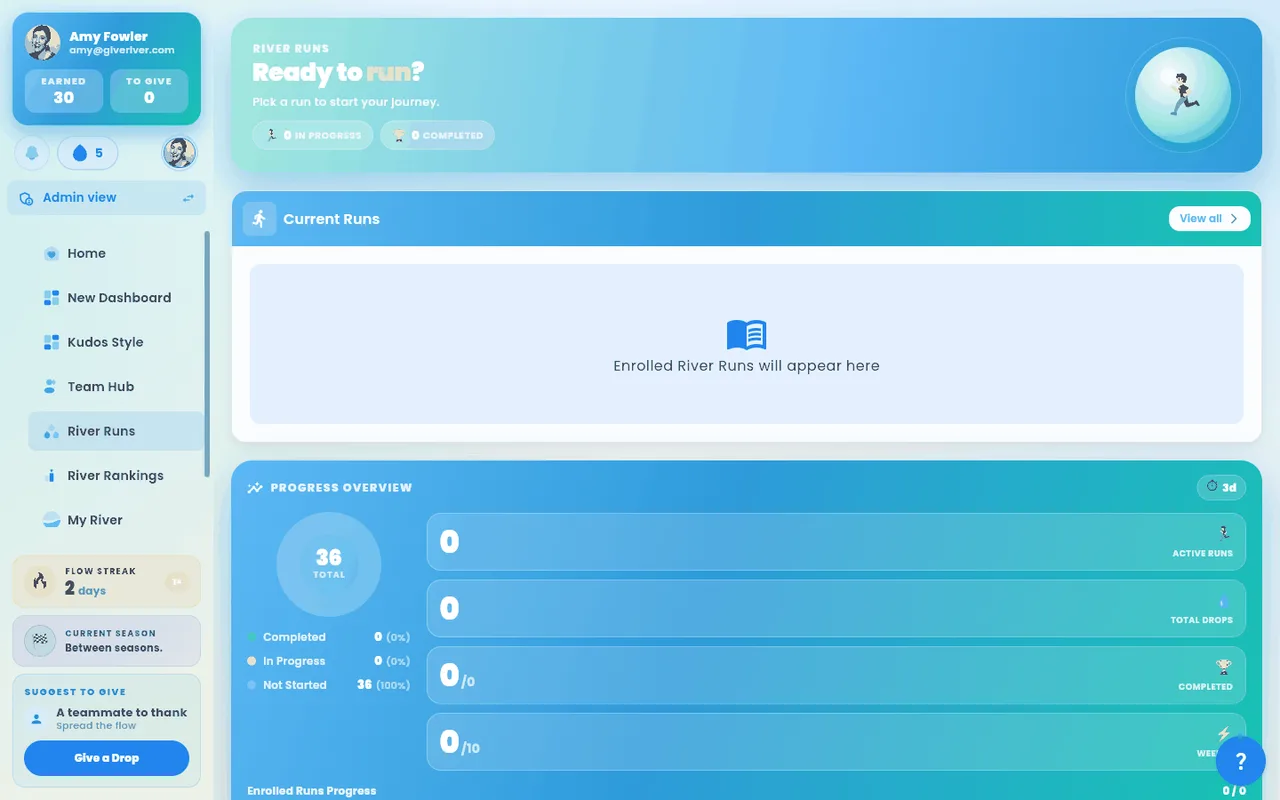
The stats strip
At the top of River Runs (under the banner) four cards show:
| Card | What it shows |
|---|---|
| River Runs streak | How many days in a row you've spent time in River Runs, and how long until it resets |
| Runs completed | How many River Runs you've finished |
| Drops earned | Drops you've earned from River Runs, and how many you can still earn this period |
| Minutes of streams left | Roughly how much Stream time is left across the runs you're in |
Inside a run
Open a run you've joined to see its Playlist: your overall progress, the drops left to earn and each Stream's status.
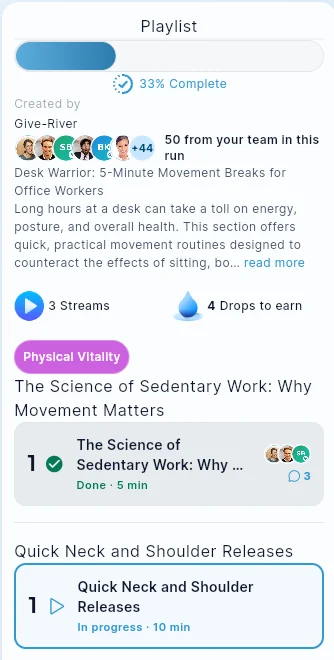
| Status | What it means |
|---|---|
| Not started | You haven't opened this Stream yet |
| In progress | You've started it but haven't finished |
| Done | You've finished it |
| Passed | You finished this quiz at or above its pass mark |
| Locked / Unlocks in … | Not open yet; finish the previous Stream (or wait for its release time) |
Your runs at a glance
On the River Runs page, Current Runs lists the runs you're in with a progress bar on each, and Completed Runs lists the ones you've finished. Tap any run to see its Streams.
For the full details, see River Run Progress Tracking and River Run Streaks.
Did this article help?
Keep reading
Related articles.
River RunsRequired TrainingYour admin can make some River Runs required for you. These are often onboarding, safety or compliance runs, sometimes with a due date.River RunsRiver Run Library and CategoriesThe River Runs home screen is your central hub for discovering and managing learning content. It organizes content into sections so you can quickly find what you need.River RunsRiver Run Progress TrackingGive River tracks your learning progress at two levels: the individual Stream level (did you complete this lesson?) and the overall River Run level (what percentage of the run have you finished?). Progress is displayed throughout the app so you always know where you stand.River RunsRiver Run Quizzes: Rewards and ResultsA quiz is a Stream inside a River Run that asks a few questions. Quizzes can pay Drops for finishing, set a pass mark with a bonus for reaching it, and give admins a clear view of how the team answered — or keep answers anonymous.
See the platform in action.
Free for up to 25 members, or try Core or Growth free for 30 days. A card is required; Free is never charged, and a trial bills when it ends unless you cancel.